Key Takeaways
WhatsApp QR Code supports customers to start conversations instantly by scanning a code, removing the need to search for phone numbers or manually save contacts.
Businesses can easily create WhatsApp QR Codes through the WhatsApp or WhatsApp Business app and share across offline and online touchpoints, letting customers move from discovering a brand to starting a conversation with minimal effort.
WhatsApp: click Settings → tap QR code icon next to profile picture → find it in MY CODE
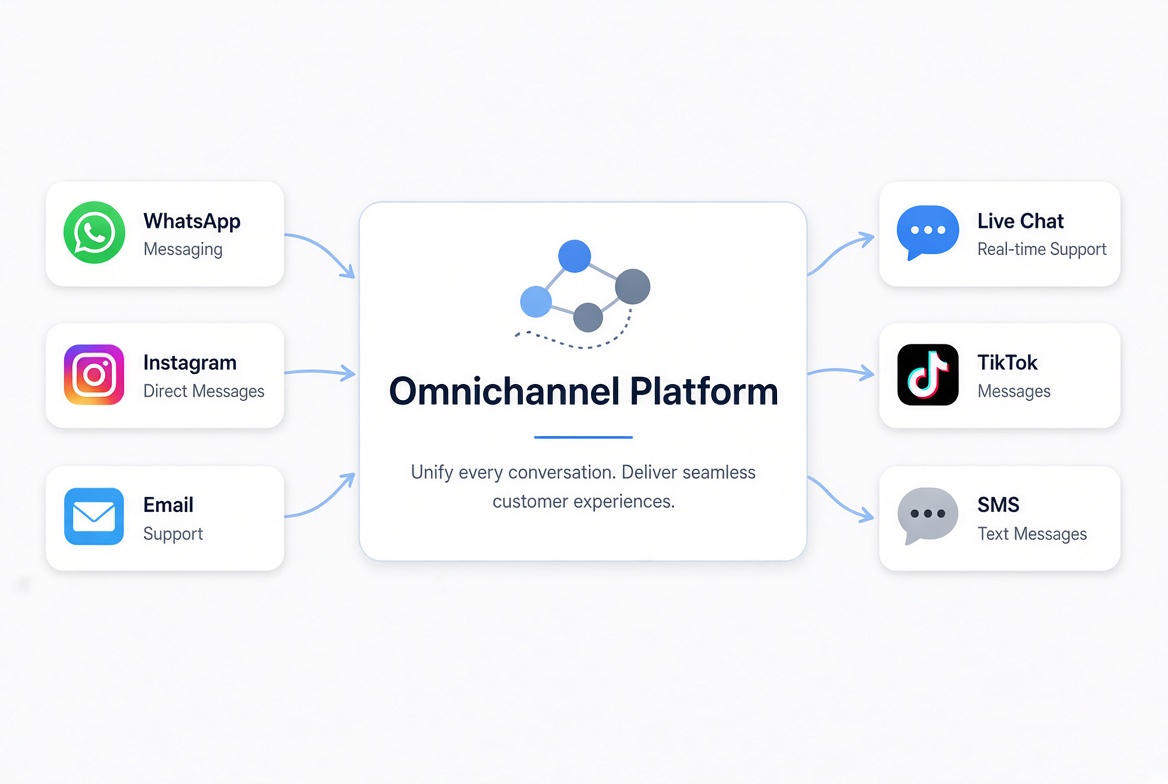
WhatsApp Business App: go to Tools tab → click the more icon and find Short link → View QR code → share your codeAs conversation volume grows, businesses can use conversational cx platforms to manage customer interactions in an unified inbox with CRM integration to improve response efficiency and drive conversions.
What is WhatsApp QR Code and How does it Work?
A WhatsApp QR Code is a scannable code that allows users to start a WhatsApp conversation with a business account without manually saving a phone number. When customers scan the QR Code using their phone camera or WhatsApp's built-in scanner, they are directly redirected to a WhatsApp chat with the business. The QR Code can be linked to:
A personal WhatsApp account
A WhatsApp Business account
A specific WhatsApp chat
A pre-filled message that helps customers start a conversation faster
For example, a business can create a QR Code that opens a chat with a message like: "Hi, I'd like to know more about your products." This reduces the steps customers need to take before contacting a business.
WhatsApp QR Code vs Other Customer Contact Methods
Why Does WhatsApp QR Code Matter for Businesses?
WhatsApp QR code is more than just a convenient way to share contact information. For businesses, it provides a direct bridge between customer interest and real conversations, helping brands improve accessibility, engagement, and customer service efficiency.
Fewer steps for customers, more leads for you.
Every additional step a customer needs to take before contacting a business can reduce the chance of starting a conversation. Traditional methods, such as searching for a phone number or filling out a contact form, often require extra effort.
With a WhatsApp QR Code, customers can simply scan the code and immediately open a chat with the business. This makes it easier for potential customers to ask questions, request information, or get support without complicated steps.Connect offline and online customer journeys
WhatsApp QR Codes help businesses turn offline interactions into digital conversations. Businesses can place QR Codes on various touchpoints, including product packaging, store displays, business cards, flyers, posters, event materials etc. Customers who discover a brand offline can instantly continue the conversation online, creating a smoother journey from awareness to engagement.Make engagement and customer support more convenient
Compared with one-way communication channels, WhatsApp enables businesses to have real-time conversations with customers. Through a WhatsApp QR Code, businesses can encourage customers to ask product-related questions, request quotes, learn about promotions, get personalized recommendations, receive customer support and so on. This direct communication helps businesses better understand customer needs and provide more personalized experiences.Support business growth at scale
As businesses grow, managing increasing customer conversations can become challenging. WhatsApp QR code may bring more inquiries, but businesses also need efficient ways to organize and respond to these messages. By combining WhatsApp QR codes with a smart conversational management tool, businesses can autorespond repetitive questions, improve response speed, and reduce workload to handle large-volume conversations while maintaining a consistent customer experience.
How to Create a WhatsApp QR Code?
Businesses can create WhatsApp QR Codes directly through WhatsApp or WhatsApp Business. The process is quite simple and Once created, the QR Code can be shared across online and offline channels to help customers start conversations instantly.
Generate a QR code on WhatsApp
Step 1: Open the WhatsApp app.
Step 2: Tap Settings.
Step 3: Tap the QR Code icon next to your profile name.
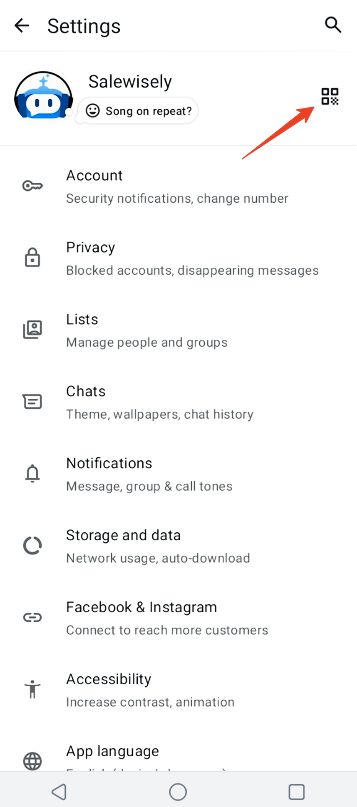
Step 4: Select MY CODE to view your WhatsApp QR Code.
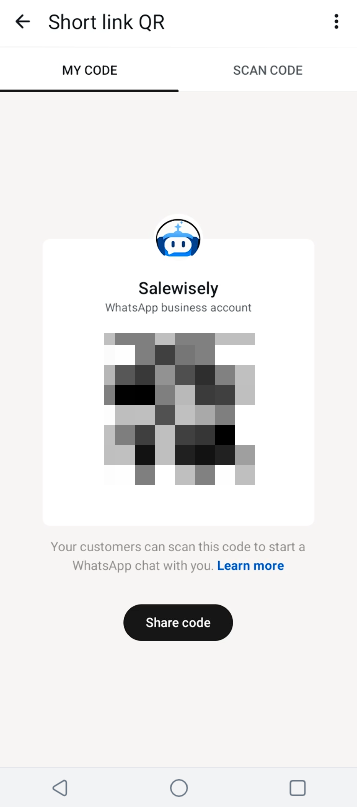
Share your business QR code via WhatsApp Business App
Step 1: Launch WhatsApp Business App and navigate to Tools tab
Step 2: Tap the more (⋮) icon and click Short link
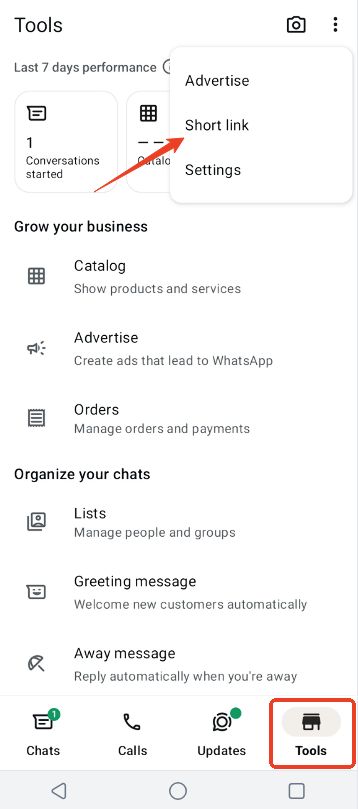
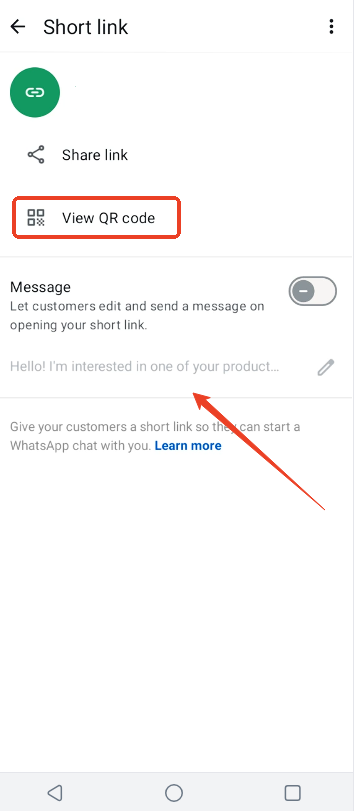
Step 3: Find your code after tapping View QR code and share it.
And you can edit the default message so that your customers are given the option of sending your business a default message to start a conversation after scanning the code. (Default messages have a 140-character limit and customers can edit a default message before sending it to you.)
Best Practices to Power Up Communication and Conversion with WhatsApp QR code
Creating a WhatsApp QR Code is only the start point. To maximize its value, businesses need to optimize how customers interact with the QR Code and use the right tools to manage in-chat marketing after customers reach out.
Make your WhatsApp QR code easier to use
A well-designed QR code can encourage more customers to start conversations. Businesses can optimize the QR code by:
1. Create pre-filled messages to support customers quickly edit and send a message after scanning the code.
For example:
“Hi, I'd like to learn more about your products.”
“I need help with my order.”
“Can I get a price quote?”
Pre-filled messages reduce the effort required from customers and help businesses understand the purpose of each inquiry faster.
2. Share QR codes across multiple channels
Businesses can use WhatsApp QR codes in both online and offline touchpoints, such as:
Websites and landing pages
Social media profiles
Online advertisements
Email campaigns
Product packaging
Business cards
Store displays
For offline promotion, businesses can also download WhatsApp QR Code sticker templates to frame the code, print it out and place QR Codes in visible locations to attract more customers.
Manage customer conversations efficiently as your business grows
WhatsApp QR code can drive more customer conversations. However, managing increasing message volumes manually can become challenging, especially when multiple customers contact a business at the same time. Customer conversation management software can help businesses handle conversations more efficiently through:
Multi-agent unified inbox: Instead of switching between different chats, teams can manage customer conversations from a shared inbox. This allows businesses to organize messages from different channels, assign conversations to different team members to improve response speed and maintain consistent customer service
AI-powered smart workflow handles repetitive and common customer inquiries (e.g. product information requests, FAQs, basic troubleshooting). By automating routine conversations, customer service teams can focus on more complex customer needs.
CRM integration helps businesses organize customer information and track conversations throughout the customer journey. With customer data and conversation history, businesses can better understand customer needs, follow up with potential leads and personalize future interactions to improve conversion opportunities.
By combining an optimized WhatsApp QR Code strategy with effective conversation management tools, businesses can turn more scans into meaningful customer interactions and create a smoother path from first contact to conversion.
FAQs
How do I get my WhatsApp QR code?
You can find your WhatsApp QR Code in the WhatsApp app by going to Settings and tapping the QR Code icon next to your profile name. For WhatsApp Business, go to Tools > Short Link > View QR Code to generate and share your business QR Code.
Where can I use a WhatsApp QR Code for my business?
Businesses can share WhatsApp QR Codes on websites, social media, advertisements, product packaging, business cards, store displays, menus, and other online or offline channels.
How long does it take for a WhatsApp QR code to expire?
A WhatsApp QR Code does not expire and can be used continuously unless you reset or change it.
How to scan a QR Code in WhatsApp?
Open WhatsApp, go settings and click the QR code icon next to the profile name. Then switch to the Scan Code mode to scan the QR code.