1. Function Introduction
This article will explain how to obtain the API of the Coze robot. After obtaining it, you can fill in the installation in [App Store - Coze].
2. Operation Process
2.1 Enter the Coze Homepage
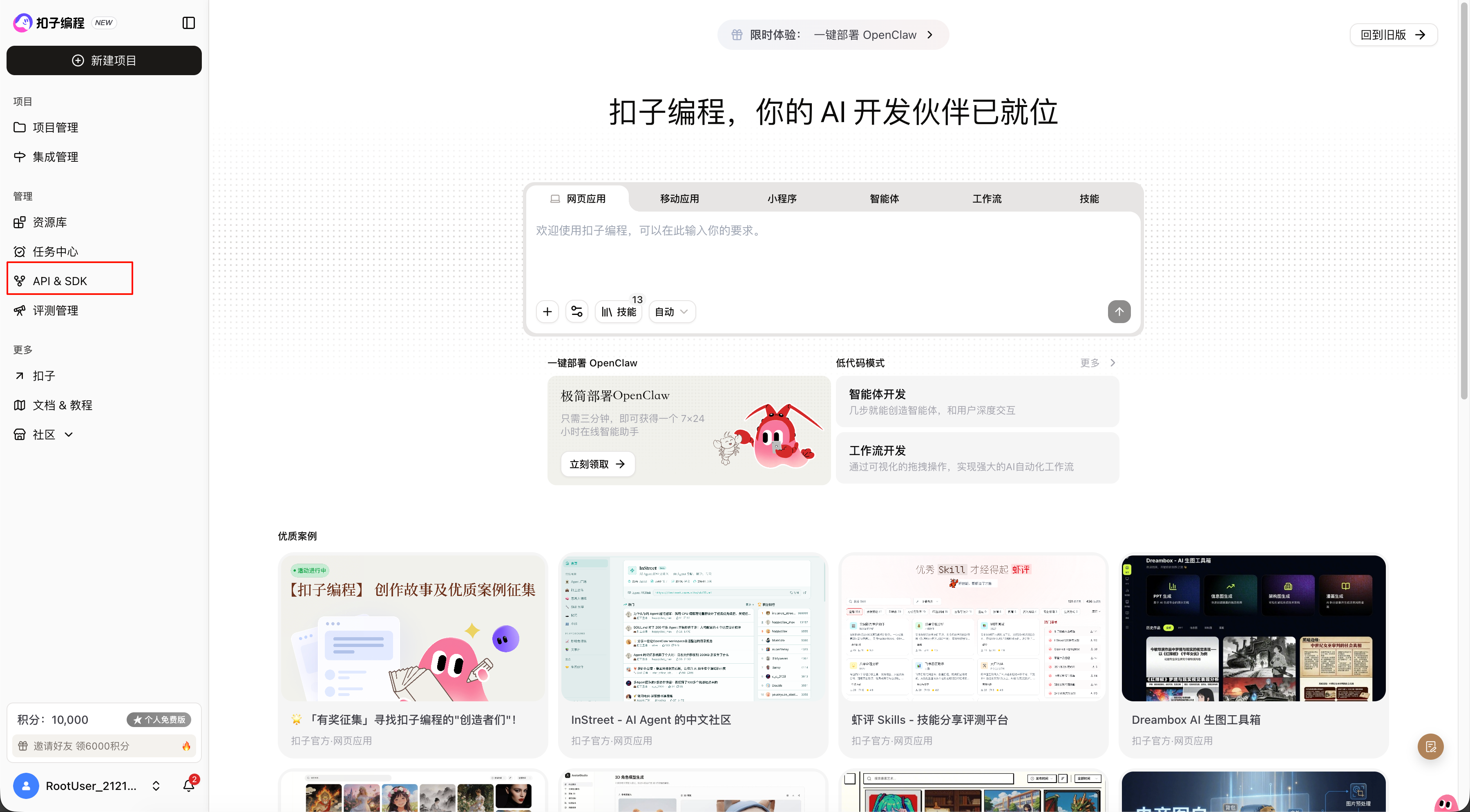
Click to log in to the Coze platform. After successful login, open the Coze homepage and find the [API] entrance in the lower left corner.
2.2 Create a New App
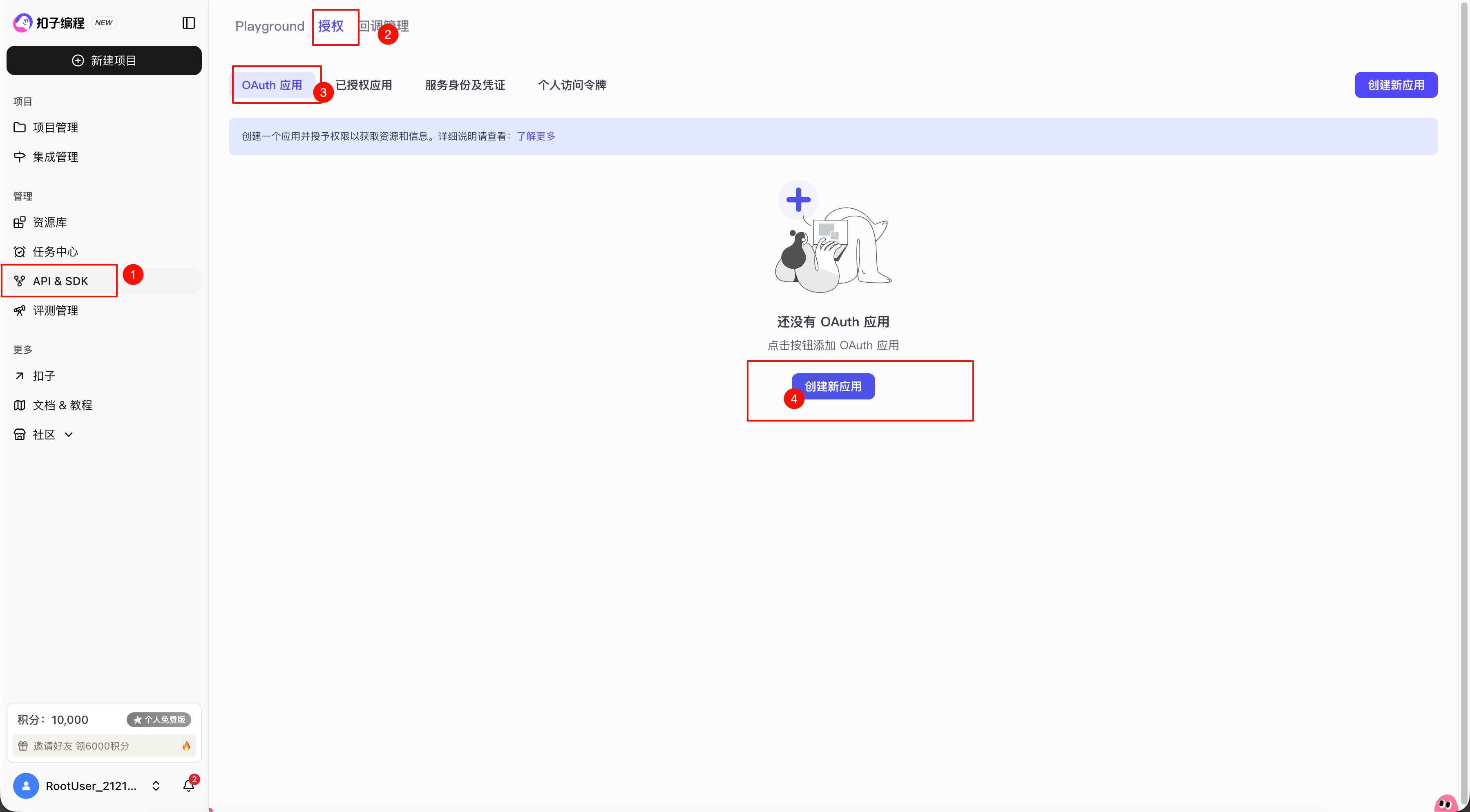
Find [Authorization] → [OAuth Application] → [Create a new application] and fill in the information:
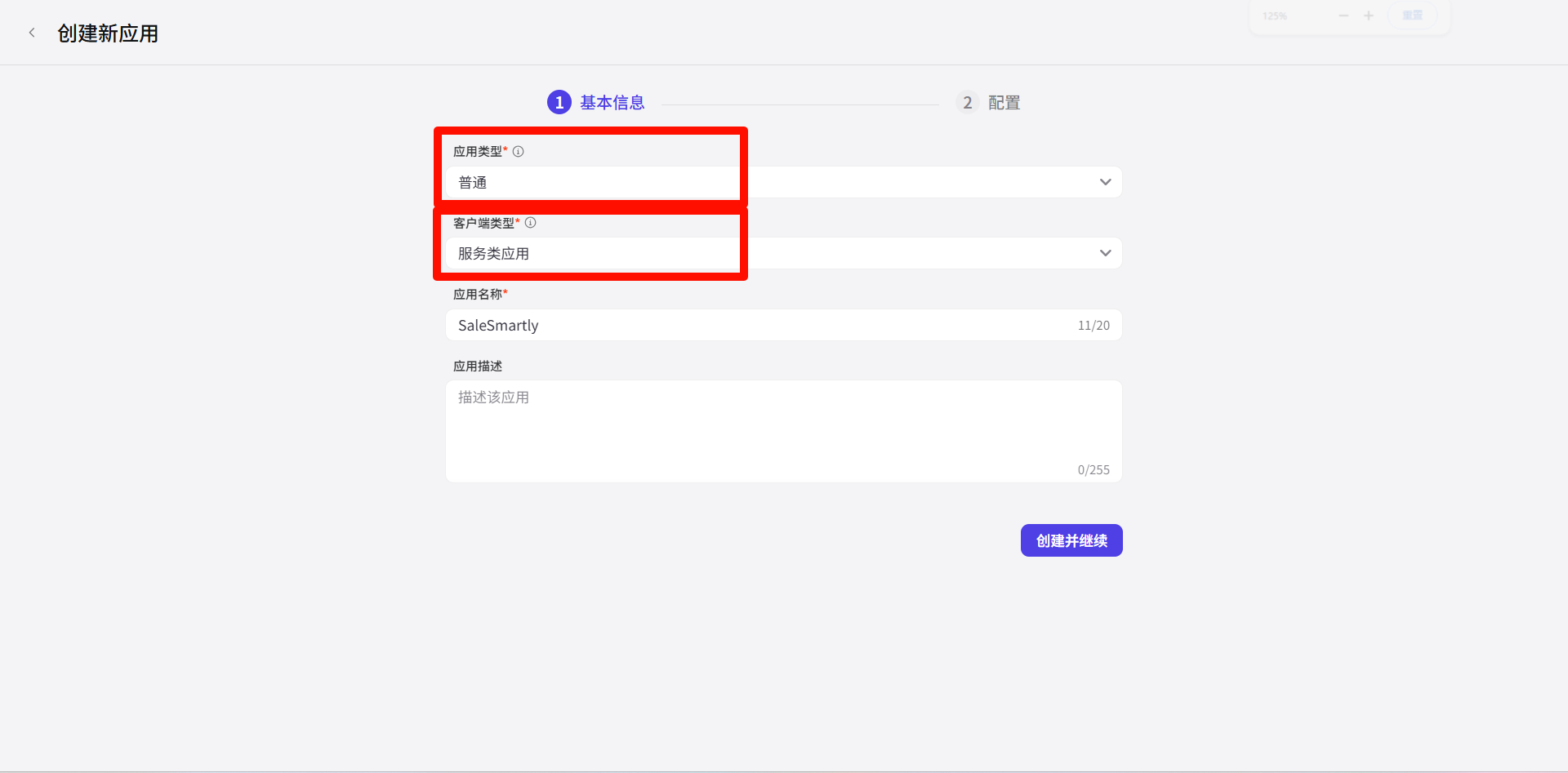
- Application Type: Select [Ordinary]
- Client Type: Select [Service Application]
- Application name can be filled in as needed, but cannot be repeated with other applications
2.3 Get Public Keys and pem File
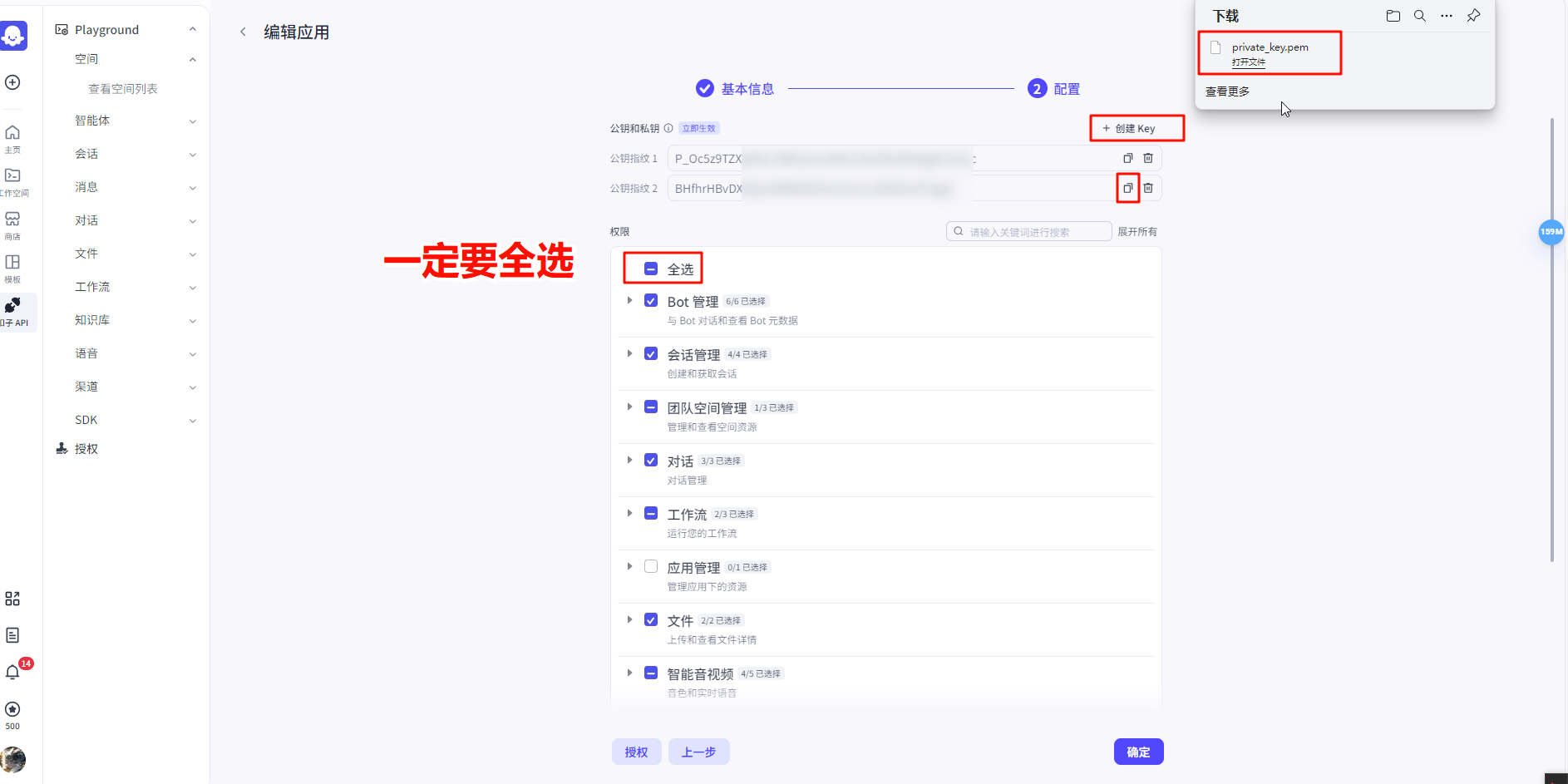
Click [Create Key], the system will automatically generate the public key (Public Keys) and download the pem file.
2.4 Get Client ID
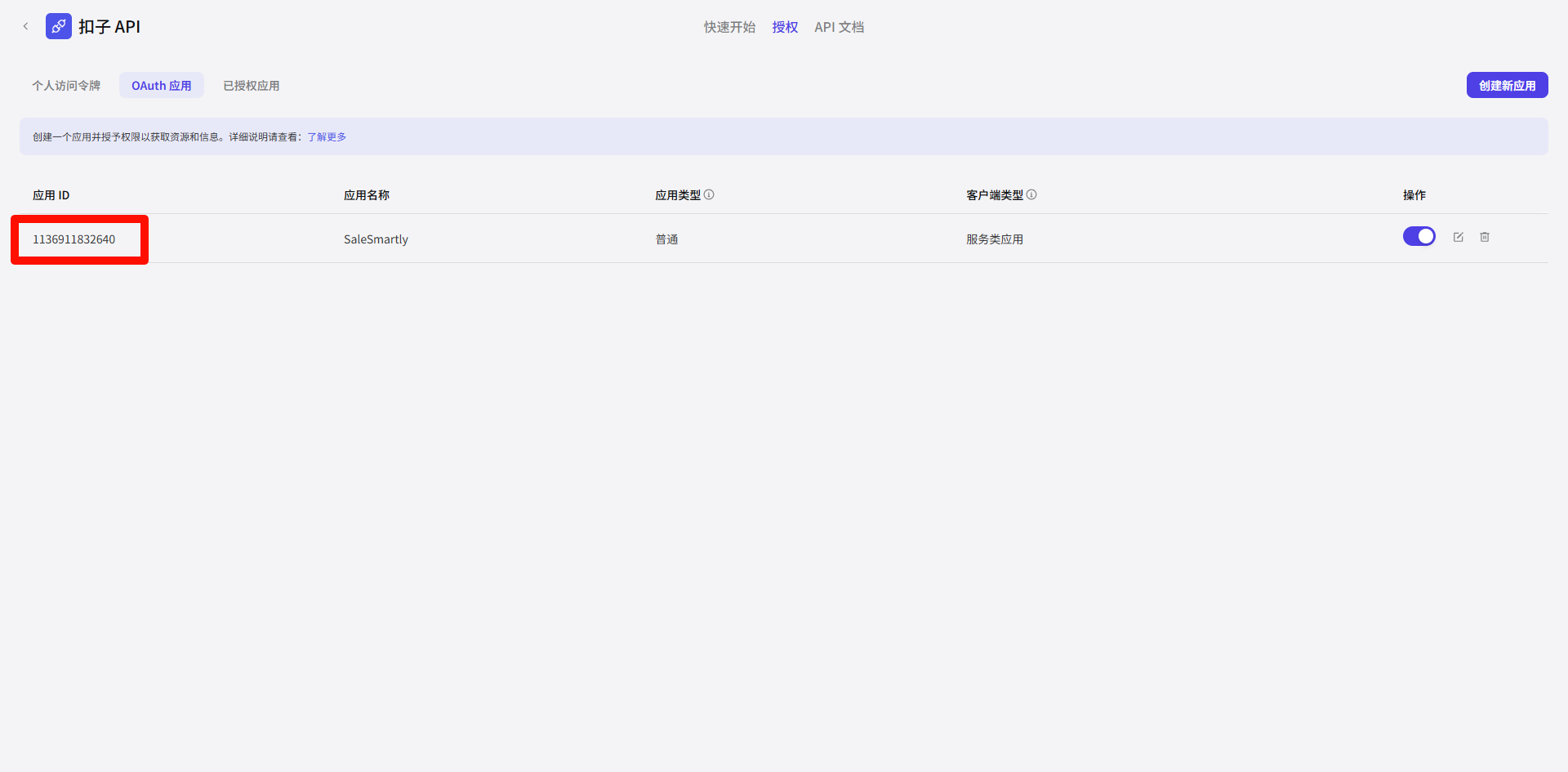
After successful creation, it will automatically jump back to the [Authorization] page, where the Application ID is the Client ID you need.
2.5 Create a Robot and Publish to API
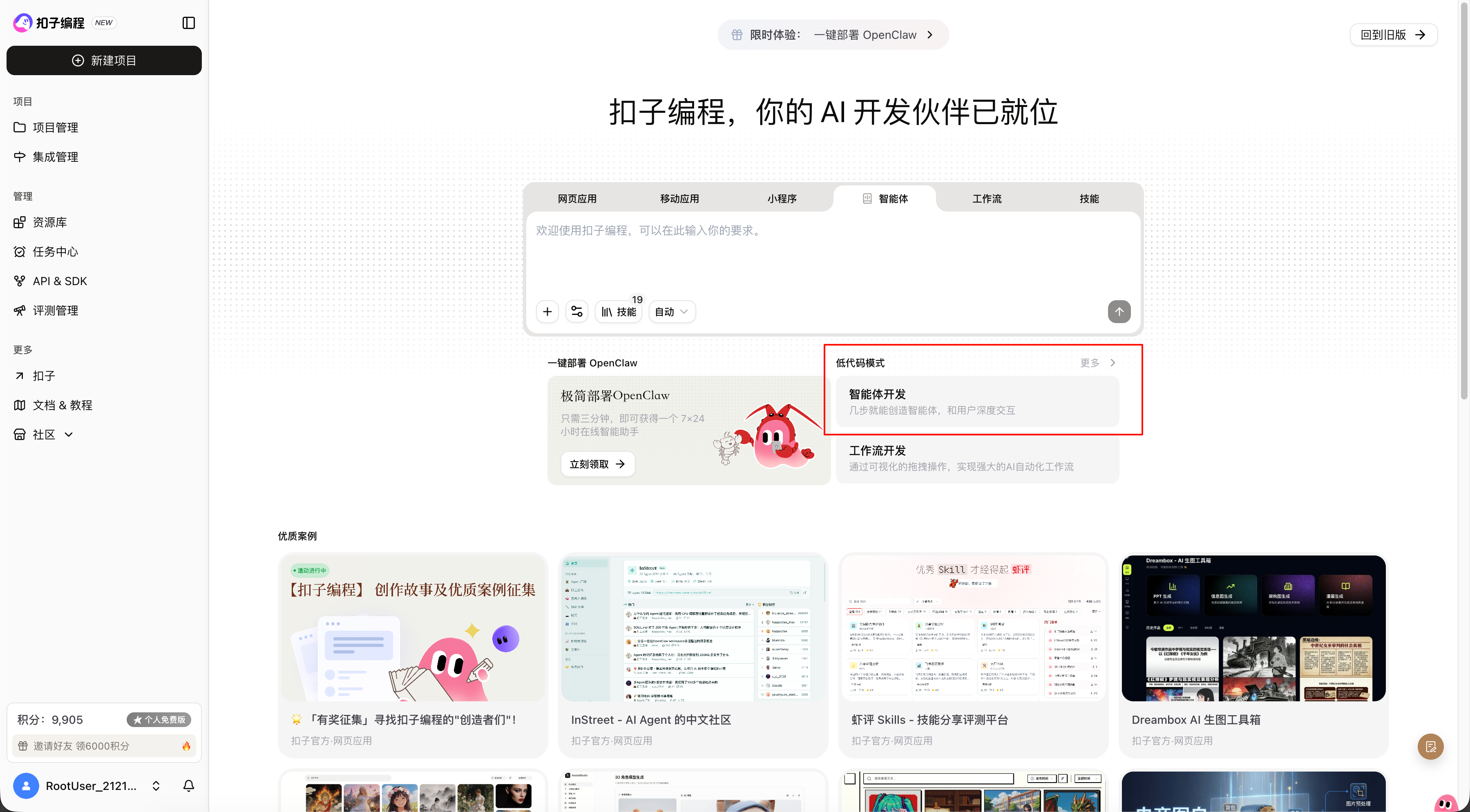
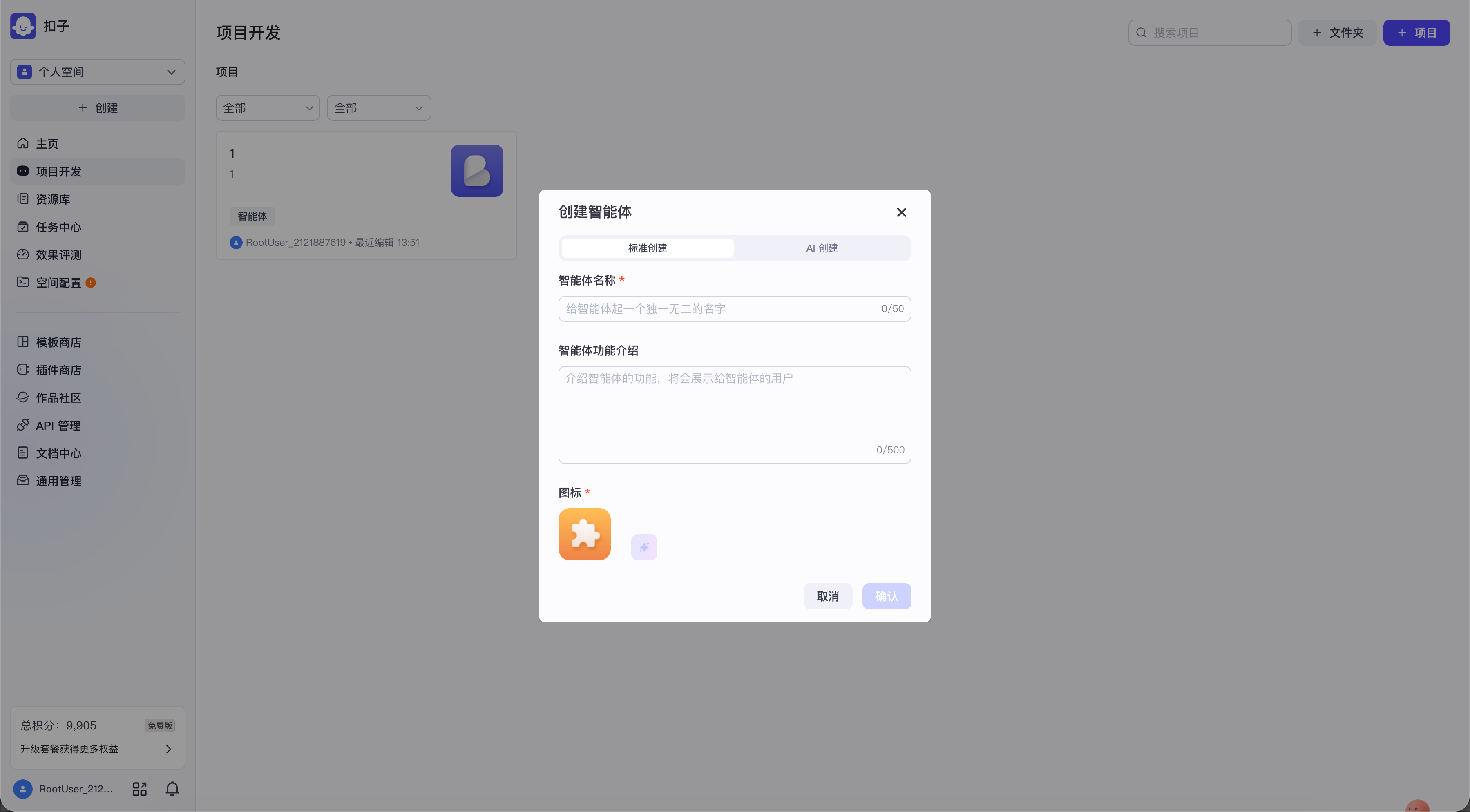
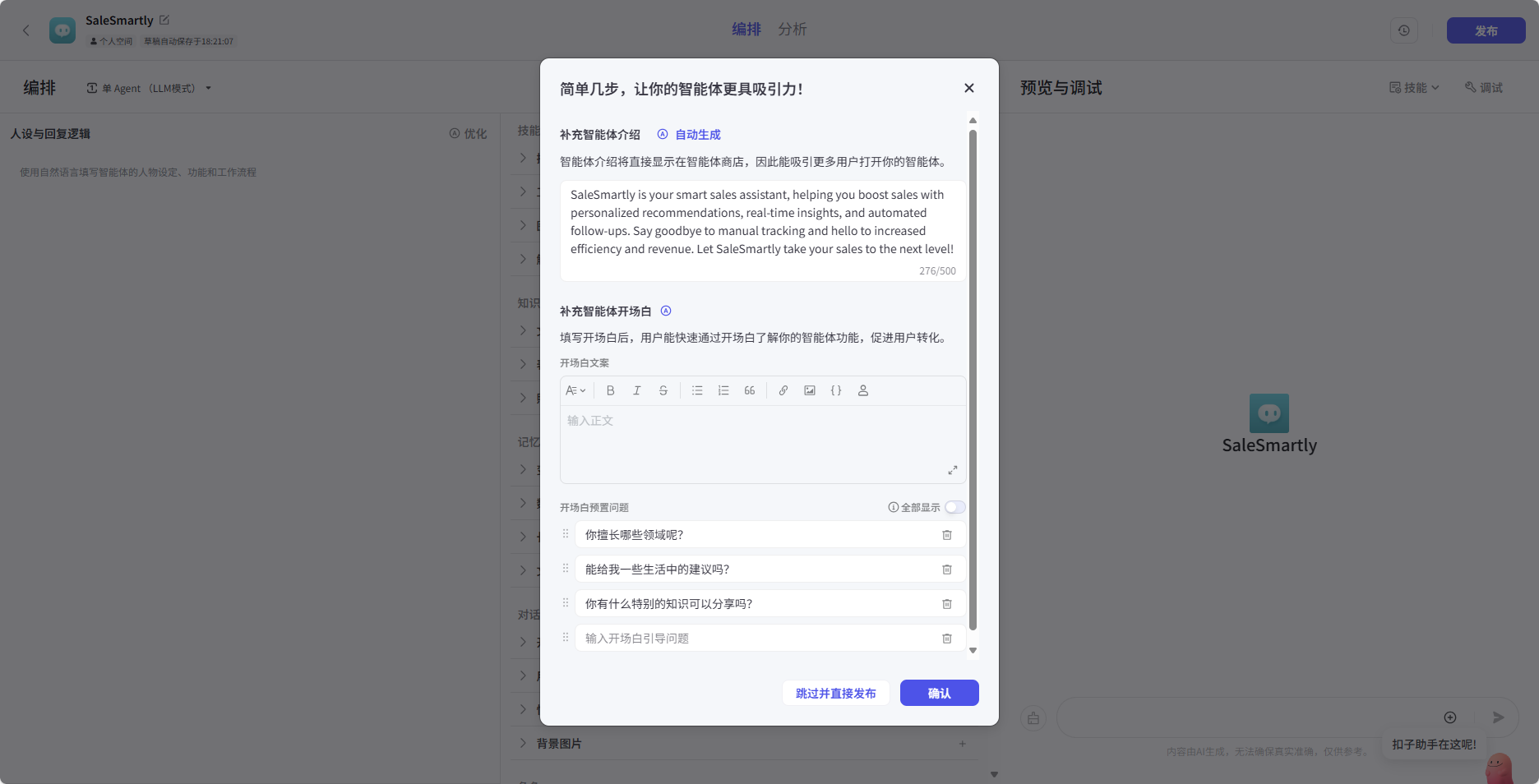
Go back to the Coze homepage, find [Workspace], create a new Agent and fill in the relevant information.
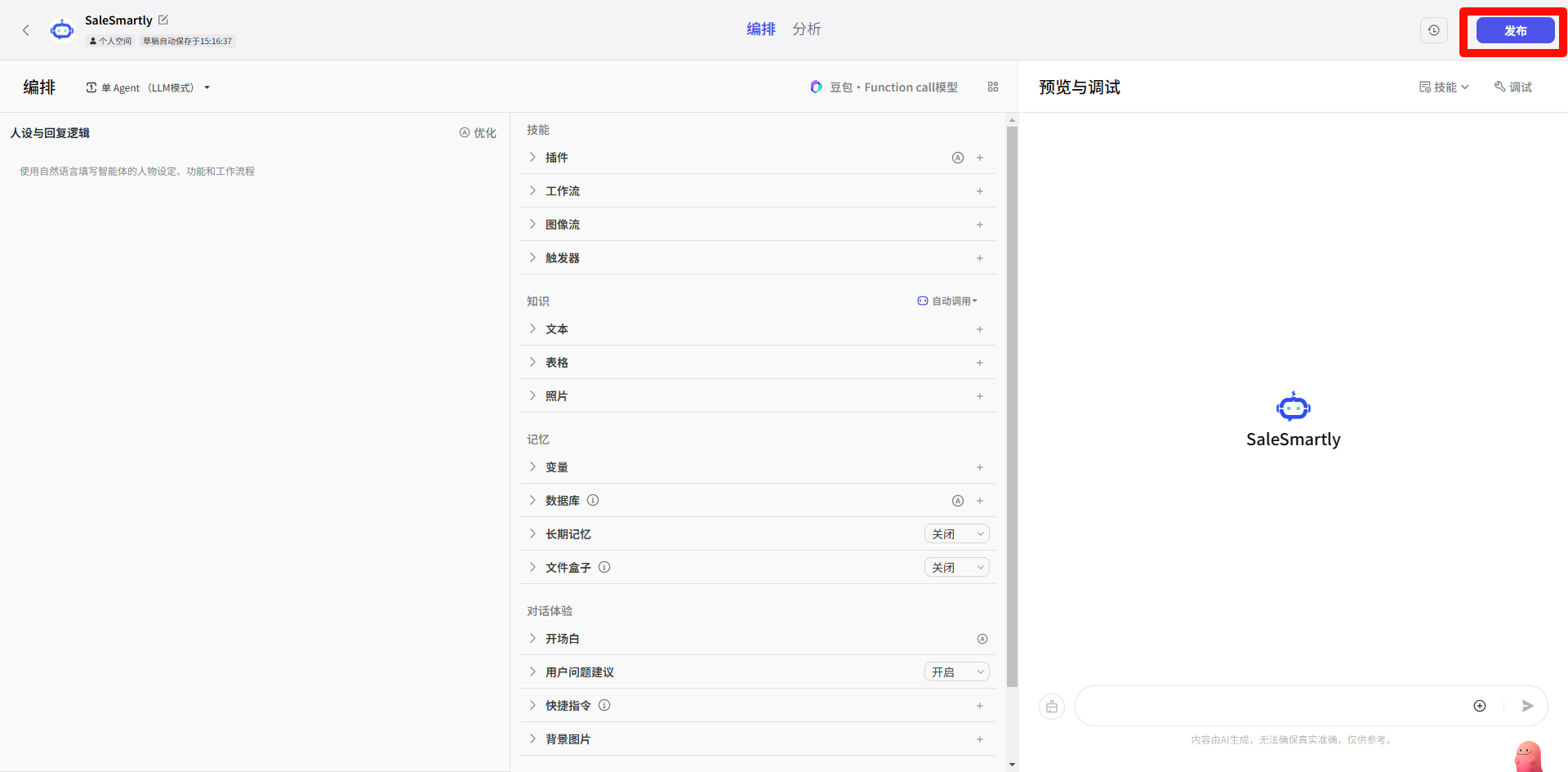
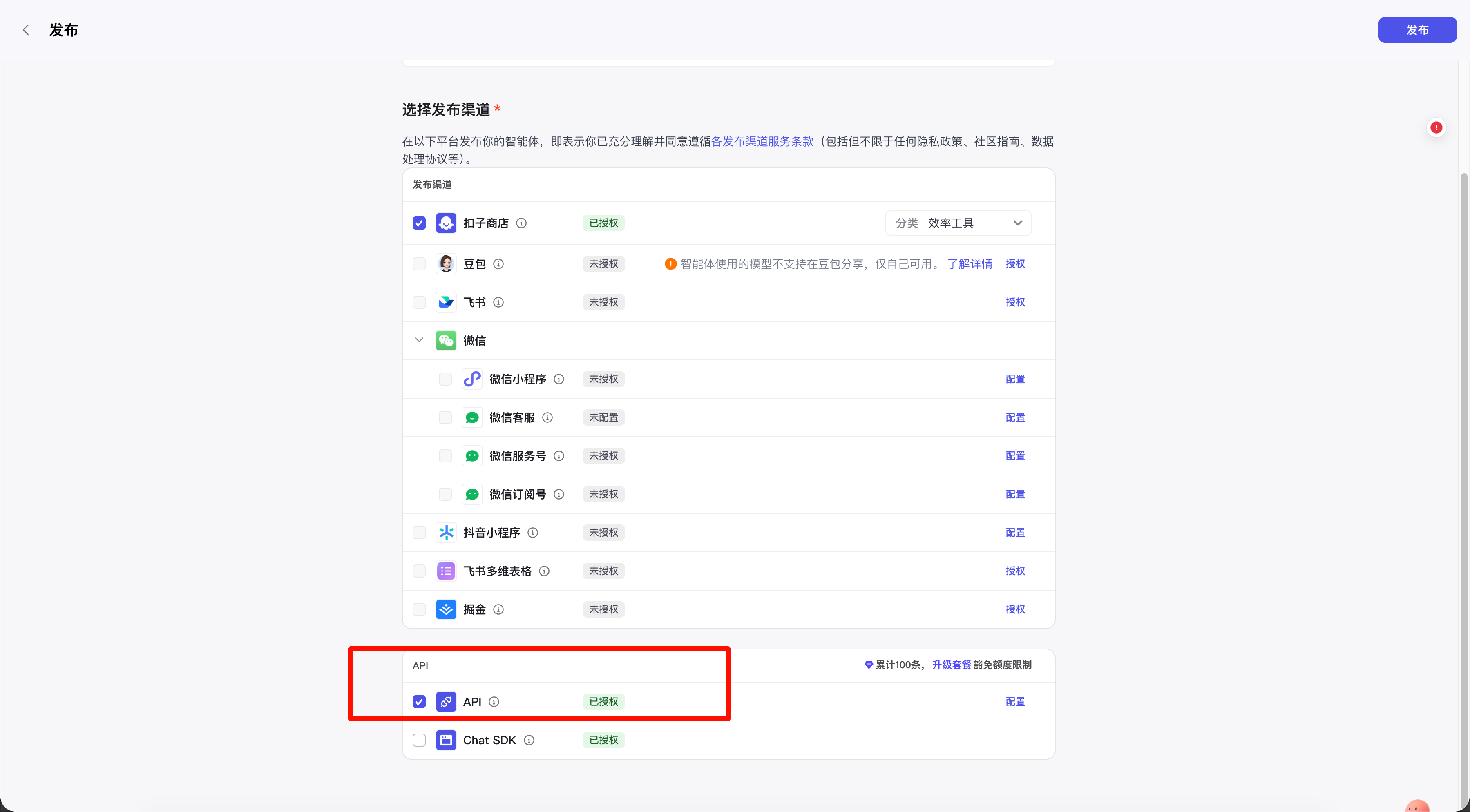
After successful creation, it will automatically jump to the operation page, click [Publish].
After configuration, you must check [Agent] → [API], and click [Publish] again.
2.6 Get Bot ID
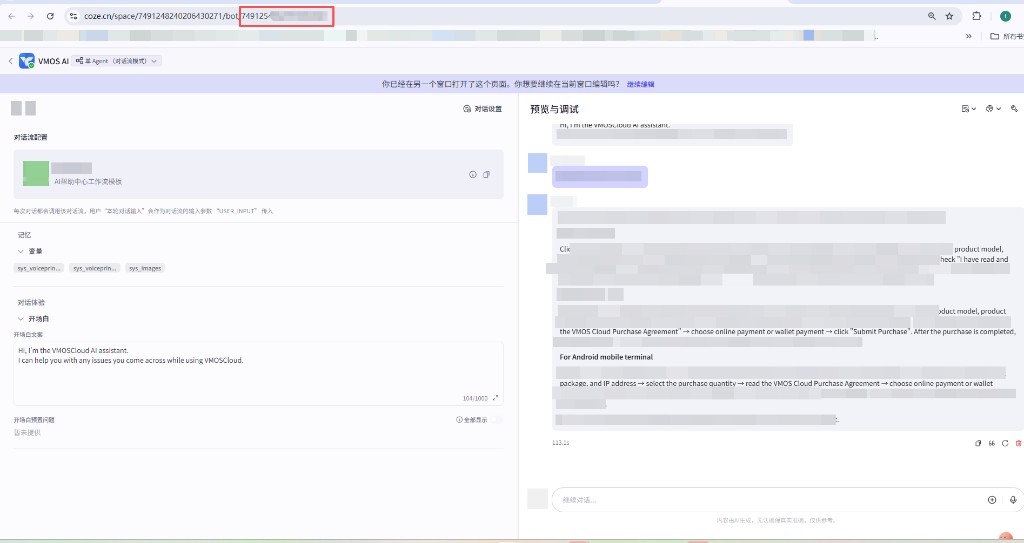
After completion, you will be redirected to the operation page, and the last part of the URL is the Bot ID.
2.7 Fill in the Information intoSaleWisely
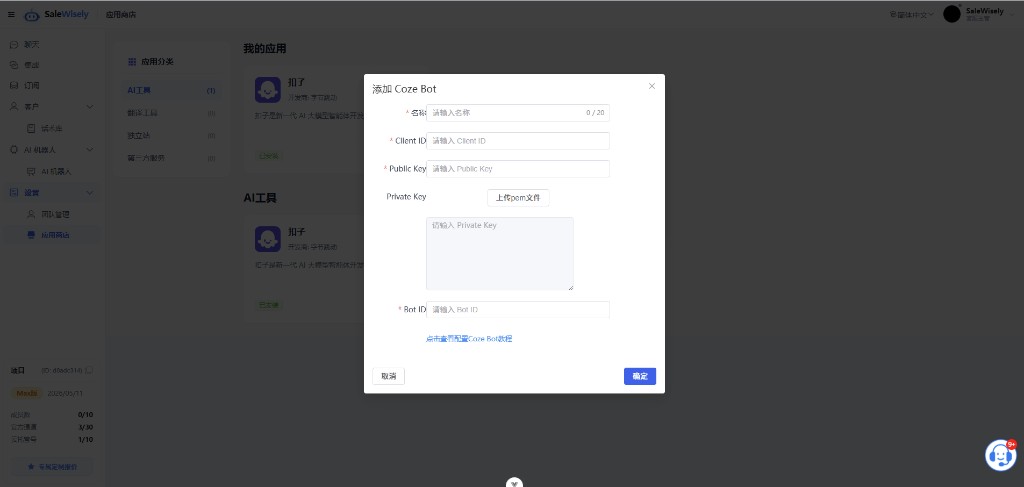
You can fill in the name yourself, it is not mandatory to be consistent with Coze; fill in other information obtained according to the above tutorial.
2.8 Call in AI Robot
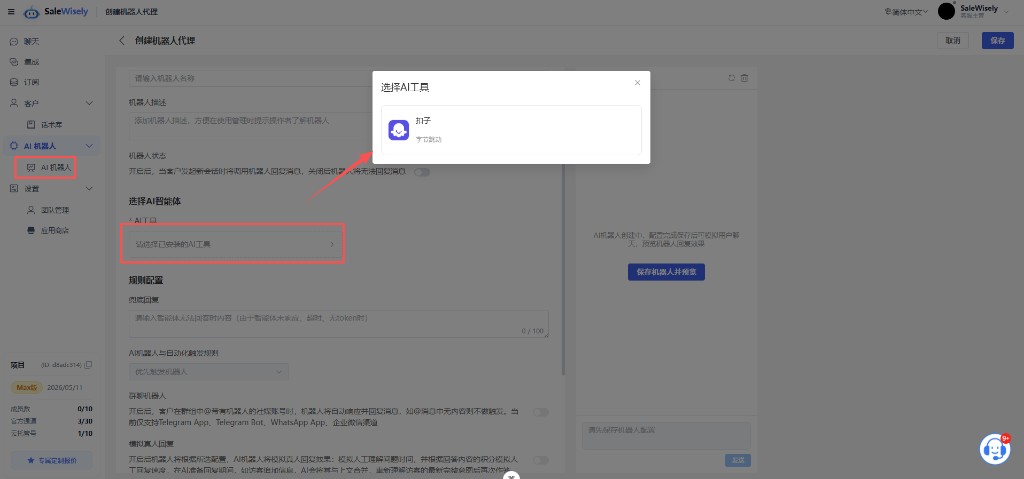
Create or edit a robot in [Robot] → [AI Robot] to call it.
3. Frequently Asked Questions
Q1: What is the difference between Coze (Chinese version) and Coze (international version)?
Model Compatibility: Currently, the domestic version is only compatible with "Skylark Large Model" as its dialogue engine, while the international version is compatible with large models such as GPT 3.5/GPT 4.
Integration Capability: Domestic users can directly integrate to platforms such as WeChat and Lark, while international users can integrate to Facebook Messenger, Slack, Telegram, etc.
Q2: When installing Coze inSaleWisely, it prompts that the operation failed
Cause: After creating the robot, you did not click [Publish].
Solution: Please refer to Step 5, ensure the robot has been published to API.