1. Function Introduction
This guide shows how to create an OpenAI API Key, pick a model and set instructions (persona) in SaleWisely, then install it under App Store - OpenAI Responses. OpenAI has deprecated the Assistants API; this engine uses the newer Responses API, with no need to create an Assistant on the OpenAI platform.
2. Operation Process
2.1 Sign in to the OpenAI platform
Go to https://platform.openai.com and sign in with your OpenAI account. The Responses API is paid, so make sure your account has a payment method and available credit (see the home page or Settings → Billing).
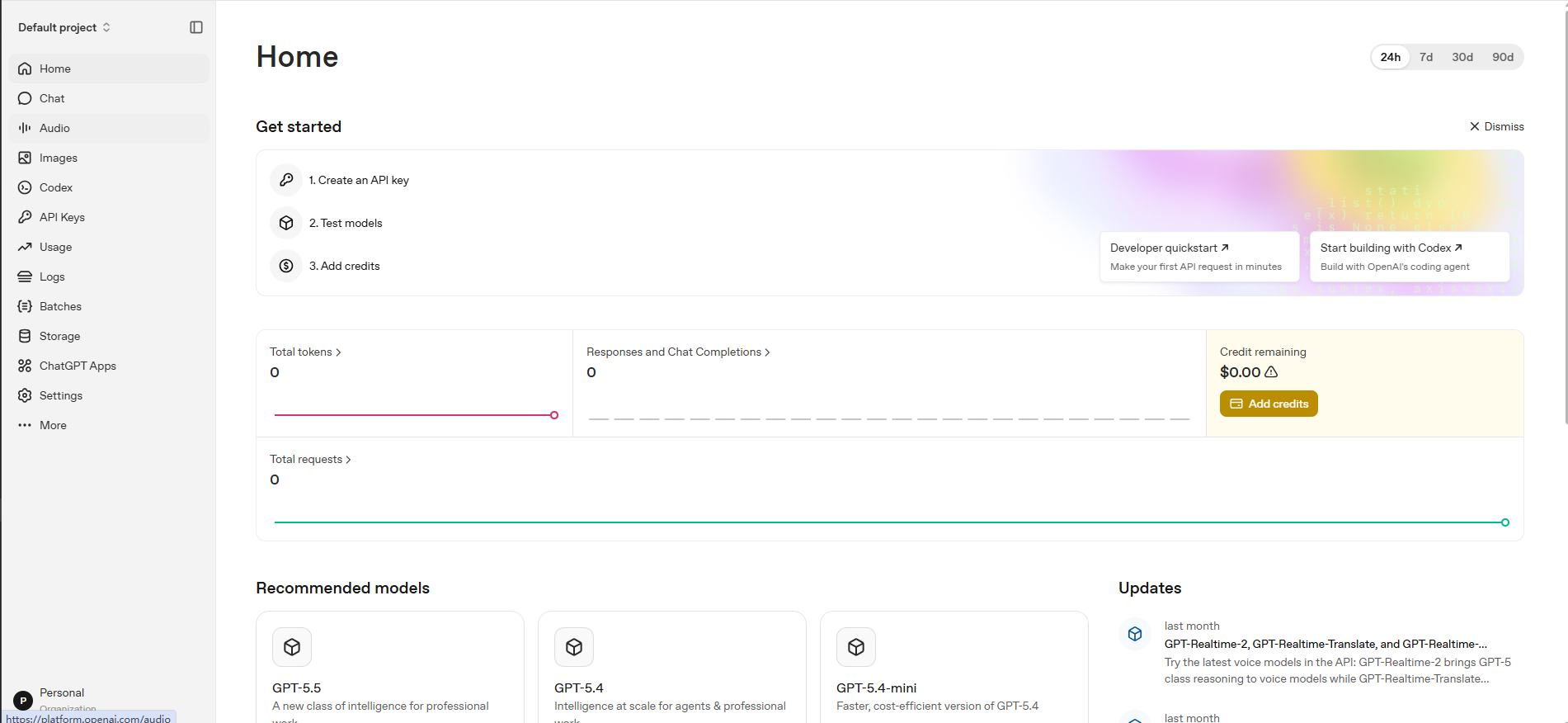
2.2 Create an API Key
Go to Dashboard -> API keys (platform.openai.com/api-keys), click + Create new secret key, optionally set a name and project, then click Create secret key. Copy and save the key (starts with sk-, shown in full only once).
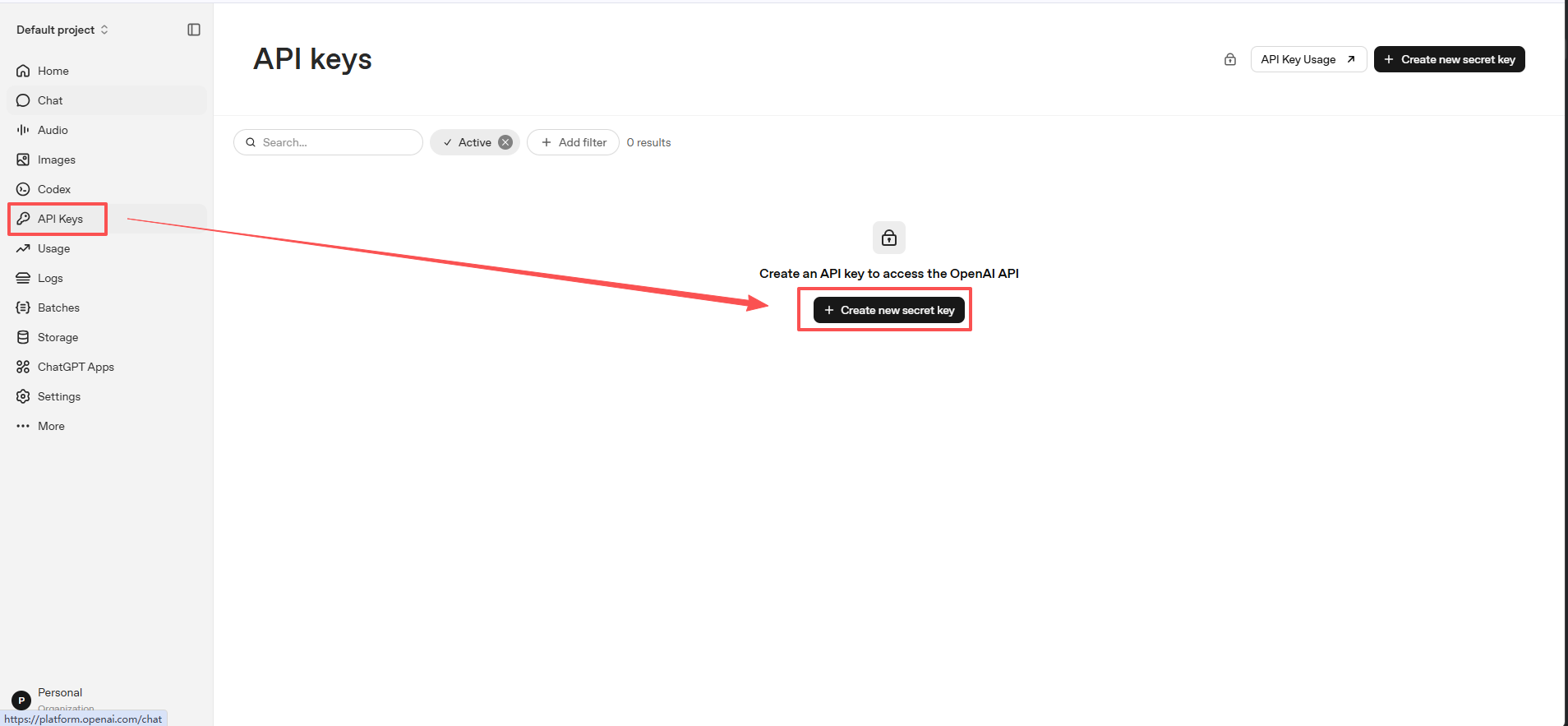
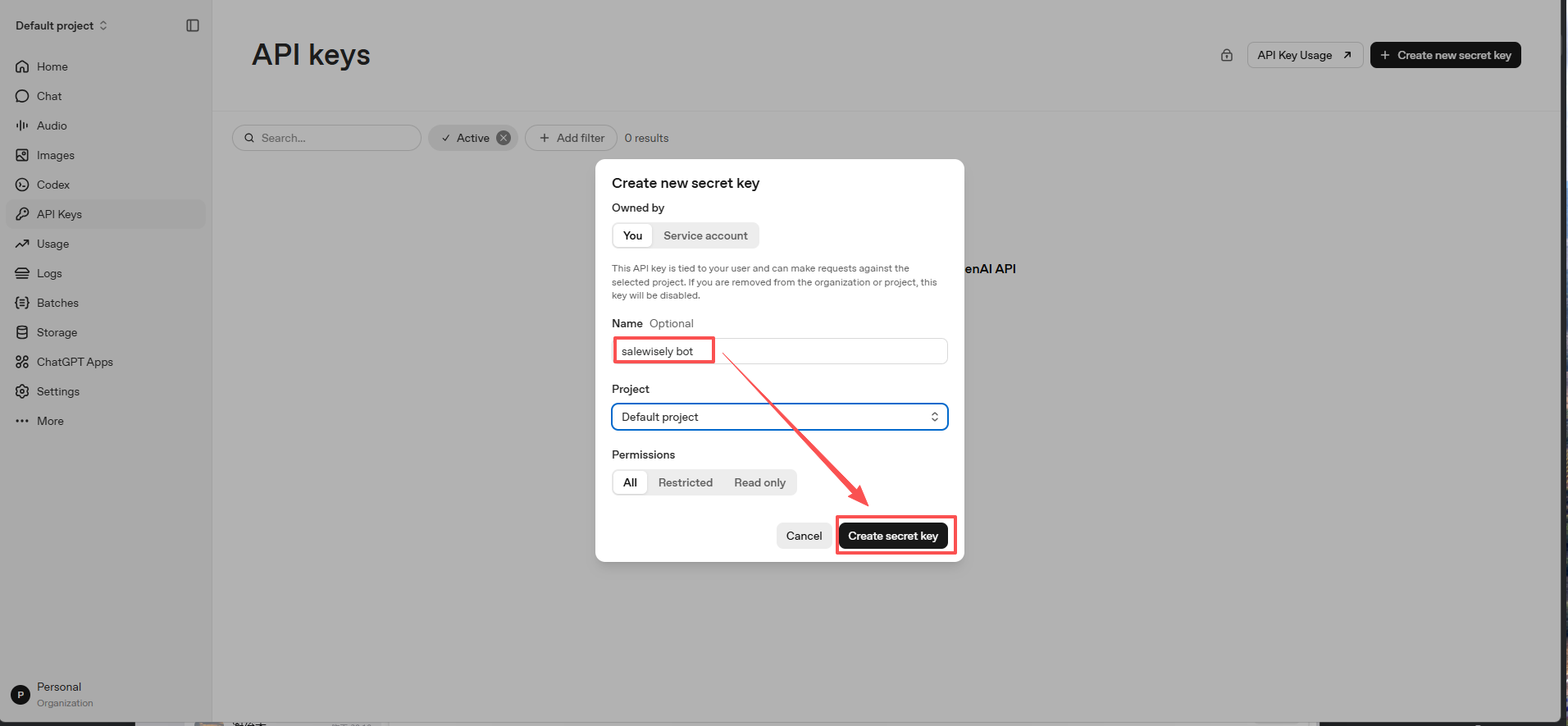
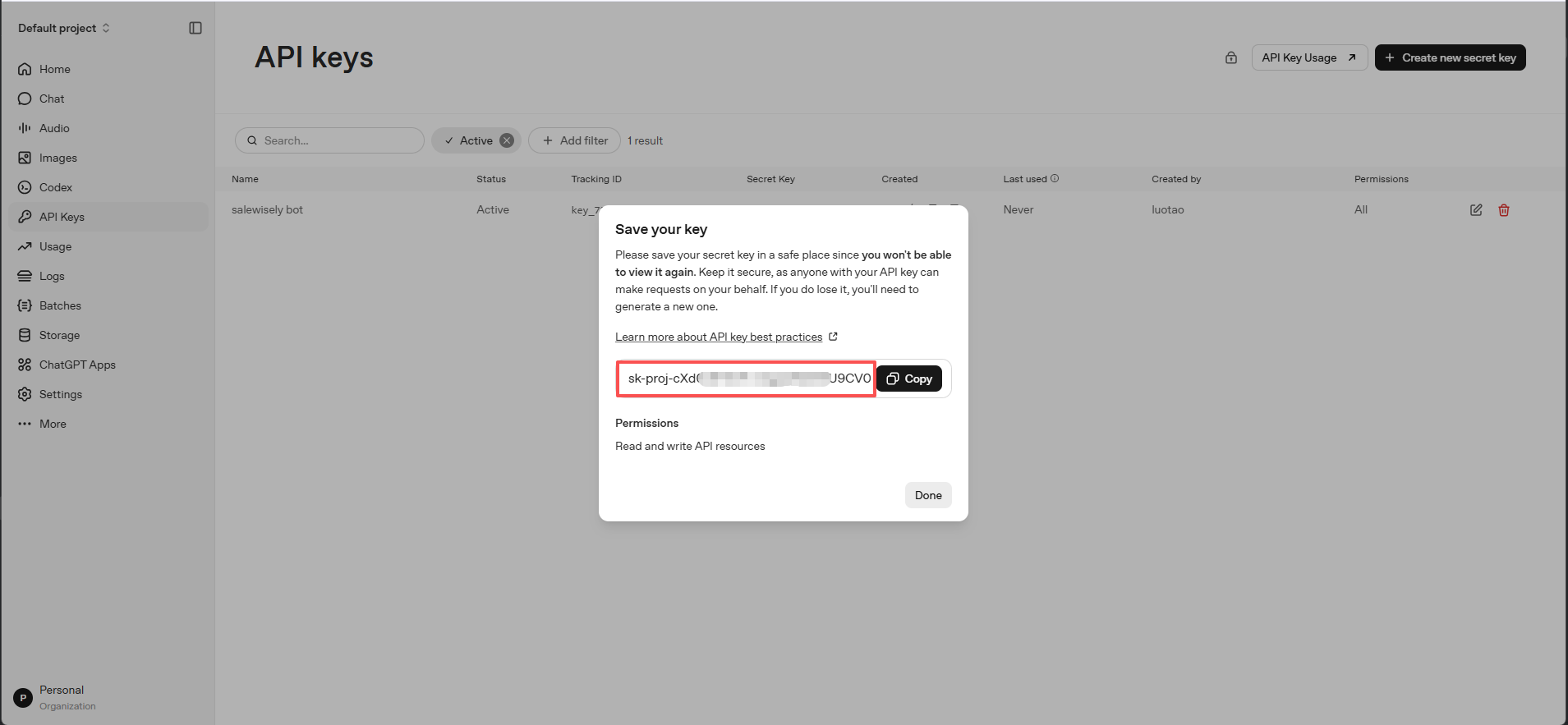
2.3 Fill in the config in SaleWisely
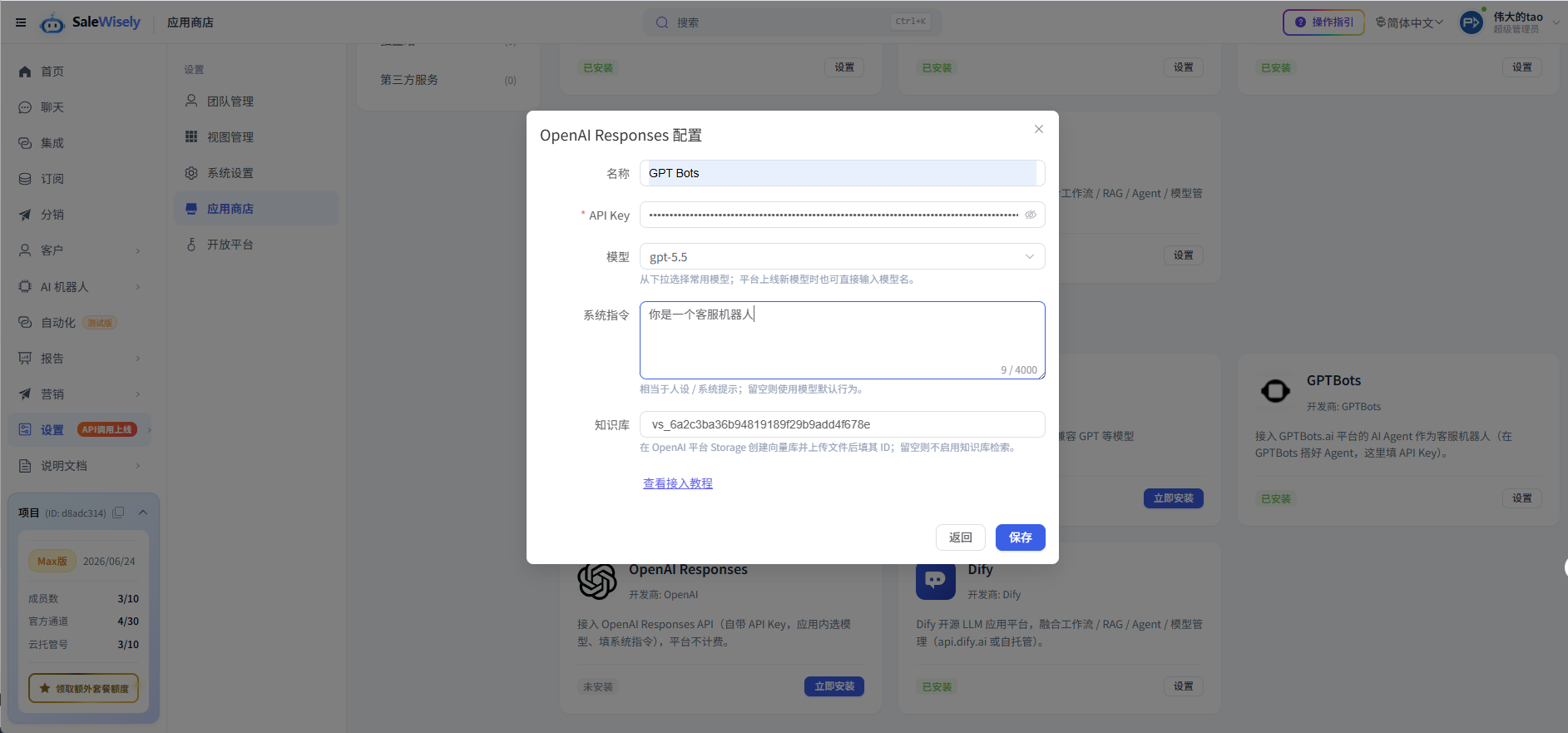
Back in SaleWisely, click Install / Settings under App Store - OpenAI Responses, fill in the following and save to finish:
- Name: the bot display name, anything you like.
- API Key: paste the sk- key created in step 2.
- Model: pick from the list, e.g. gpt-5.5 (latest) / gpt-5.4-mini; you can also type a new model name when one is released.
- Instructions (persona, optional): define the role, tone and reply rules — this is the OpenAI instructions field.
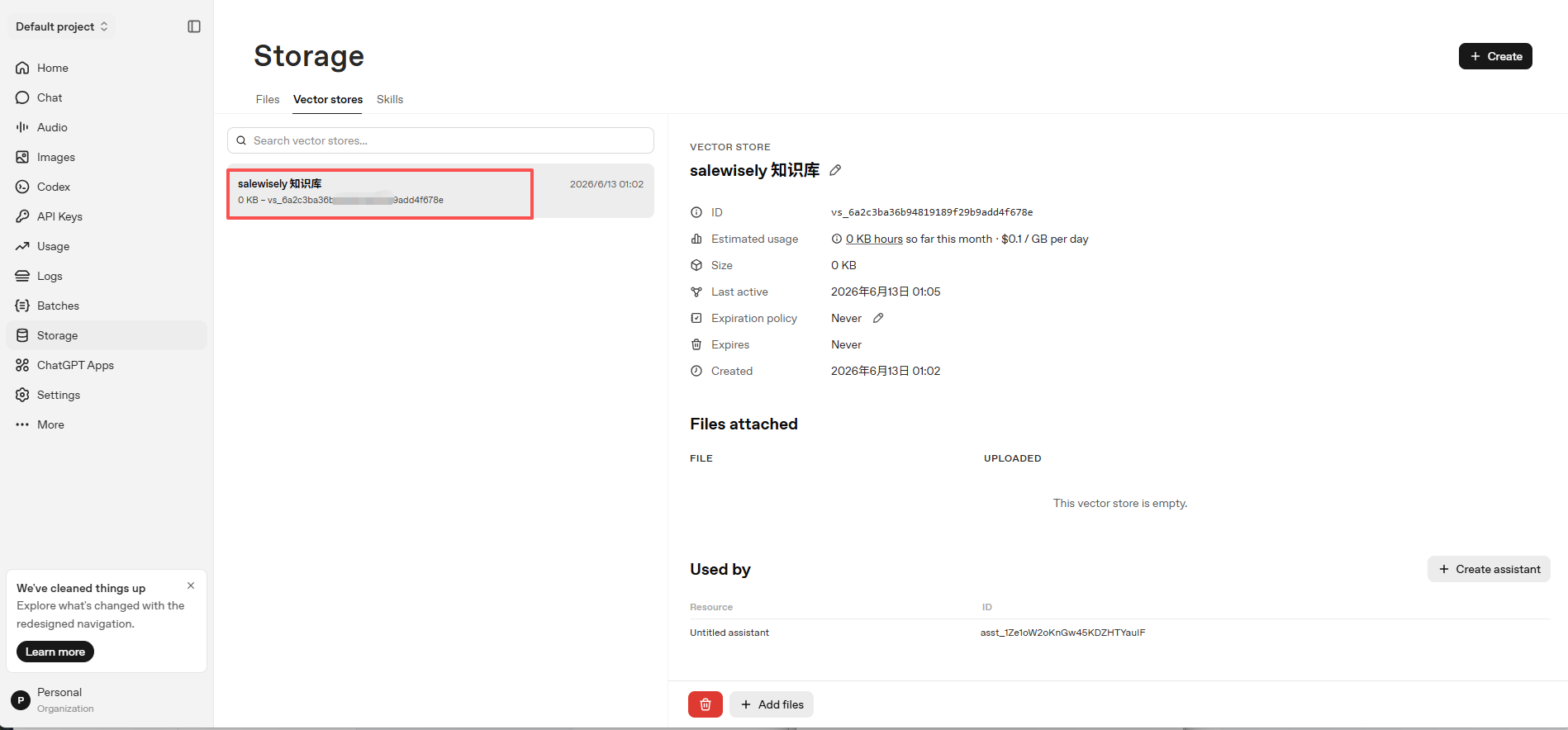
- Knowledge base (optional): to answer from your documents, create a vector store under Storage → Vector stores on the OpenAI platform and upload files, then paste the store ID (starts with vs_) into the Knowledge Base field; separate multiple with commas.
2.4 Use it in a bot
In Bots, create or edit an AI agent, choose OpenAI Responses as the AI tool, and select the saved config under "Configuration" to have the bot reply via OpenAI Responses.
3. Configure Knowledge Base (optional)
To let the bot answer from your materials (product manuals, FAQs, policy docs, etc.), create a vector store on the OpenAI platform, upload files, and paste the store ID into the config. Skip this section if you do not need a knowledge base.
3.1 Create a vector store
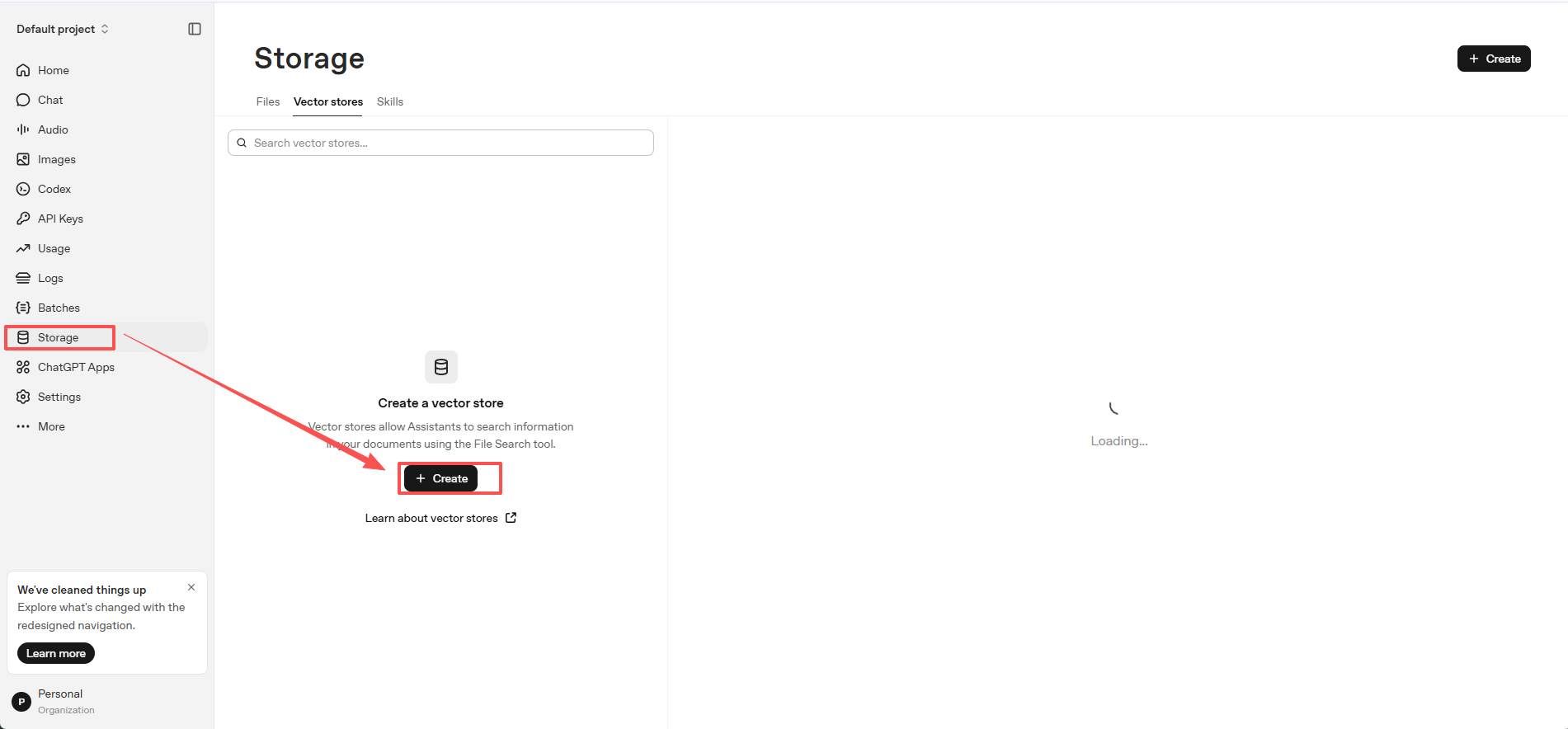
Go to platform.openai.com, click Storage on the left, switch to Vector stores, then click + Create to create a new vector store.
3.2 Name it and upload files
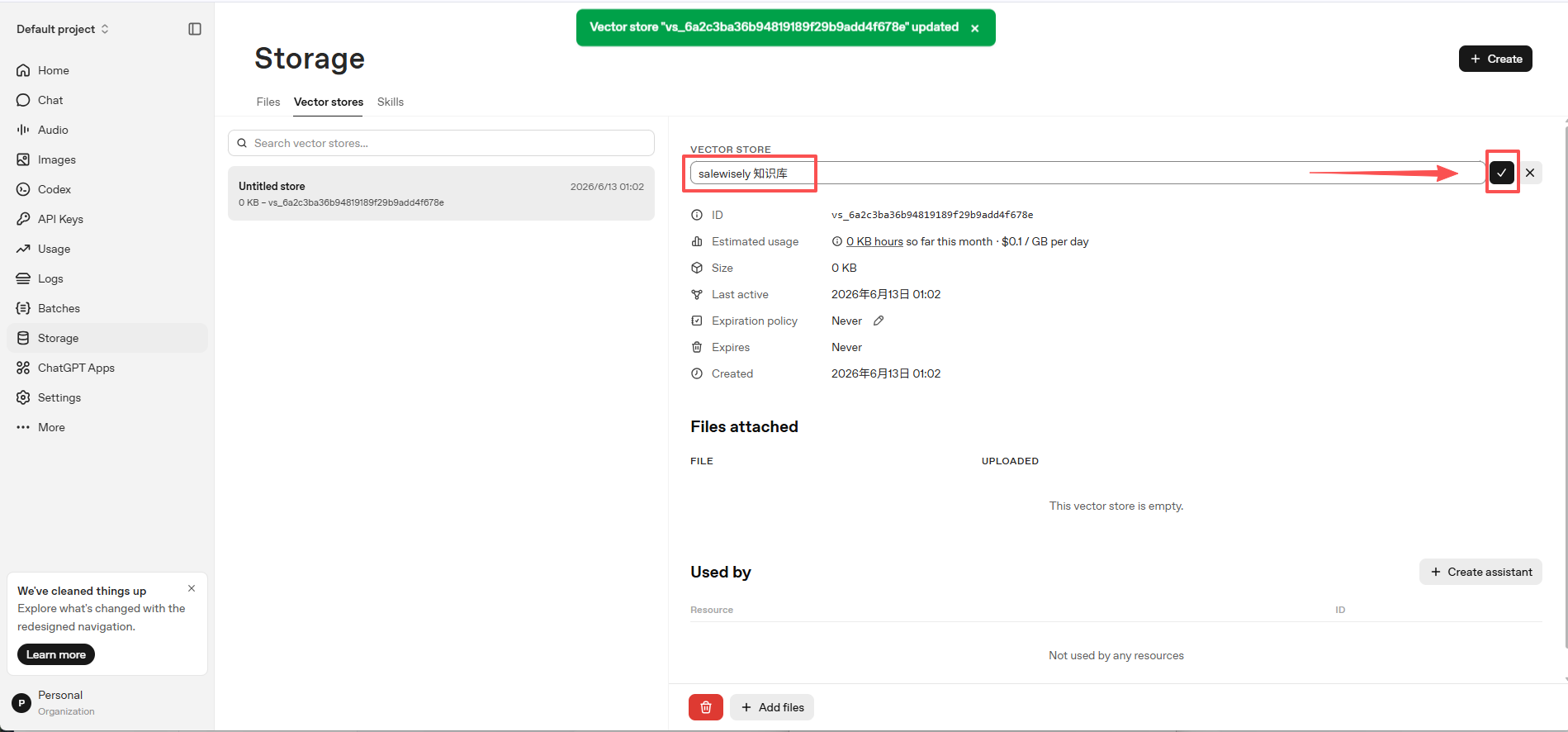
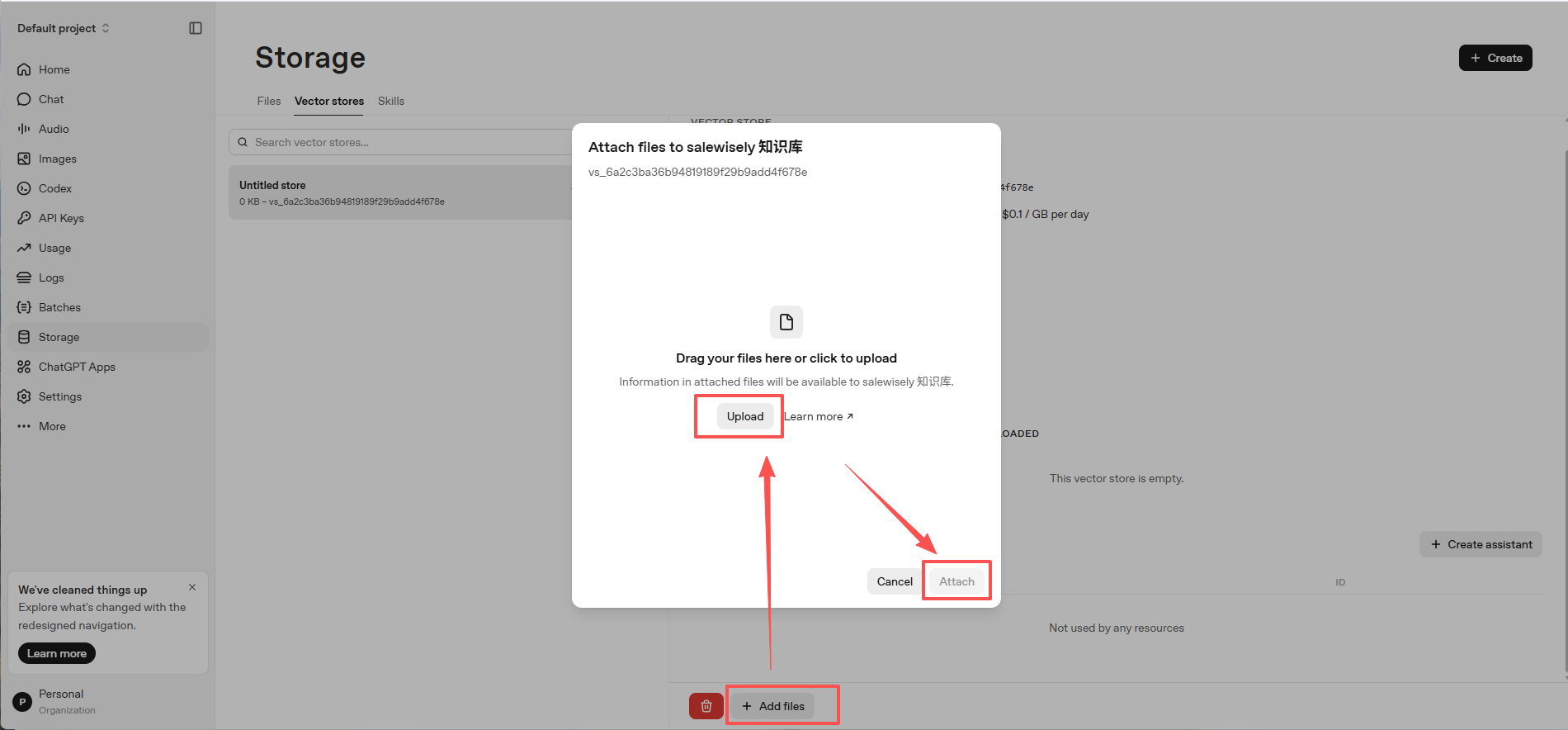
Name the vector store, then upload your knowledge files (pdf / txt / docx / md, etc.) and wait until the status is completed (OpenAI chunks and embeds them automatically).
3.3 Copy the Vector Store ID back into SaleWisely
Copy the store ID (starts with vs_) from the vector store, go back to the OpenAI Responses config in SaleWisely, and paste it into the Knowledge Base field (comma-separate multiple). The bot retrieves these files via file_search when replying.
4. FAQ
Q1: How is OpenAI Responses different from GPTBots?
Both bring your own API Key and call OpenAI directly. GPTBots uses Chat Completions; OpenAI Responses uses OpenAI’s newer, recommended Responses API, with persona via instructions, model chosen here, and optional Vector Store knowledge-base file search.
Q2: How do I let the bot use my documents / knowledge base?
Create a vector store and upload files (pdf / txt / docx, etc.) under Storage → Vector stores on the OpenAI platform, copy the store ID (starts with vs_), and paste it into the Knowledge Base field; separate multiple with commas. The bot retrieves these files via the file_search tool.