1. Log in to the Salewisely platform, and find { Integration→ Cloud-Hosted Account→Telegram APP→ Connect } in the left-side bar.
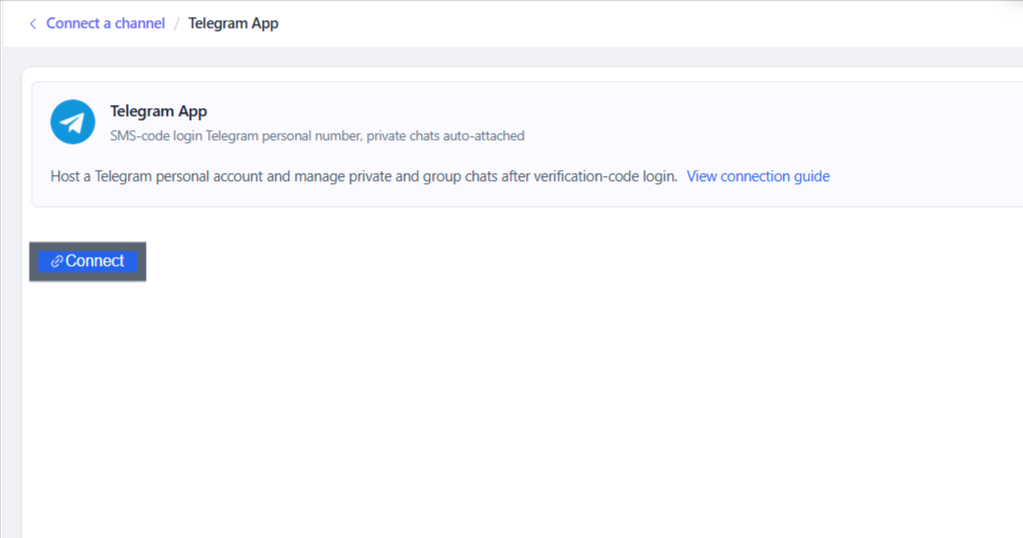
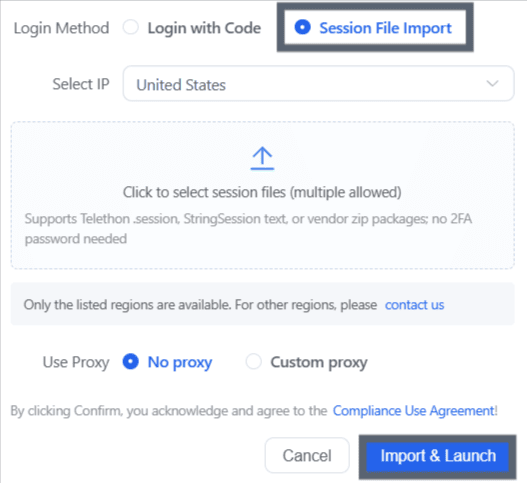
2. There are two different ways to login Telegram:
Login with code verify from mobile (see note)
Login with Telegram's session file (my_account.session)
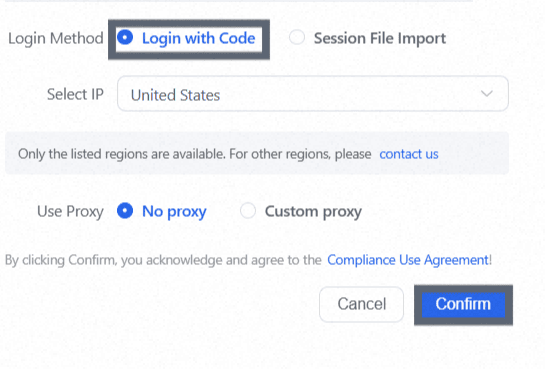
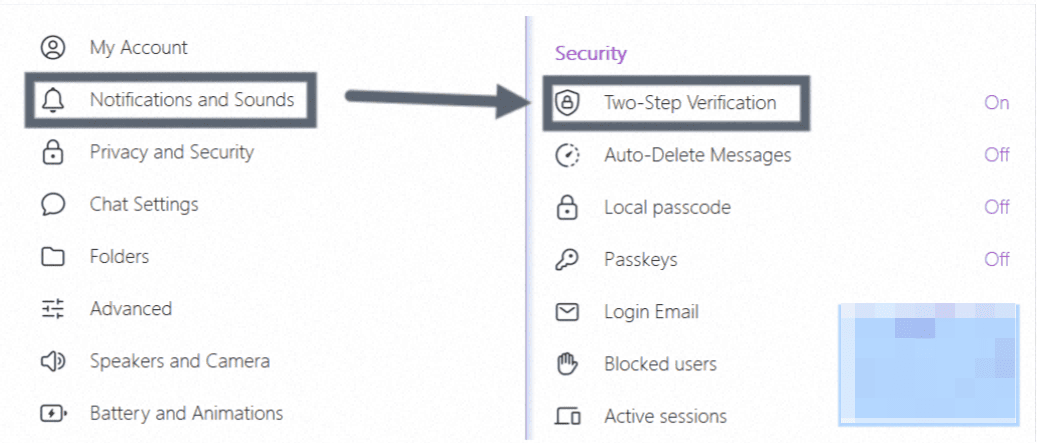
Note: For code login, you must disable two-step verification (2FA) in the Telegram App settings; otherwise, authorization will fail.
Steps to disable: Telegram App - Settings - Privacy and Security - Two-step verification - Turn off
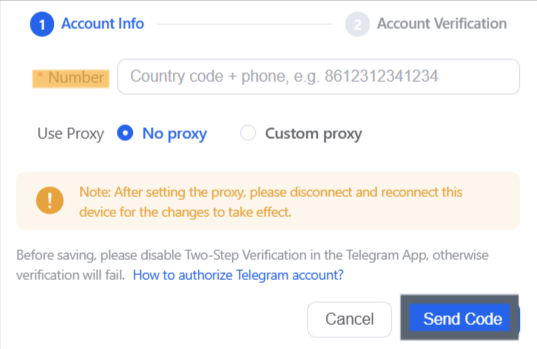
3. { select IP region } as your account login ip. Select { custom proxy } if you need to add a proxy, copy the right {proxy credentials} in, or manually add. After importing the proxy, the account's location will be based on the proxy's outgoing IP address.
4. Input your country code and mobile number to { send code } .
Be sure to enter your mobile number in the correct format, no + symbol. If wrong, you may fail to receive the code and will need to delete the device and start again.
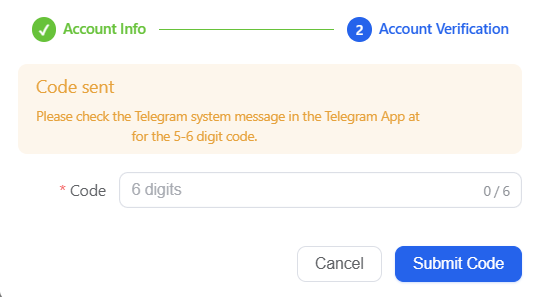
4. Afterwards, check your Telegram account, enter the verification code, click { submit code } to finish this connection and you will see it shown in SaleWisely.