Salewise currently supports integration with WhatsApp via API. The following section details the integration steps for different third-party WhatsApp business solution providers (aka. BSP):
YCloud
ChatApp
I. YCloud WhatsApp Business API
YCloud is a Meta-certified WhatsApp BSP. It integrates with Meta's underlying WhatsApp Business API, allowing businesses to quickly complete Meta enterprise certification, apply for official Meta verified accounts (Blue Tick), and directly activate their WhatsApp Business API accounts.
1. Register and login to the YCloud dashboard
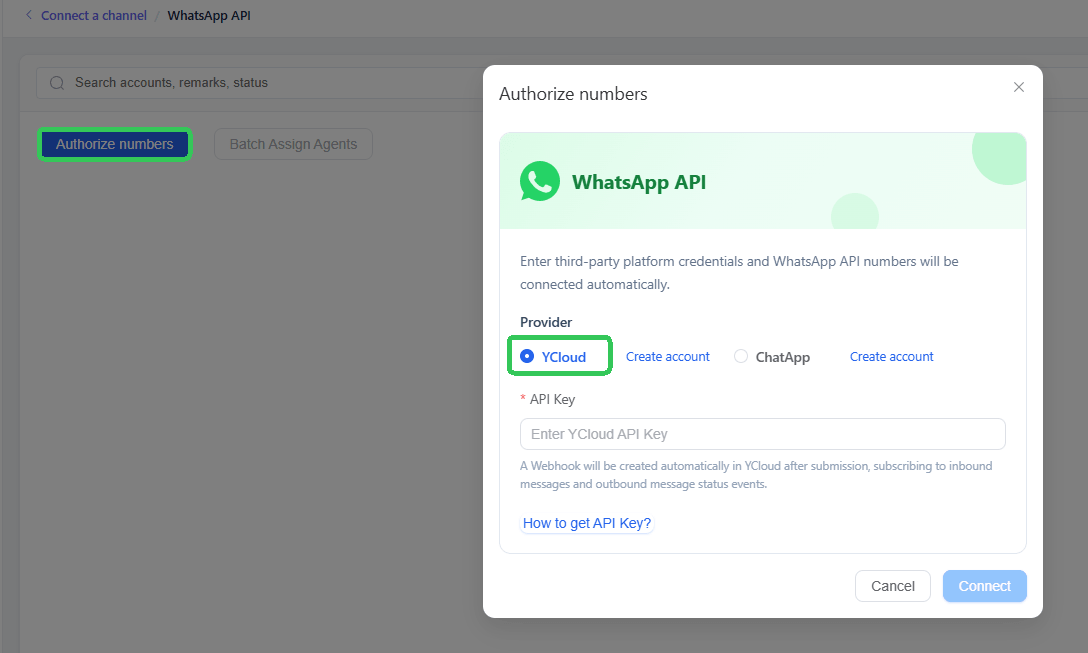
2. Open SaleWisely, find { Integration→ Official API Channels→WhatsApp API→Authorize Number}, and select the YCloud integration method.
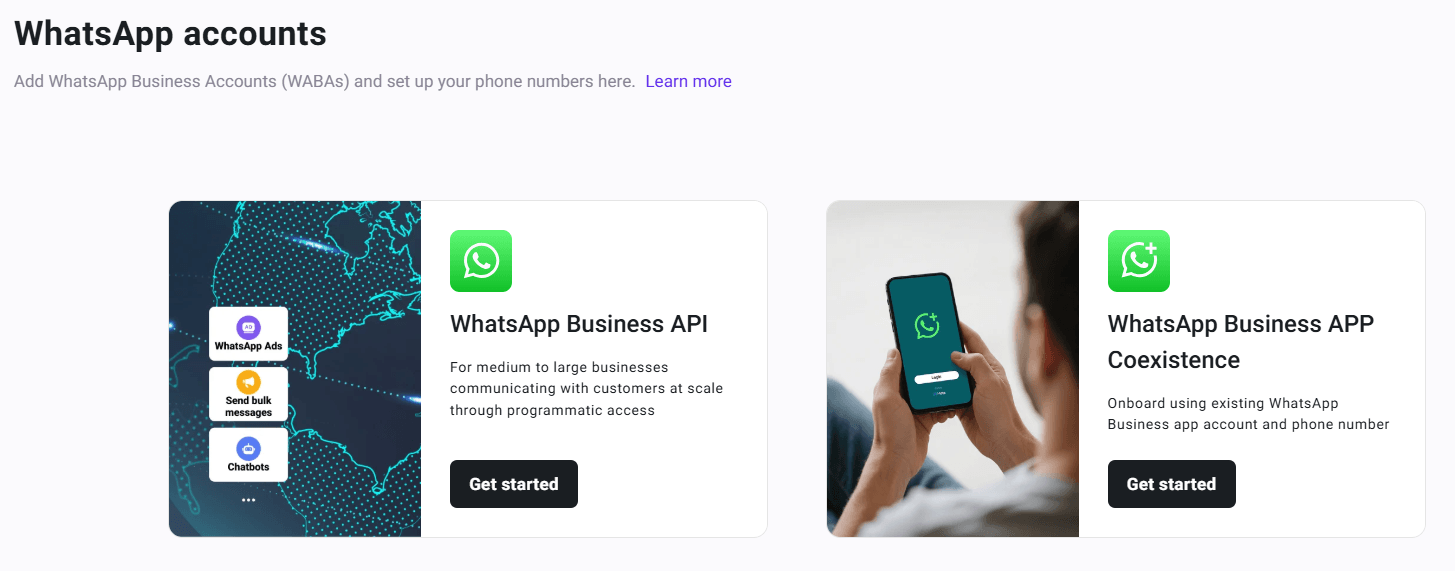
3. Register or link your WhatsApp account on the YCloud platform.
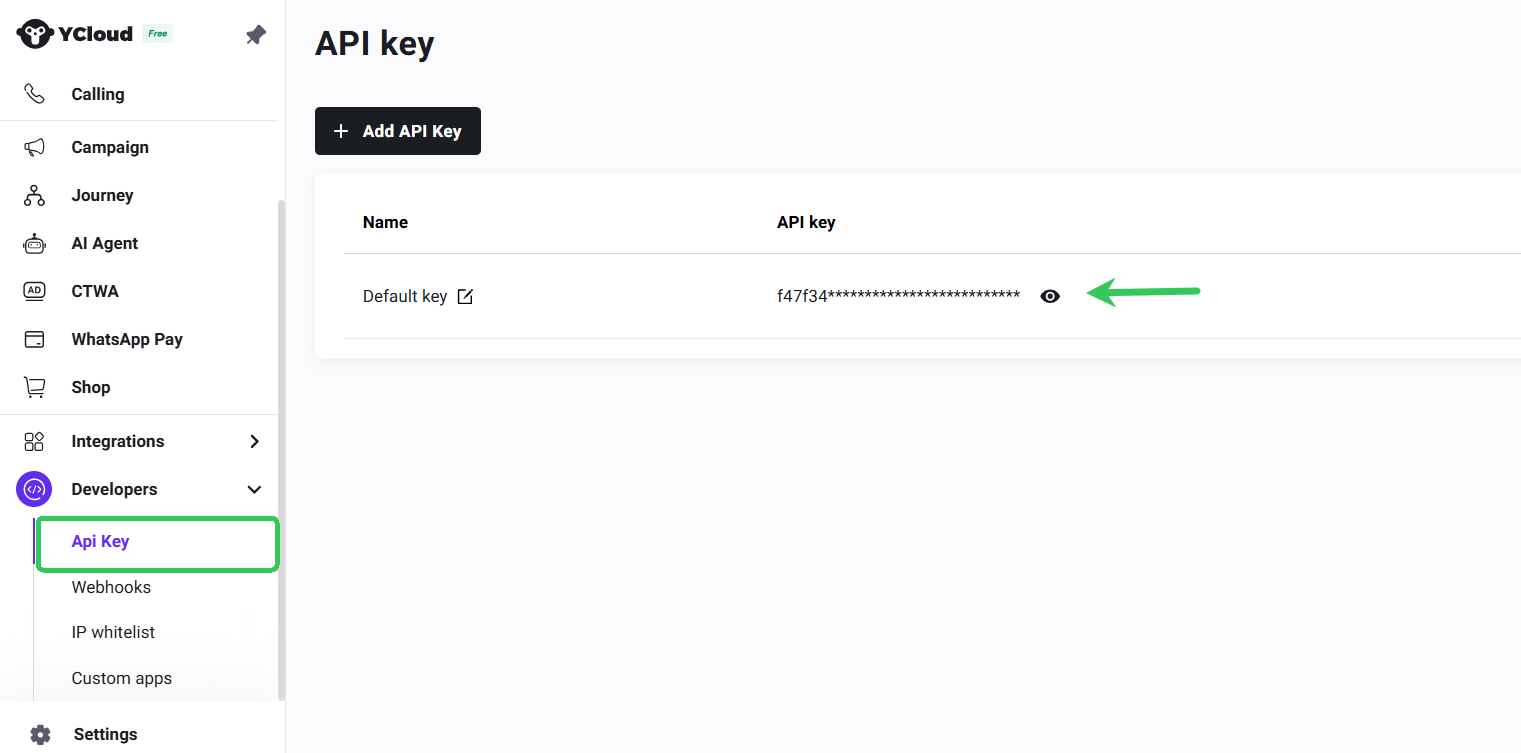
4. After completing the binding, find { Developers→API Key } on the left side bar of YCloud, view and copy the API Key to SaleWisely to successfully connect.
II. ChatApp WhatsApp Business API
As one of Meta-recognized WhatsApp BSP, ChatApp offers direct access to the WhatsApp API through its Message Service, allowing businesses to enjoy the stability and compliance guarantees of an official channel.
1. Register/login to Alibaba Cloud.
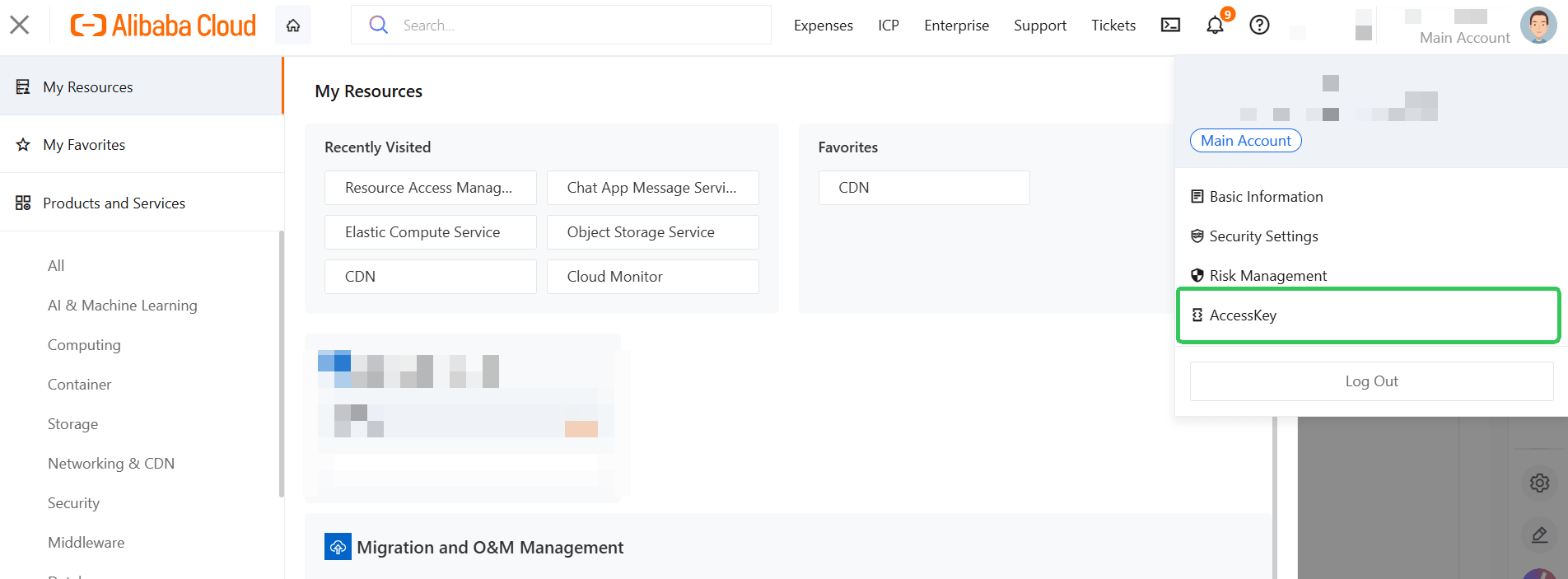
2. Click on {Account → AccessKey } in the upper right corner.
3. Click {Use RAM User AccessKey→ Users→Create User→Permanent AccessKey}, fill in the user account information and click OK to generate the corresponding Access Key. Copy and save the {AccessKey ID, AccessKey Secret } from the current page.
Note: AccessKey information must be copied to save separately. It can only be obtained during creation, and it will be NOT able to retrieve the AccessKey Secret again afterwards.
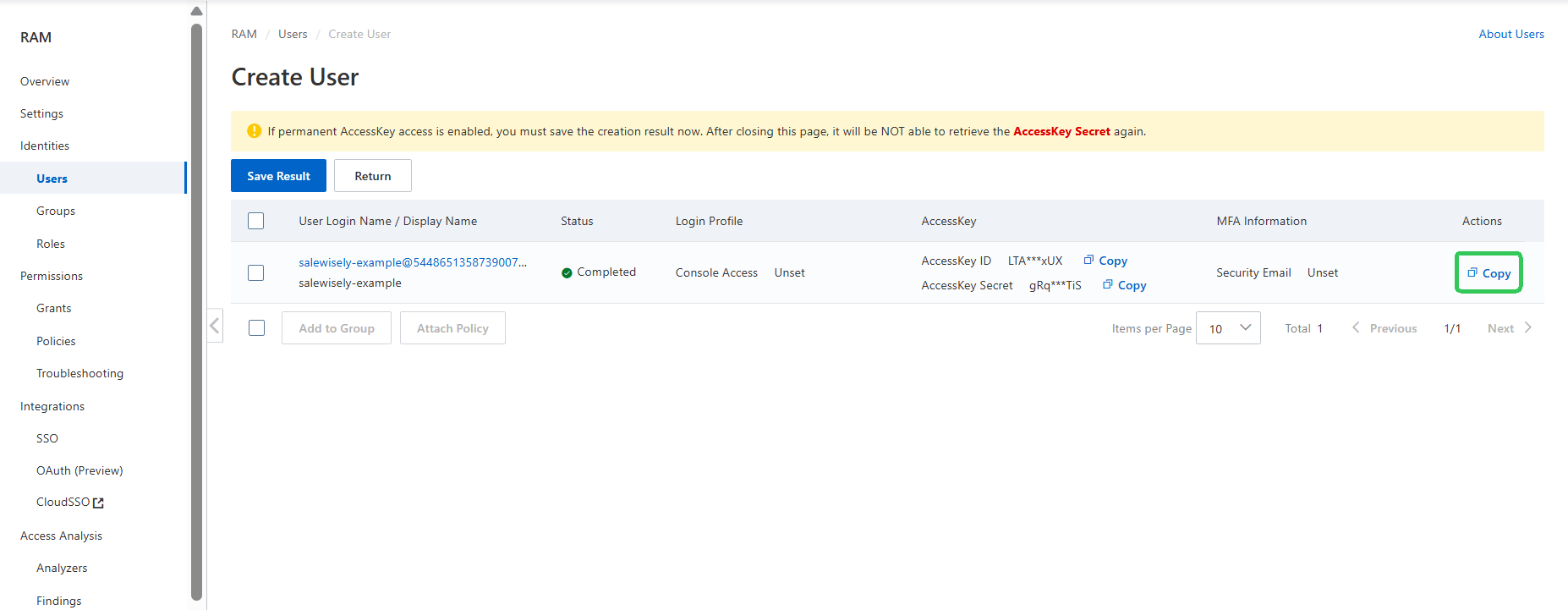
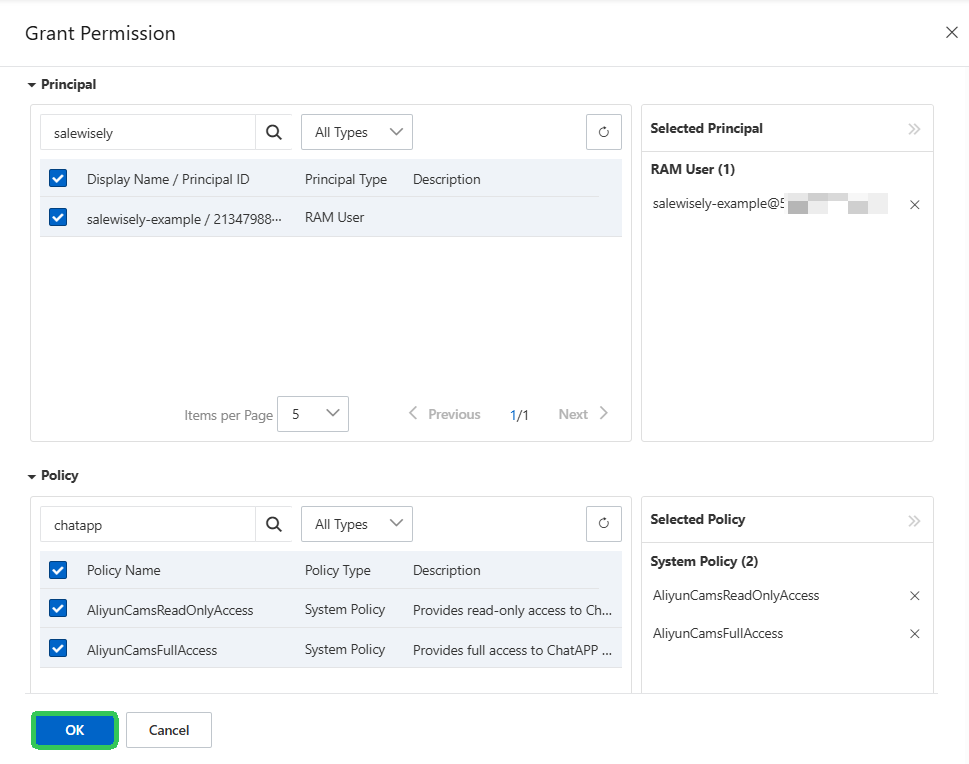
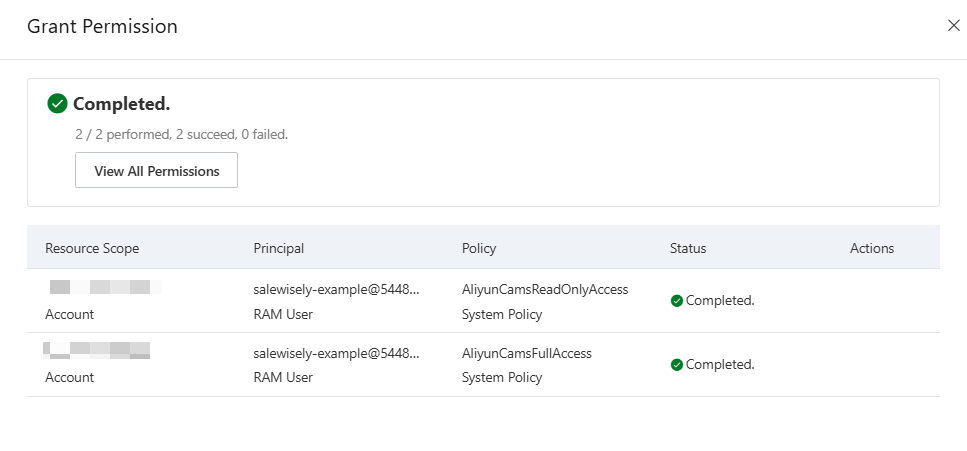
4. Find {Grants→ Grant permission}, as shown in the image. Select the RAM user email account you just created as the selected principal, search for ChatApp, select the corresponding system policy permissions, and then click {Ok}.
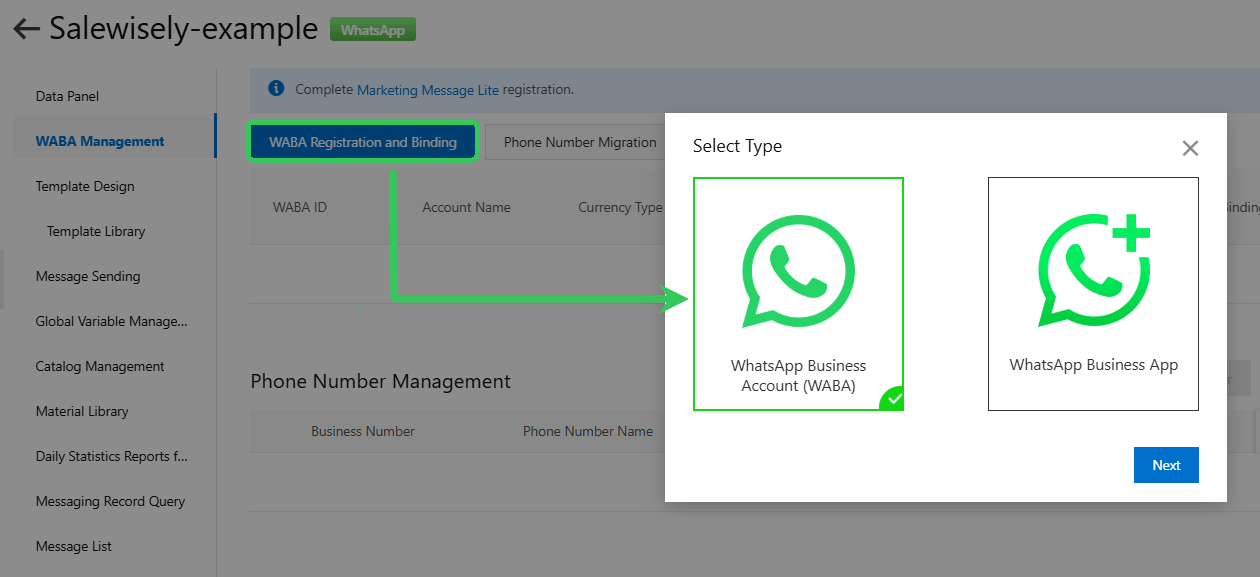
5. Search for {ChatApp message service → Channel management → Create channel → WABA management → WABA registration and binding } to bind your number.
6. After successfully binding WhatsApp number, back to SaleWisely, find { Integration→Official API channels→WhatsApp API→Authorize numbers→ ChatApp} to integration. Copy the Webhook URLs on SaleWisely.
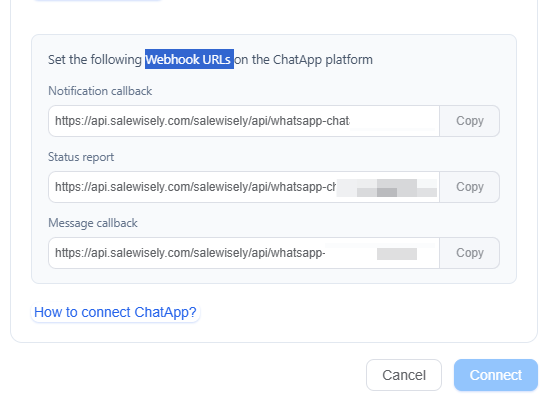
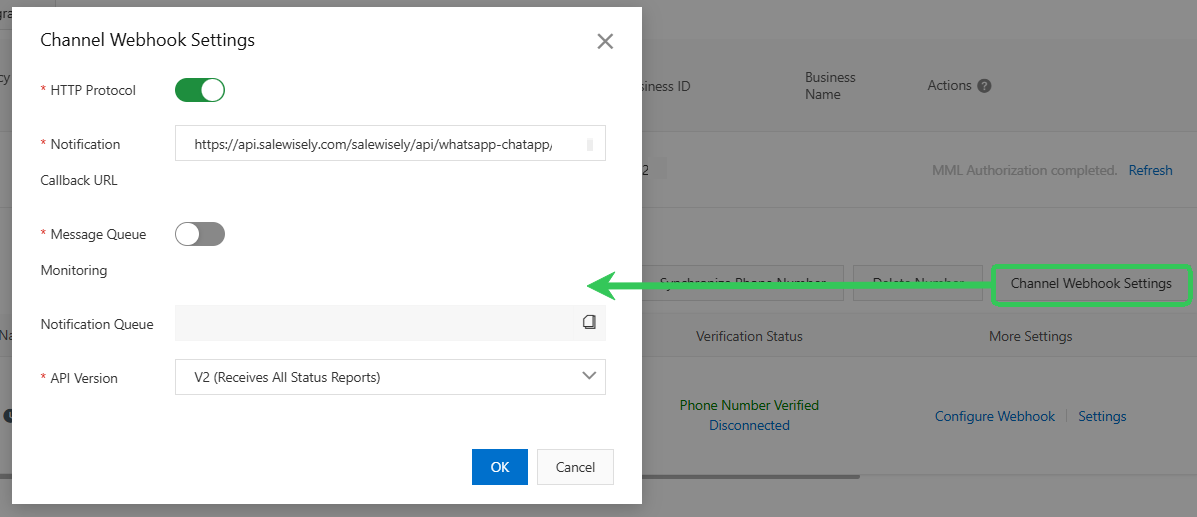
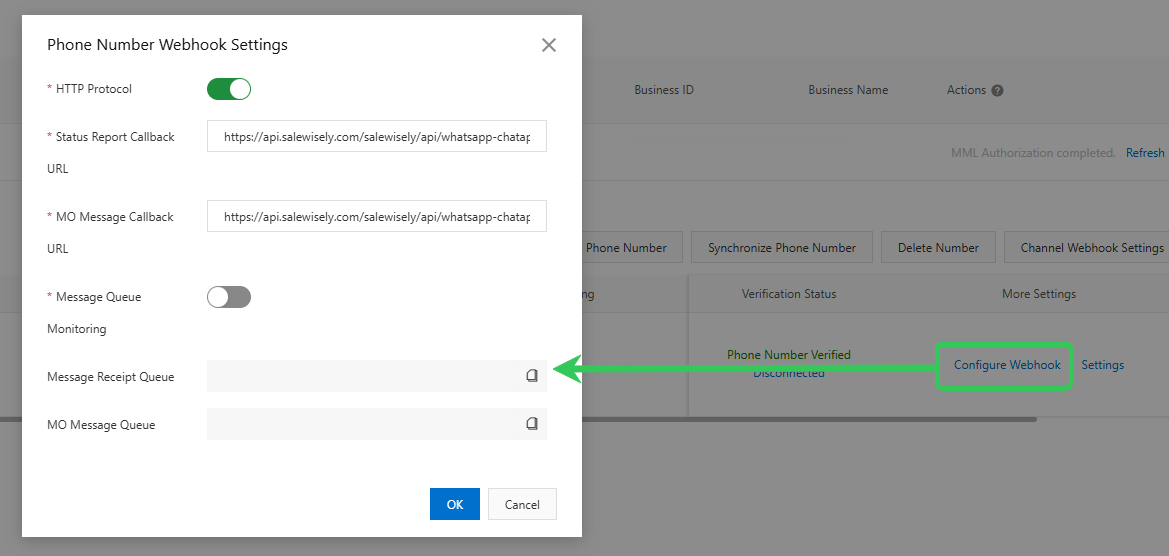
7. Switch to the Alibaba Cloud console, find {Channel webhook settings } and {Configure webhook }, enter the corresponding channel Webhook urls respectively.
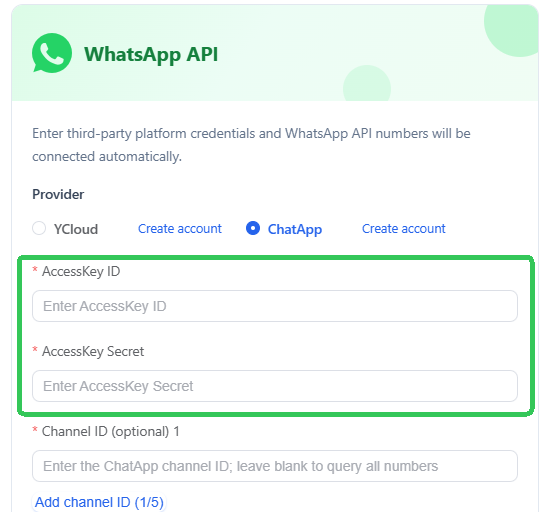
8. Enter the previously saved AccessKey ID and AccessKey Secret in SaleWisely to complete the configuration.
FAQ
1.Why does the WhatsApp app show a message saying the device limit has been reached when I click "Add Account" when the device count is 0/1?
You can check the number status. The current logic is: connected/disconnected/numbers scanning QR codes will occupy the device number limit. You can check and delete invalid numbers, and then try adding the device.
2. Why is my WhatsApp number status invalid sometime?
Check if the status of the number is normal on the mobile app, and make sure the number of connected devices hasn’t exceeded the limit (WhatsApp can be used on a maximum of 4 connected devices simultaneously). For details, please refer to the official WhatsApp app documentation on About linked devices.
It's possible that another SaleWisely account has already connected to the device, causing your number to become invalid.
Linked devices will be automatically unlinked if they remain inactive for 30 days or more. If you do not use your phone for more than 14 days, the linked devices will also be logged out.
If none of the above applies, there may be an error that has caused your device to be logged out. For details, please refer to the official documentation Seeing “Your devices were logged out”.
WhatsApp got banned.
Please confirm the location of the VPN node on your mobile device. Ensure that the region of the added device matches the mobile device's node. If the system does not have a node, you can select the nearest region or use a custom proxy. For example, if the mobile device's node is in Hong Kong, but SaleWisely selects the UAE region, this will often cause failures. It is recommended to switch to the same node (Hong Kong).