Salewisely supports two methods of integrating with WhatsApp. You can jump to the corresponding section to view the integration guide according to your business needs.
WhatsApp cloud hosting account
Integration preparation:
1. WhatsApp is installed and logged in on your phone, and your account status is normal enough to access connect by scanning the QR code. It is recommended to use a frequently used device to bind account to avoid frequent switching brings a disconnection.
2. Ensure your Salewisely has available WhatsApp credit.
I. Before connecting with WhatsApp account
1. Log in to the Salewisely platform, and find {Integration→ Hosted Account→ WhatsApp APP→ Add Account} in the left-side panel.
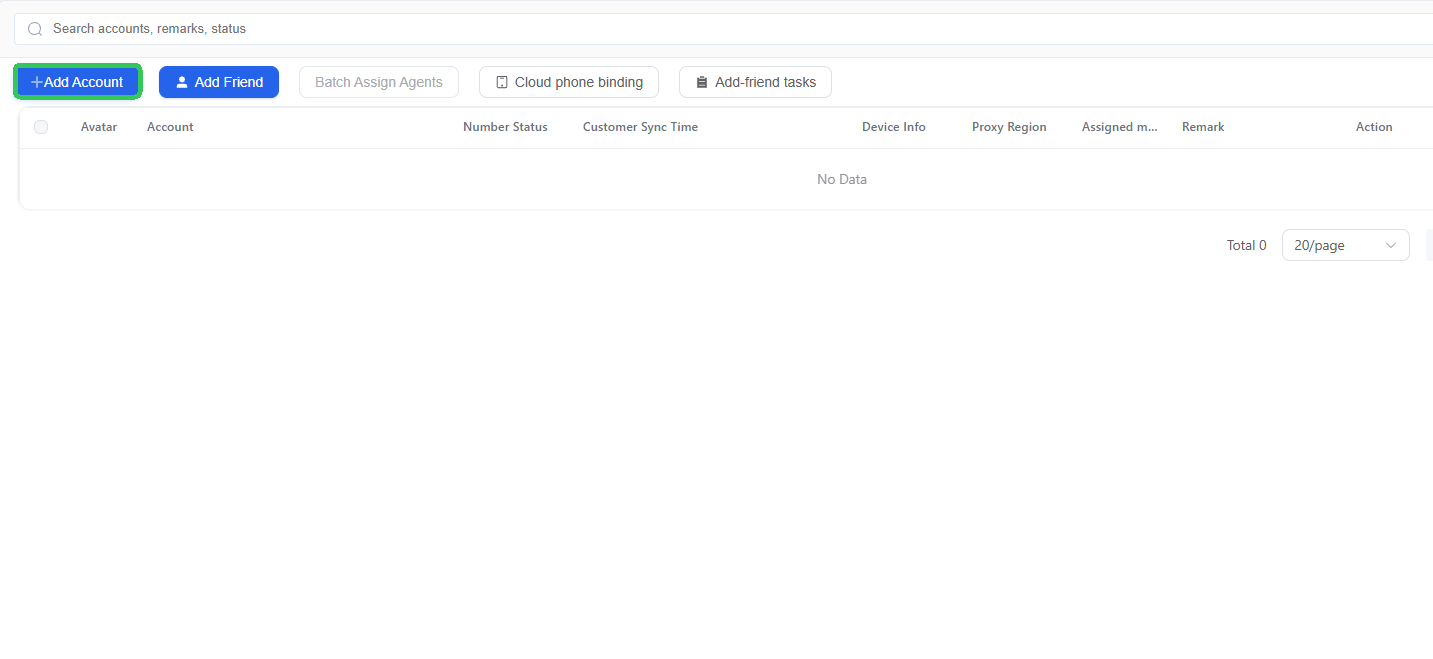
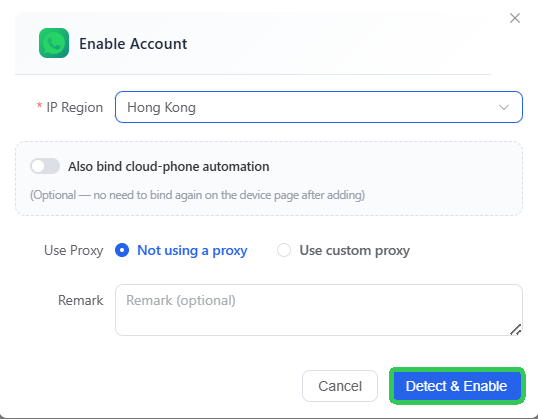
2. Go to the cloud hosting account configuration page. If you are not using a proxy, it is recommended to select your frequently used login region or the nearest region for WhatsApp's {IP Region → Detect & Enable}.
Note: IP region cannot be changed after first setting.
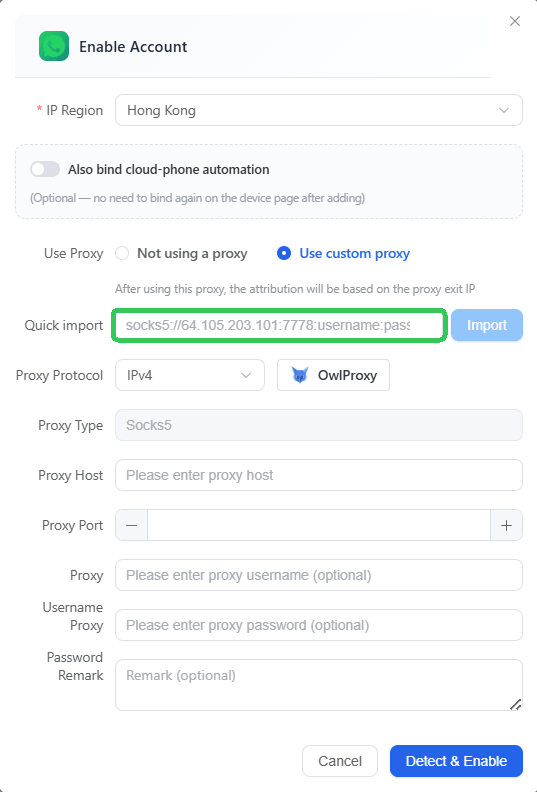
3. If you need to use the proxy, you can select {Use Custom Proxy → Import} to automatically paste the proxy credentials, or fill in the information manually. After finishing, the WhatsApp account's location will align with the proxy's exit IP address.
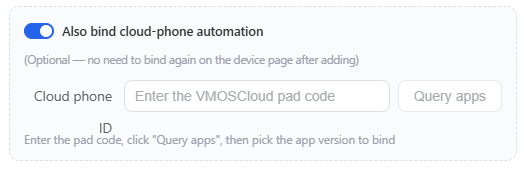
4. If you need to bind a cloud phone for automated operations, you can enable {Also bind cloud-phone automation}→ enter the cloud phone device ID.
Note: Before you can enable it. Find {Documentation→ OpenApi guide} in the left-side panel.
II. Connect with WhatsApp account
1. Scan to log in: Follow the on-screen instructions and use your WhatsApp app to scan the dynamic QR code on the right to complete the connection.
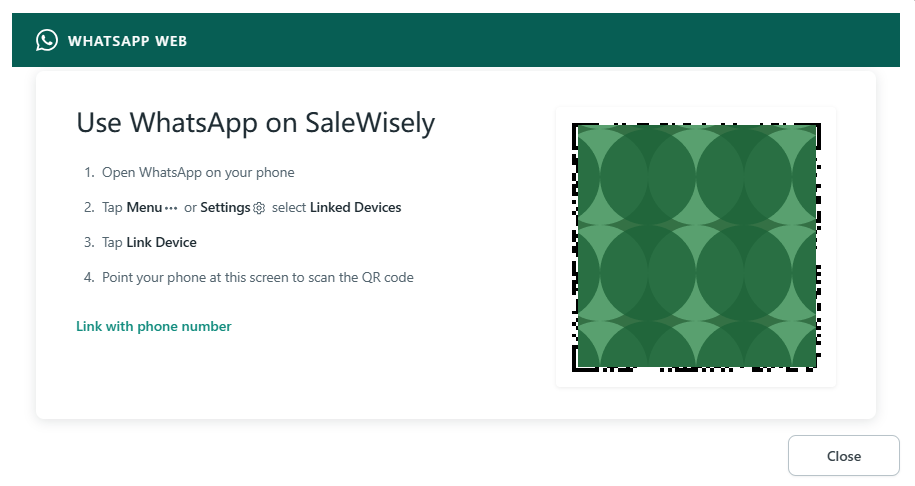
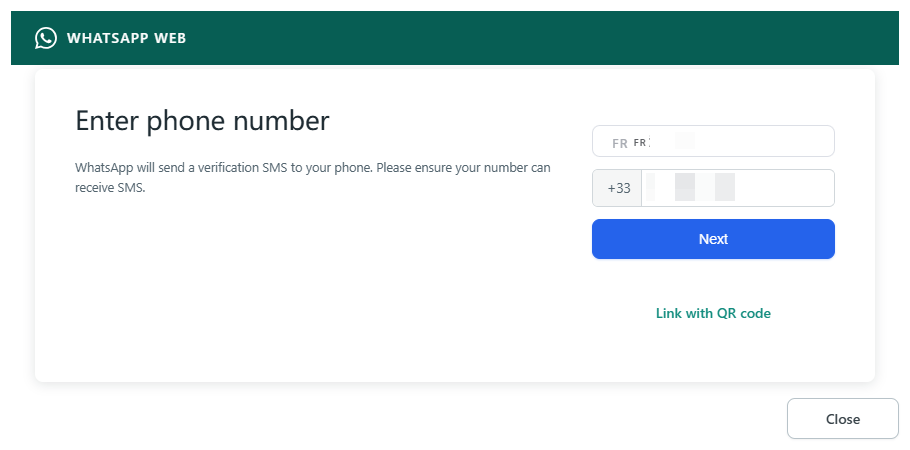
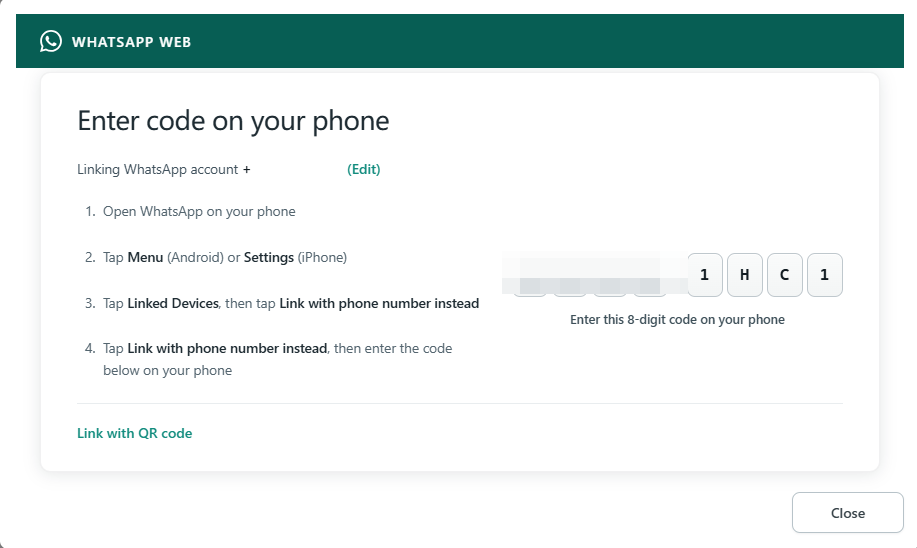
2. Use Phone Number Login: Click {Link with Phone Number} in the bottom left corner, select your account country/region and enter your mobile phone number, click {Next} to get the verification code, and then enter this code on your mobile phone to complete the connection.
FAQ
1.Why does the WhatsApp app show a message saying the device limit has been reached when I click "Add Account" when the device count is 0/1?
You can check the number status. The current logic is: connected/disconnected/numbers scanning QR codes will occupy the device number limit. You can check and delete invalid numbers, and then try adding the device.
2. Why is my WhatsApp number status invalid sometime?
Check if the status of the number is normal on the mobile app, and make sure the number of connected devices hasn’t exceeded the limit (WhatsApp can be used on a maximum of 4 connected devices simultaneously). For details, please refer to the official WhatsApp app documentation on About linked devices.
It's possible that another SaleWisely account has already connected to the device, causing your number to become invalid.
Linked devices will be automatically unlinked if they remain inactive for 30 days or more. If you do not use your phone for more than 14 days, the linked devices will also be logged out.
If none of the above applies, there may be an error that has caused your device to be logged out. For details, please refer to the official documentation Seeing “Your devices were logged out”.
WhatsApp got banned.
Please confirm the location of the VPN node on your mobile device. Ensure that the region of the added device matches the mobile device's node. If the system does not have a node, you can select the nearest region or use a custom proxy. For example, if the mobile device's node is in Hong Kong, but SaleWisely selects the UAE region, this will often cause failures. It is recommended to switch to the same node (Hong Kong).