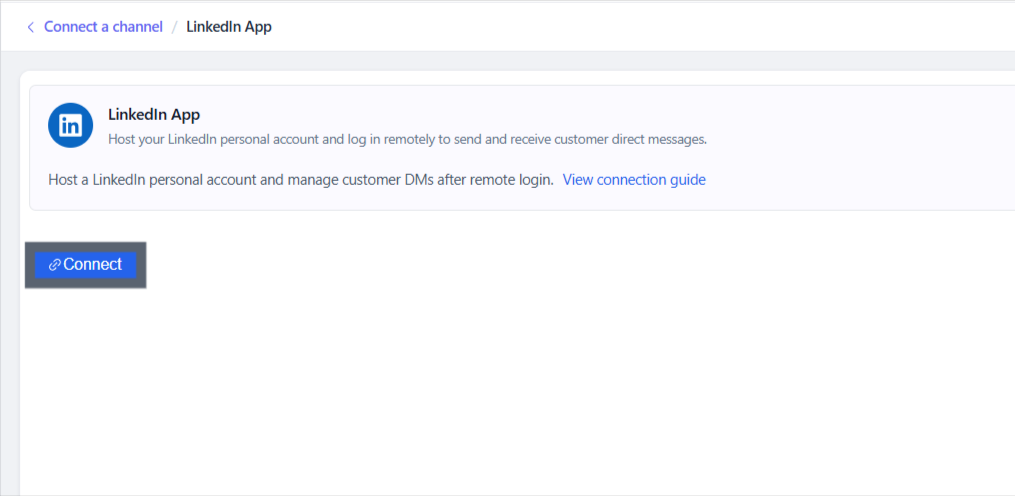
1. Log in to the Salewisely platform, and find { Integration→ Cloud Hosting Account→LinkedIn APP→ Connect } in the left-side bar.
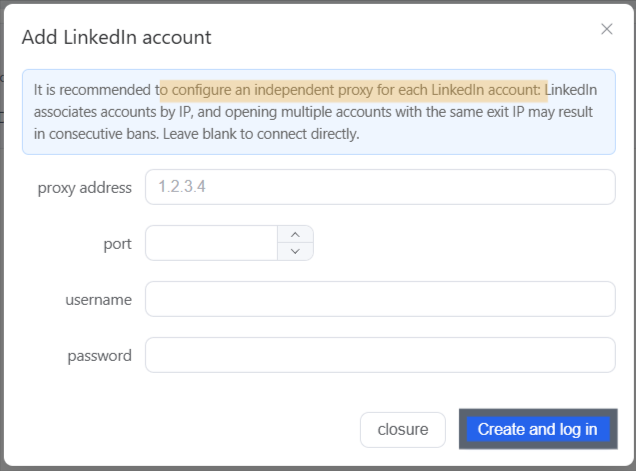
2. Go to { Create and login } if don't need to use the proxy, If you need to add a proxy, copy the right {Proxy credentials} in, or manually add. After importing the proxy, the account's location will be based on the proxy's outgoing IP address.
Note: Use high quality IP, and one proxy per account is recommended.
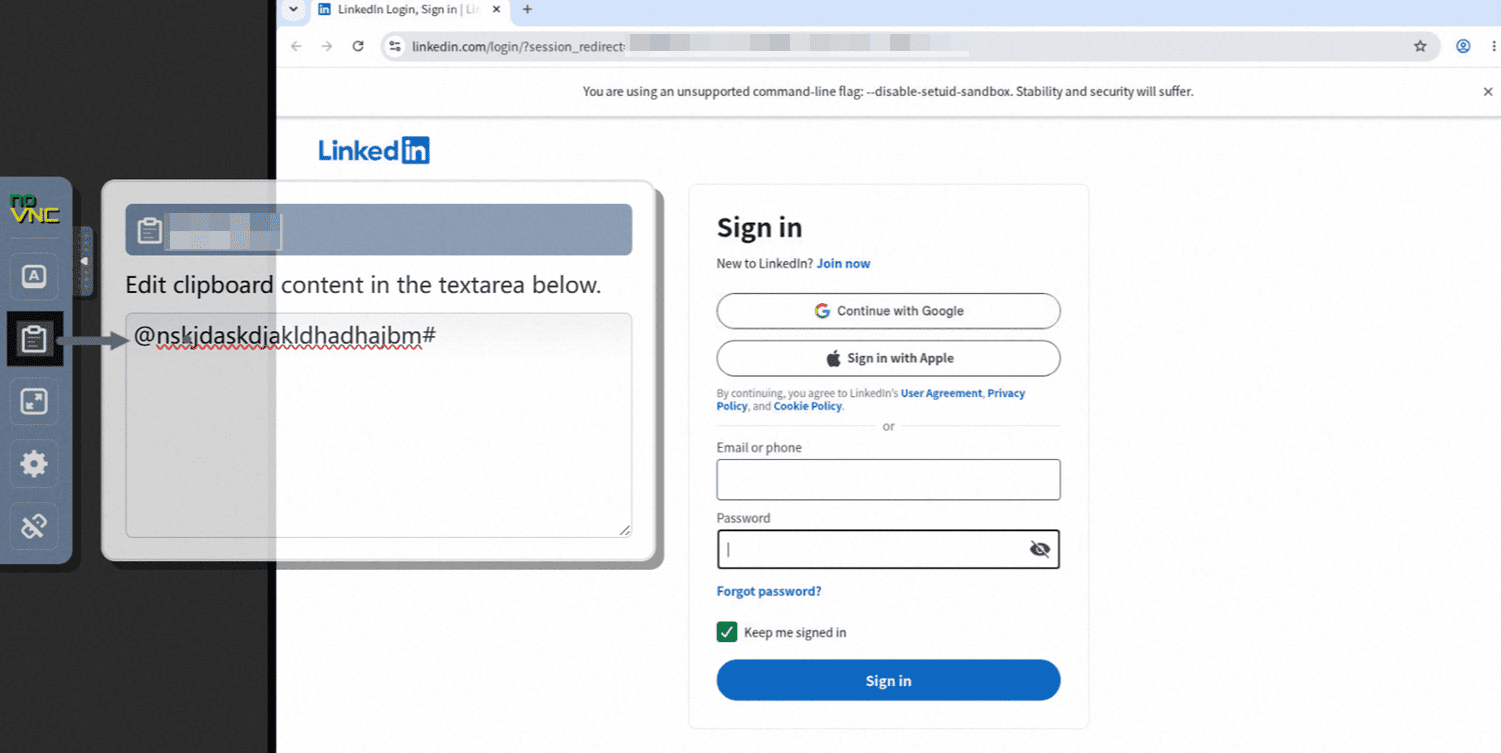
3. Checking the status is starting, find {log in→ open in new tab } in the pop up window to login your LinkedIn account. Salewisely accepts the below ways to connect with:
Google account
Apple account
LinkedIn password
Note: If you need to copy and paste the password, please use the clipboard as shown in the image.

4. Once logged in, the system will automatically complete the linking process; no further action is required.