Scan the QR code to quickly integrate your personal LINE account with SaleWisely, enabling you to receive, distribute, and reply to messages from LINE friends, supporting both text and image message types.
Before connecting with Line account
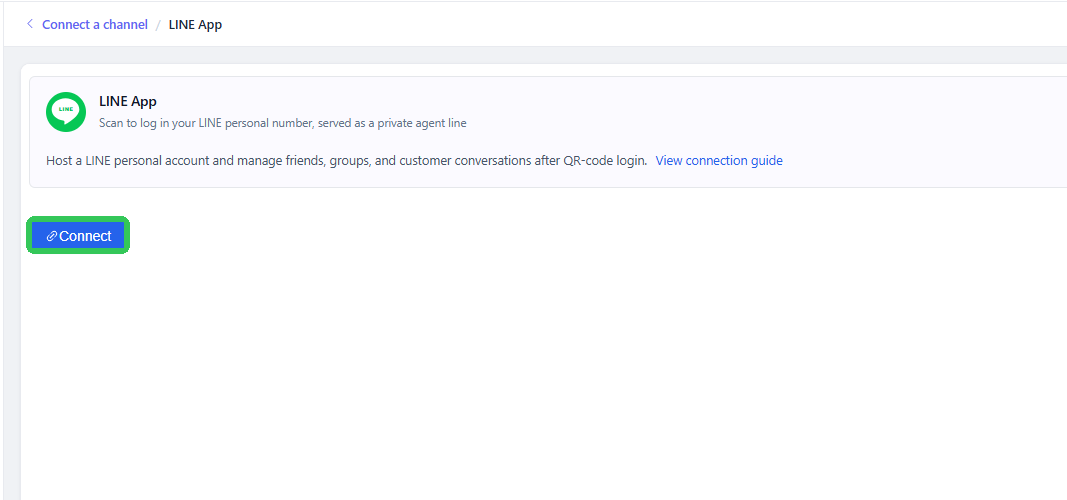
1. Log in to the Salewisely platform, and find { Integration→ Cloud Hosting Account→Line APP→ Connect } in the left-side bar.
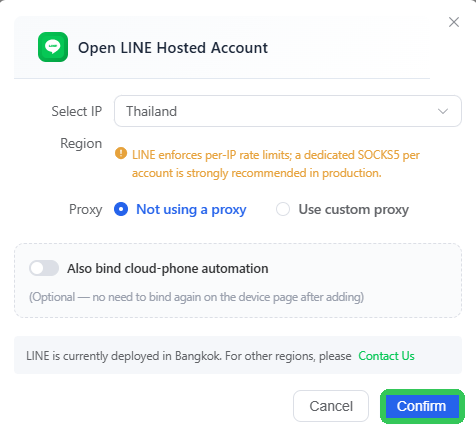
2. Go to the configuration page. For the { Select IP }, we recommend selecting your frequently used login region or a nearby region. If do not find the regions you prefer, please click Contact us.
Note: IP region cannot be changed after first setting.
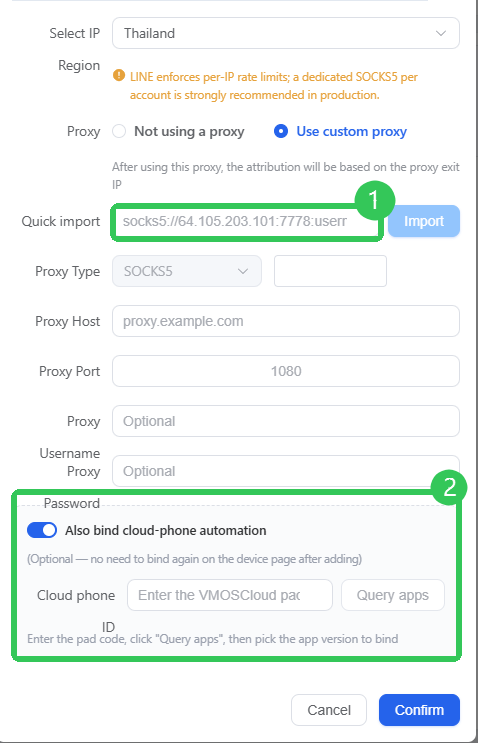
3. To use your own proxy, enable {Use Custom Proxy → Import} to automatically paste proxy credentials in, or manually add. After importing the proxy, the account's location will be based on the proxy's outgoing IP address.
Note: Use high quality IP, and one proxy per account is recommended.
4. If you're a cloud phone user, try enabling { Also bind Cloud Phones automation→ enter Device ID }.
Note: This requires access to the VMOSCloud OpenAPI first. Find Documentation → Access Tutorial in the left-side bar.
Connect Line to Salewisely
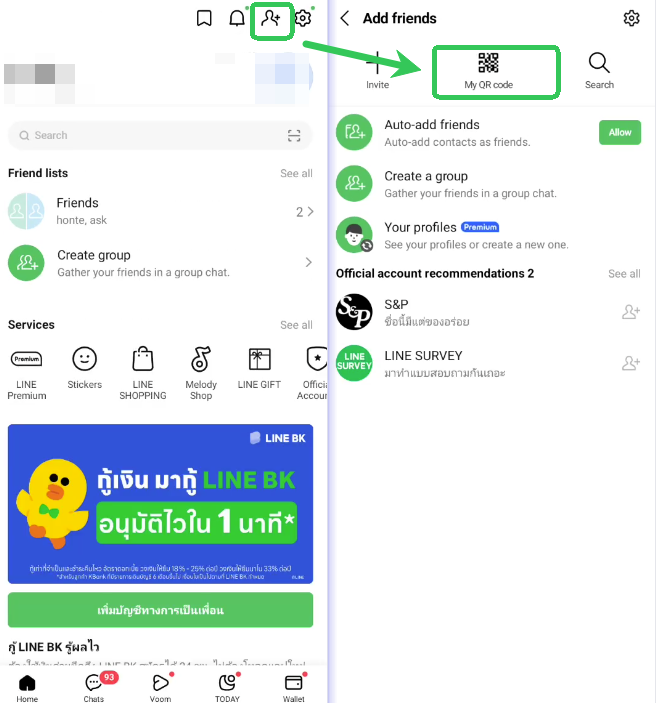
1. Open the LINE App on your phone, find the top right corner of the { chat homepage → Add Friends → My QR Code}
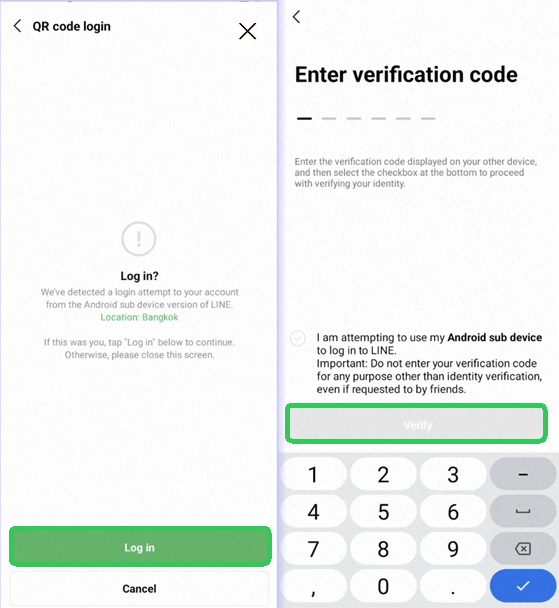
2. After scanning the QR code on SaleWisely, click {Login}, enter the PIN code shown on SaleWisely, and then click {verify} to complete the binding.