Salewisely currently supports API access to LINE's official accounts to communicate instantly with users and provide fast customer support.
[Latest] Brief steps for 2026 Line Messaging API Official Account Integration. Please scroll down for a detailed guide:
Note: From 2024, it is impossible to create a Messaging API Channel directly from the LINE Developers console. You need to create a LINE Business ID first.
Create a LINE OA account (Business ID)
Enable the Messaging API in Line Official Account Manager
Generate a Messaging API Channel Secret
Configure the Token and Webhook in the LINE Developers Console
Call the Line Messaging API in SaleWisely
1. Create an Line OA account (Business ID)
1. Sign up with a personal Line account, or Log in to the LINE Official Account Manager: https://manager.line.biz/
Note: A personal Line account can be converted into an official account. Please confirm the account you wish to use before proceeding.
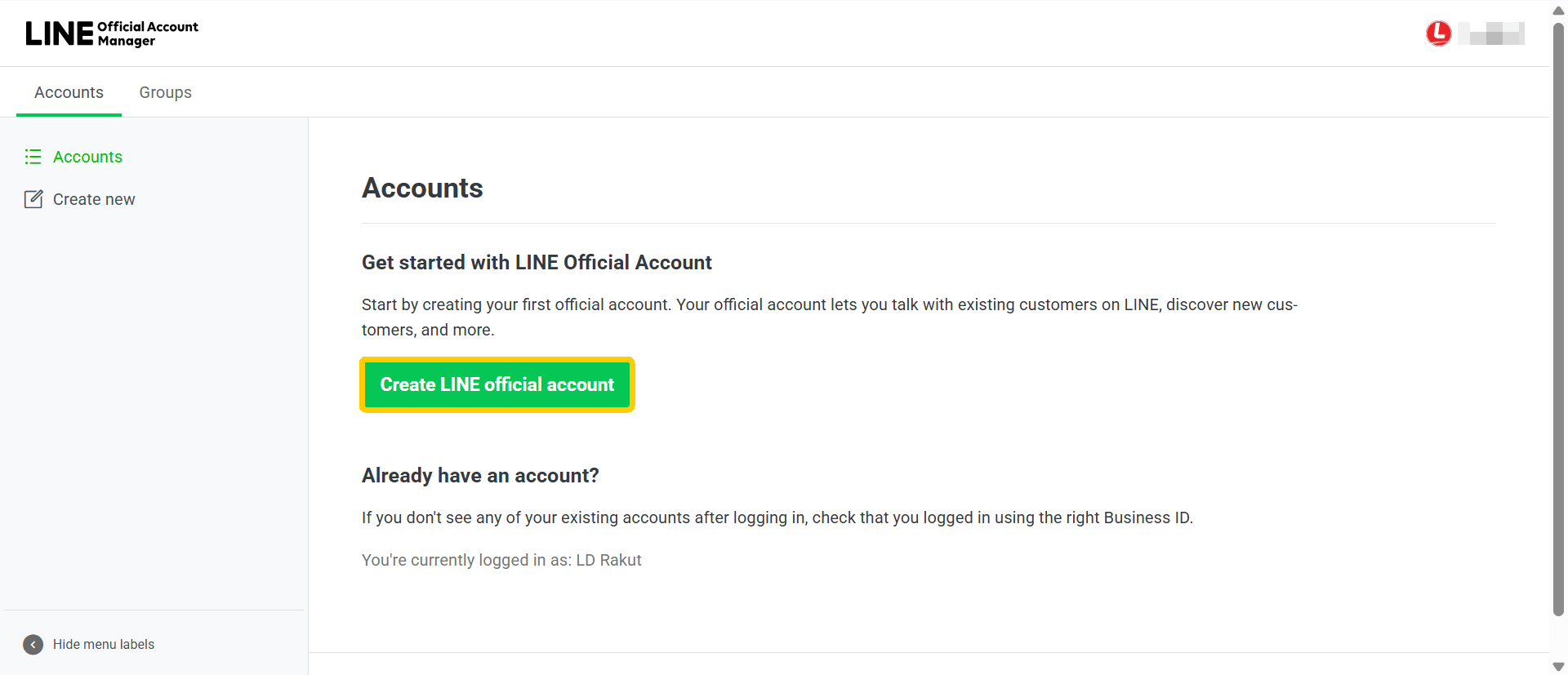
2. Go to {Create LINE official account} and follow the steps to create and set up your LINE OA. For detailed steps, please refer to the official tutorial on how to create an official LINE official account.
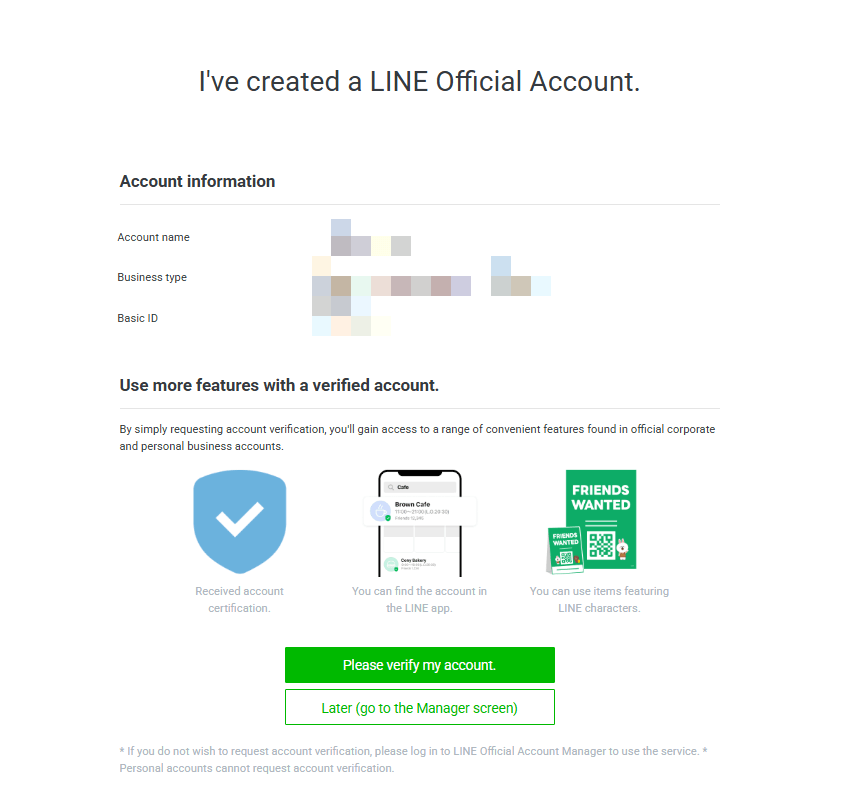
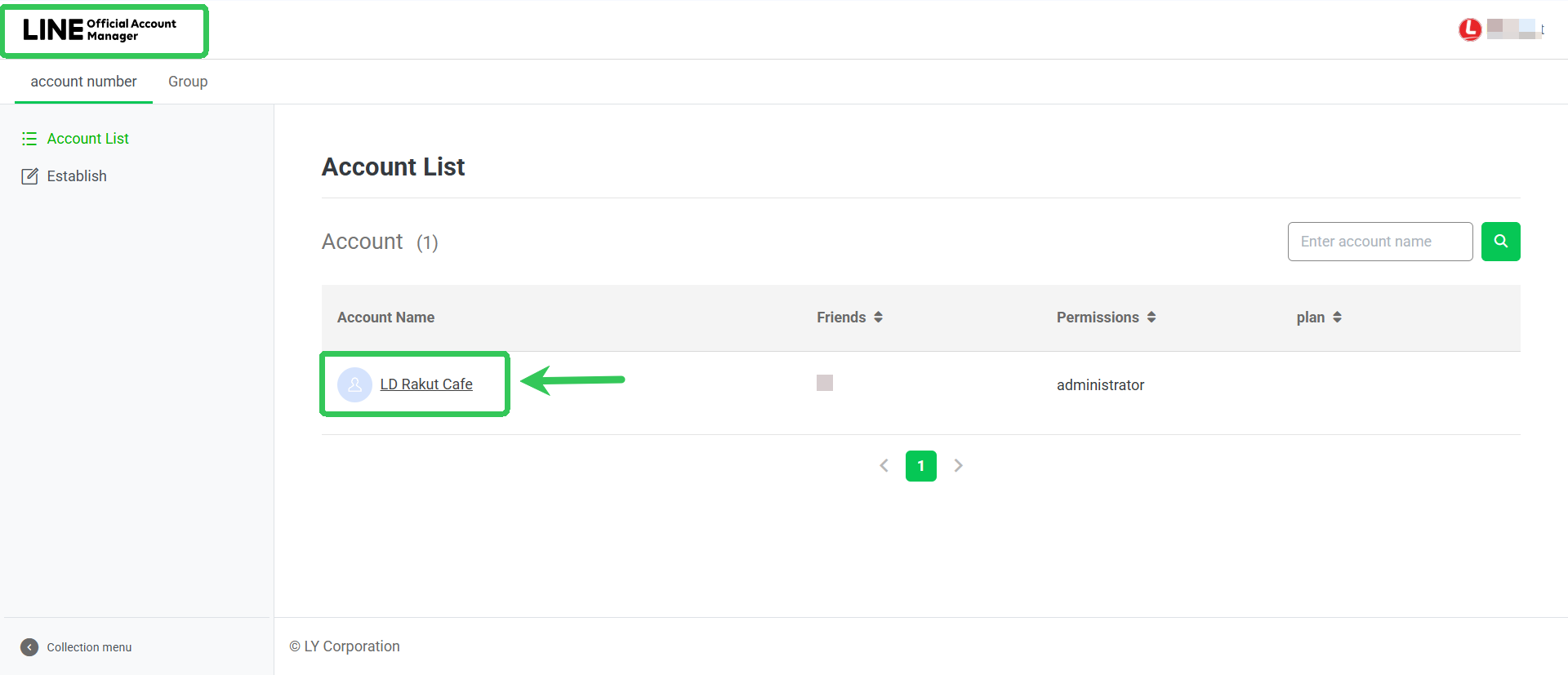
3. After successful creation, select →{ Later (go to the Manager screen)→ Line Official Account Manager}→ click the official administrator account you just created.
2. Enable Messaging API
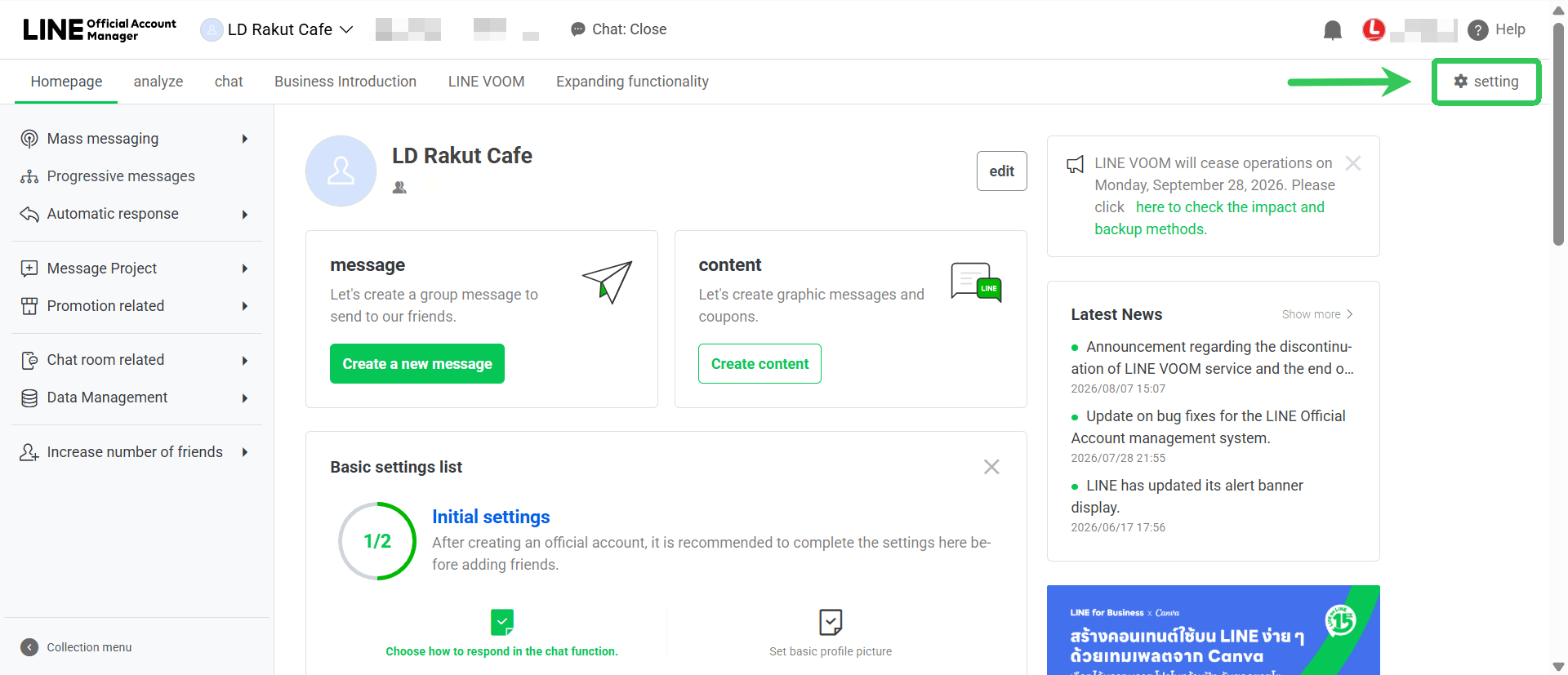
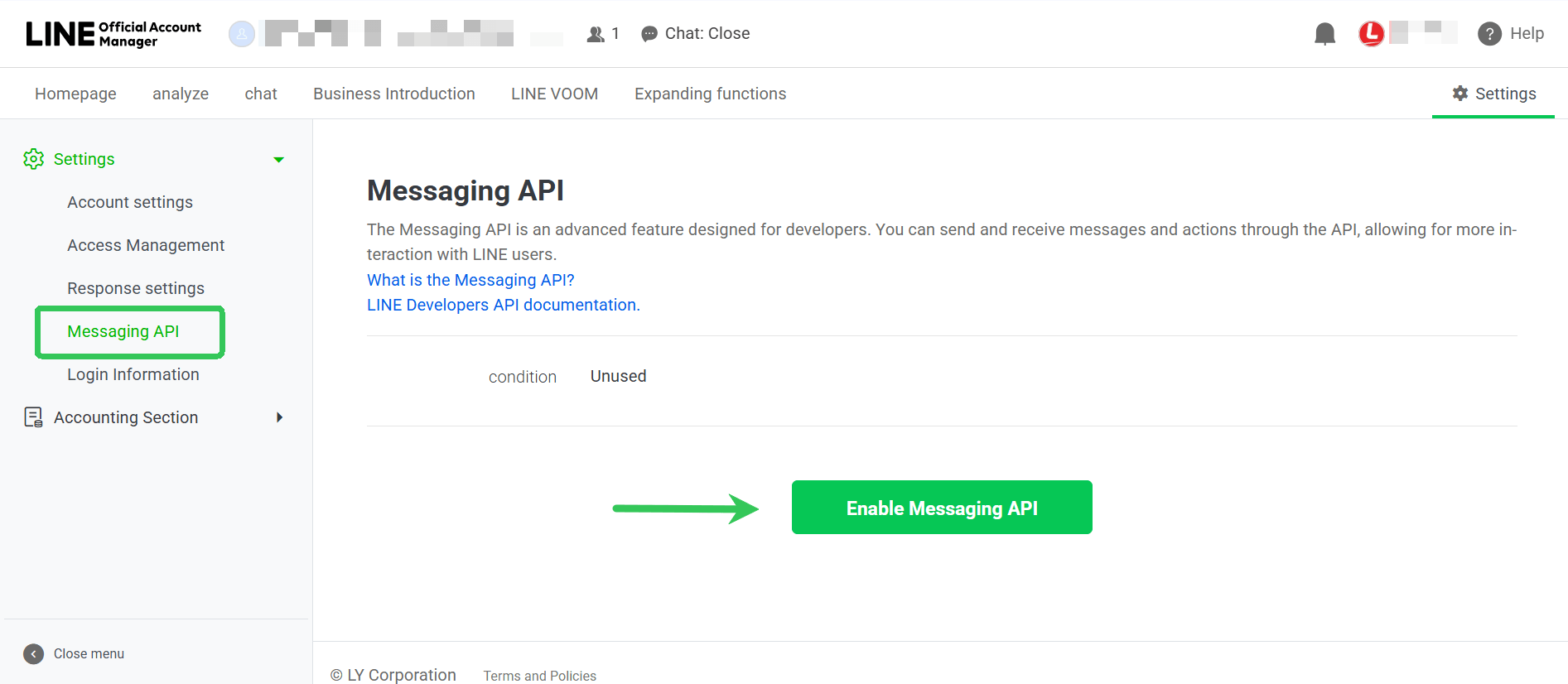
1. Click on {Settings} in the panel, find {Messaging API → Enable Messaging API}.
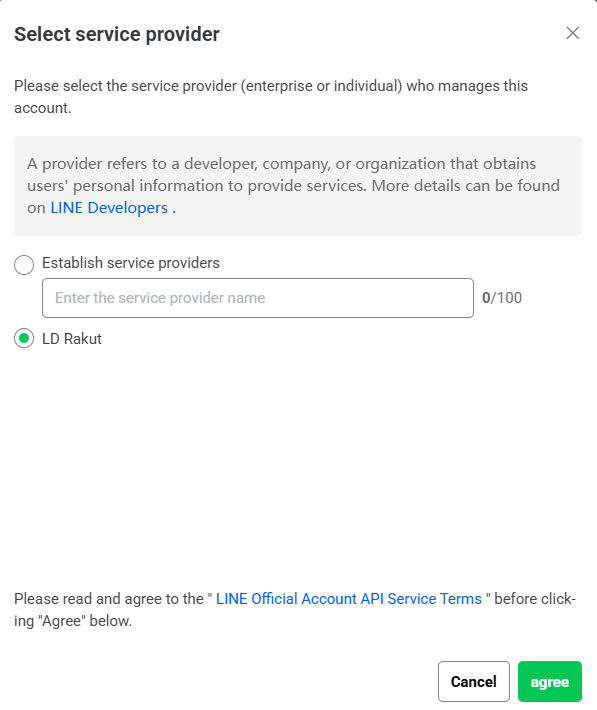
2. Simply select an existing LINE OA administrator as the service provider and click {Agree}.
Note: Service provider must be admin. If not, the Line OA will not appear on the service provider selection screen. Once designated, the service provider cannot be changed or canceled.
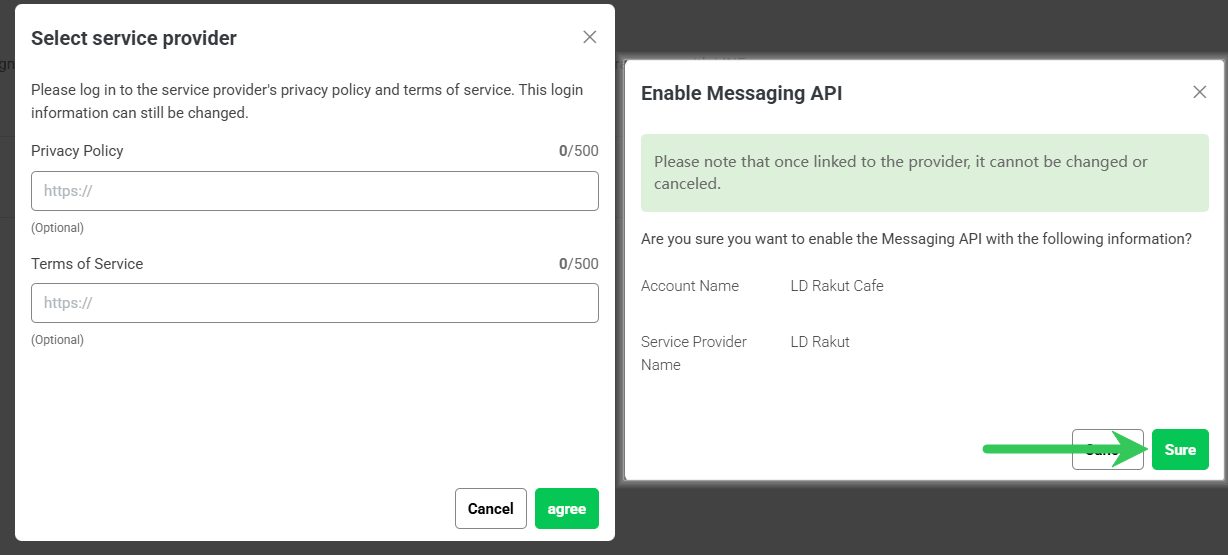
3. Enter the URL of the Privacy Policy and Terms of Service, or you can skip this step →{Sure} to successfully enable Line Messaging API.
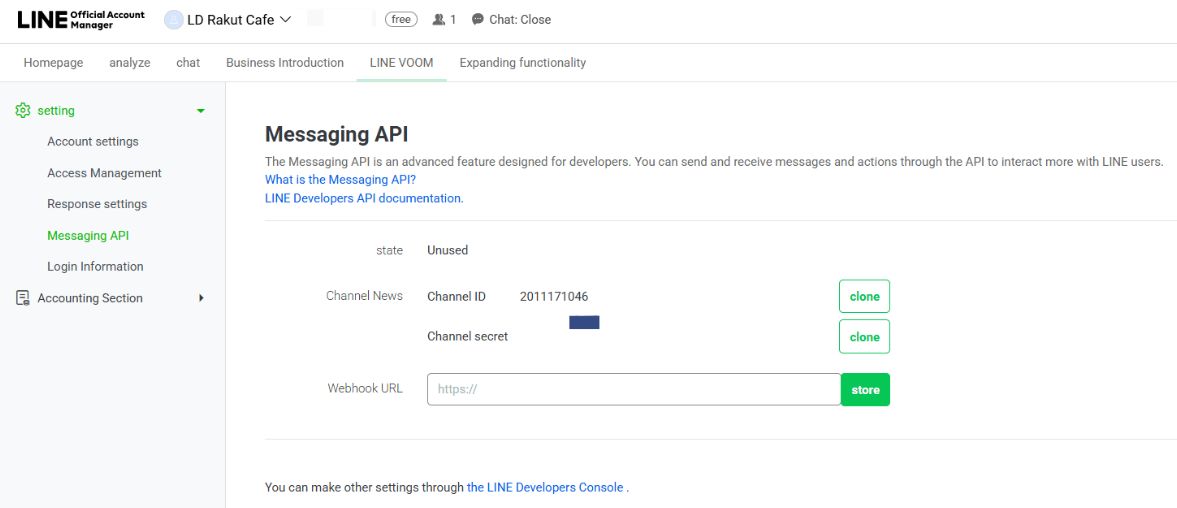
3. Generate a Channel Secret in Line Messaging API Channel
After that, the Line Official Account Manager will automatically generate a {Channel Secret} copy and save it.
4. Configure Webhook in the LINE Developers Console
1. Use your Line OA to login the LINE Developers Console
2. Select the account that has already enabled messaging api.
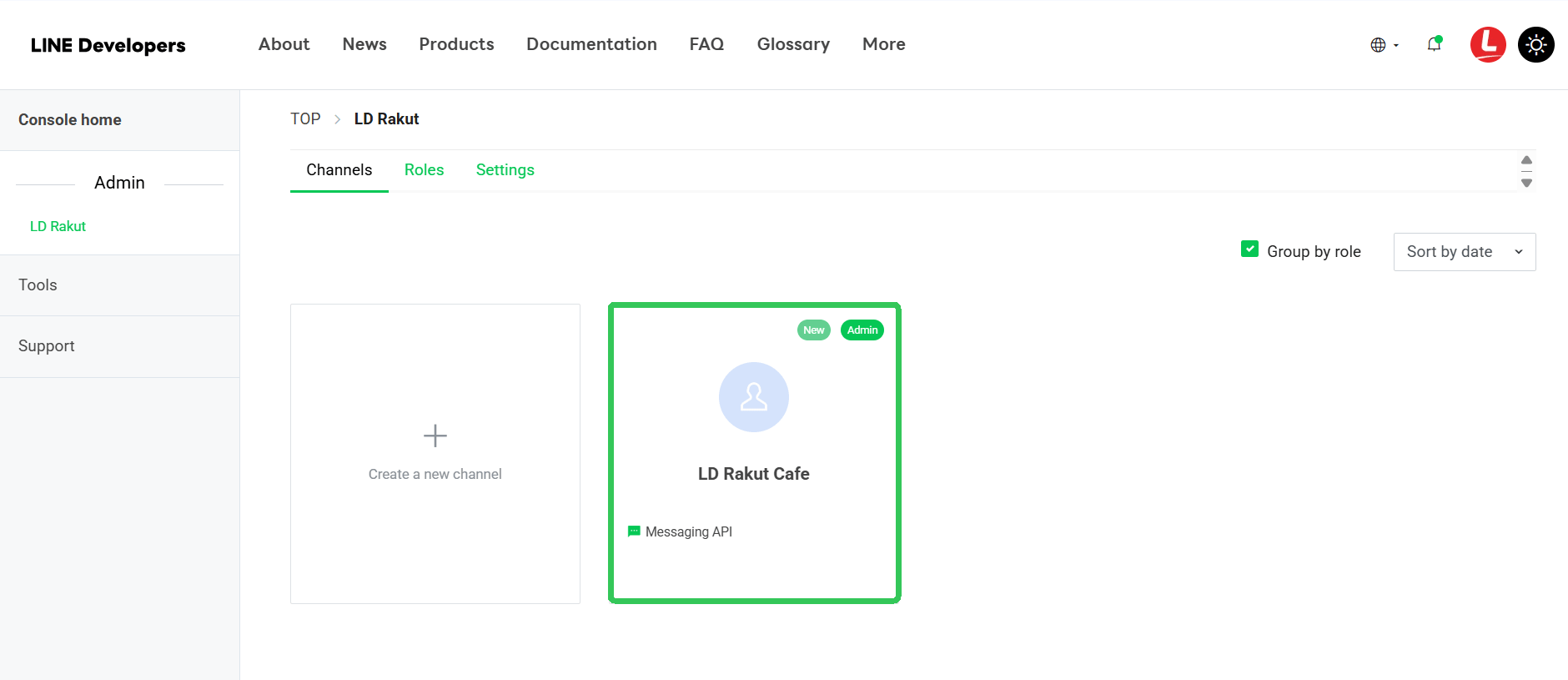
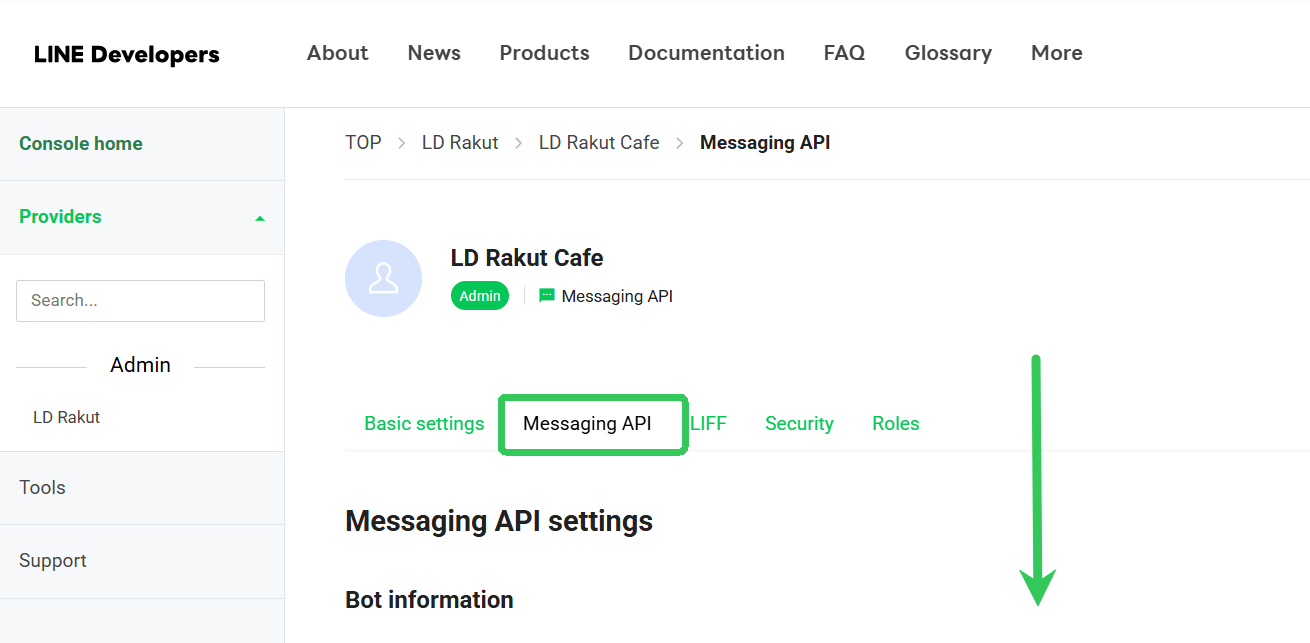
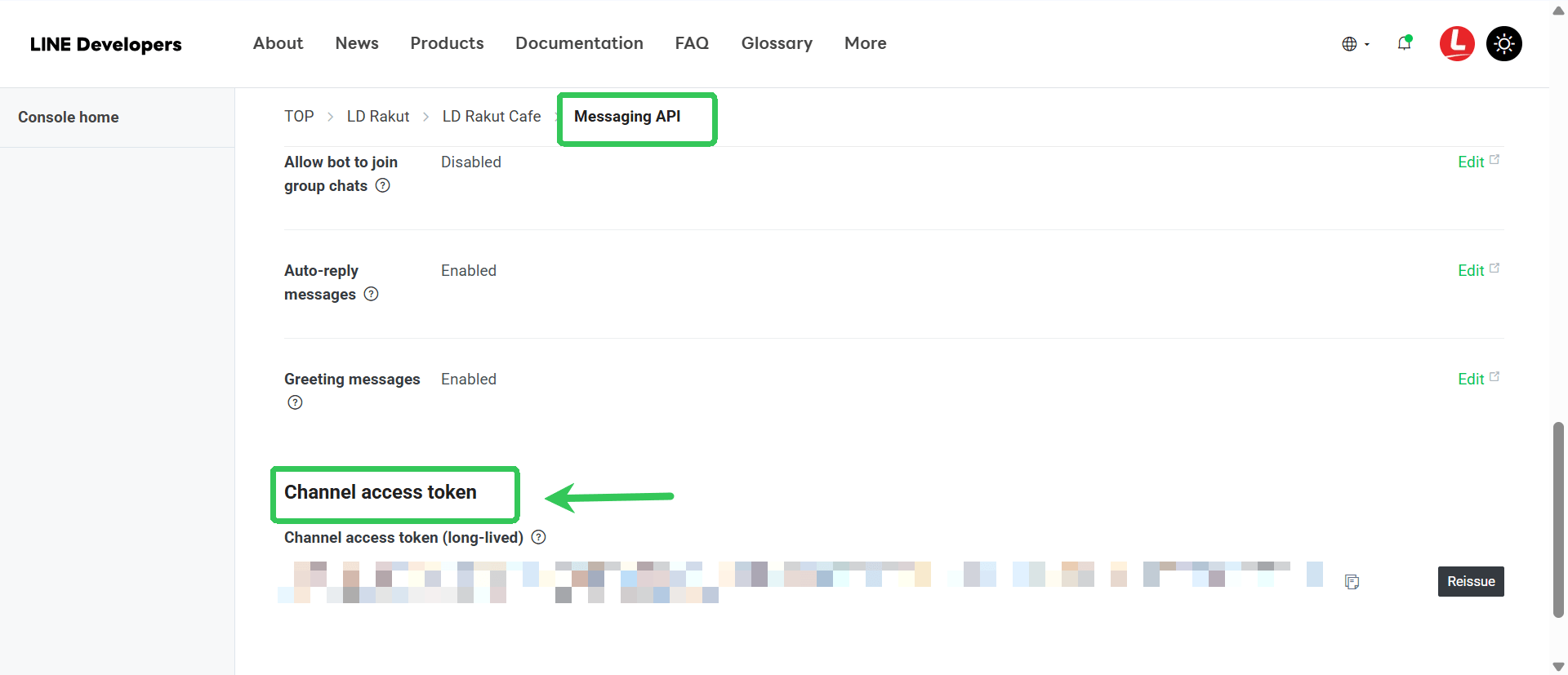
3. Find the {Message API} and scroll down to the bottom → find {Channel Access Token} copy and save it.
5. Integrate the Line OA into the SaleWisely
1. Confirm all buttons under {Response Settings} are turned off in Line account manager.
2. Back to SaleWisely, find {Integration → Official API Channels → Line API → Connect} in the left-side bar, and paste the previously saved Channel Access Token and Channel secret.
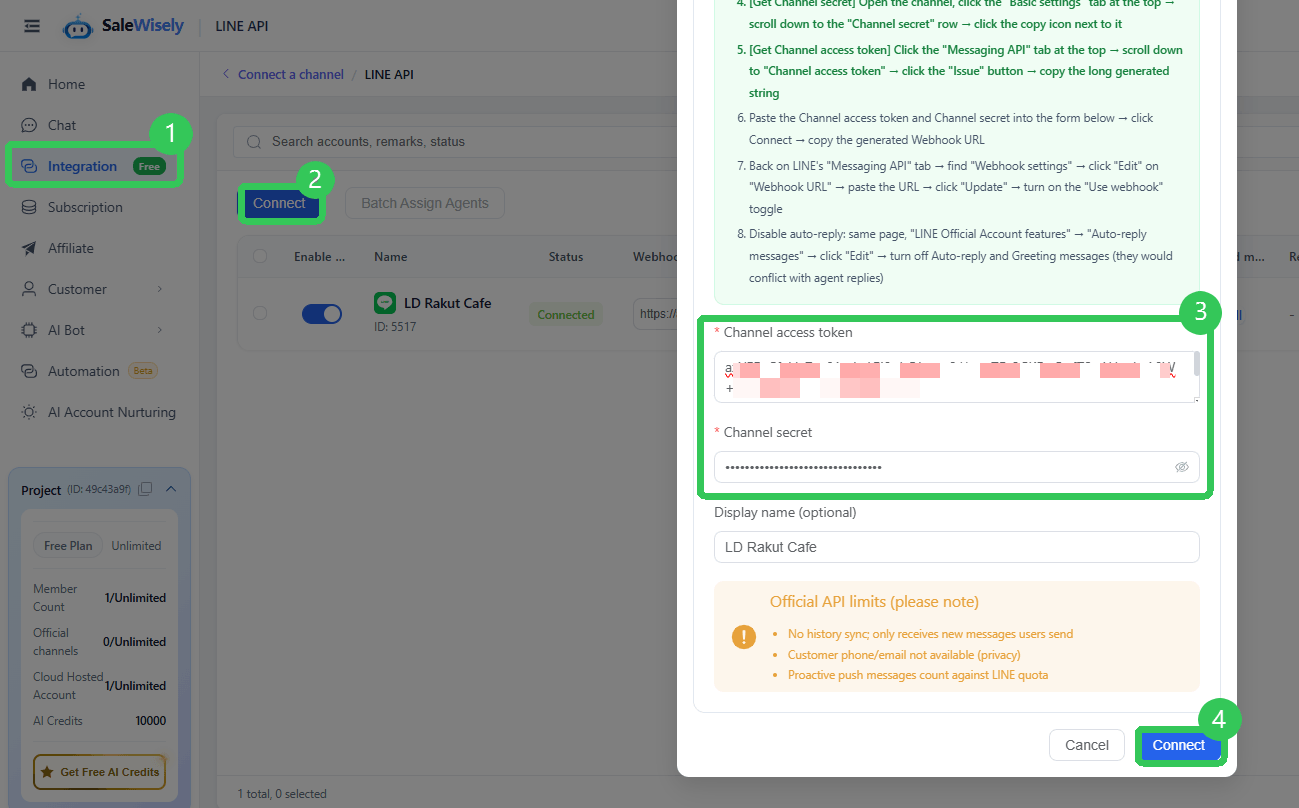
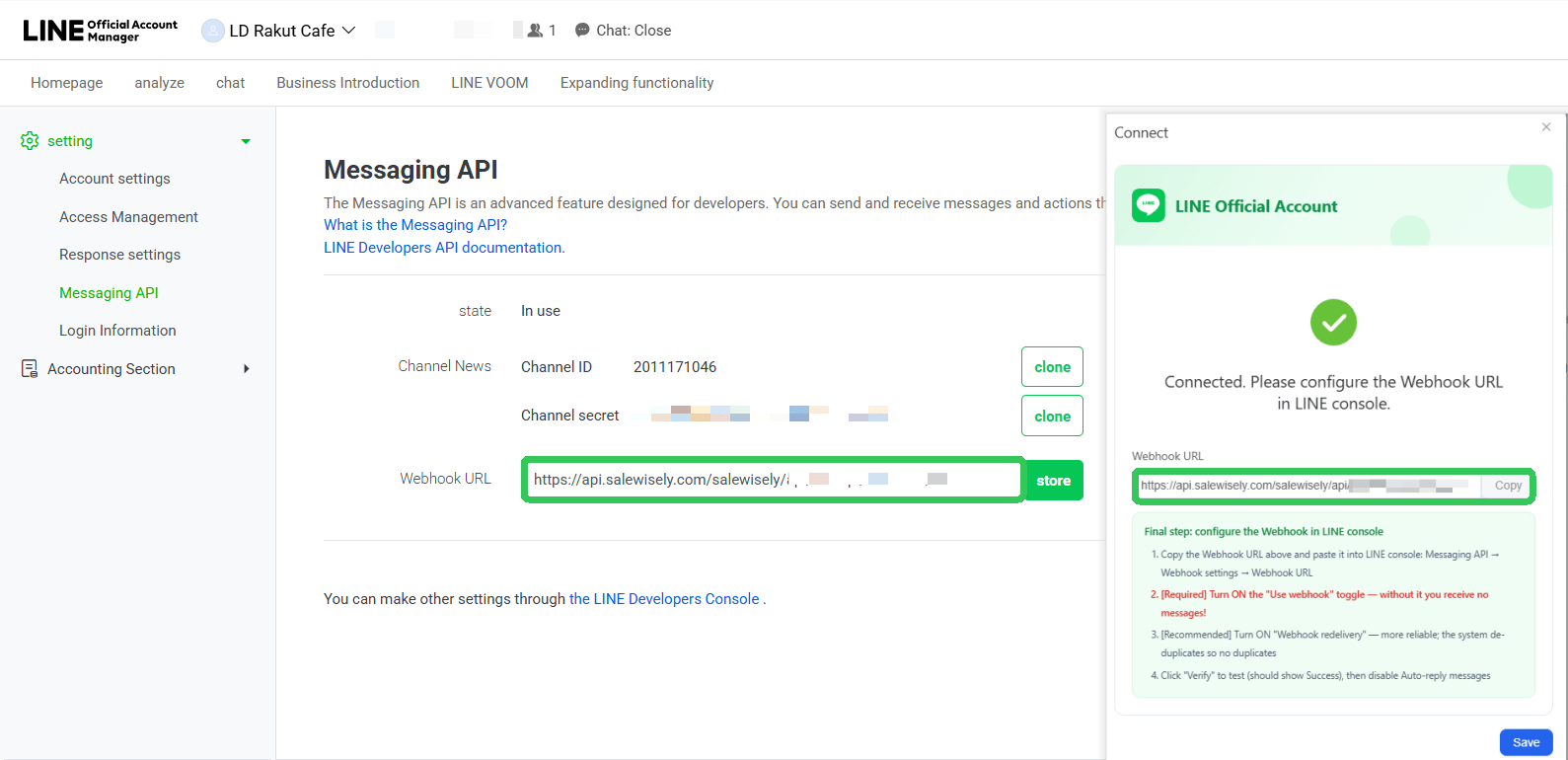
3. After binding, copy the {Webhook} that SaleWisely automatically returns to the Line account manager to {save} it.
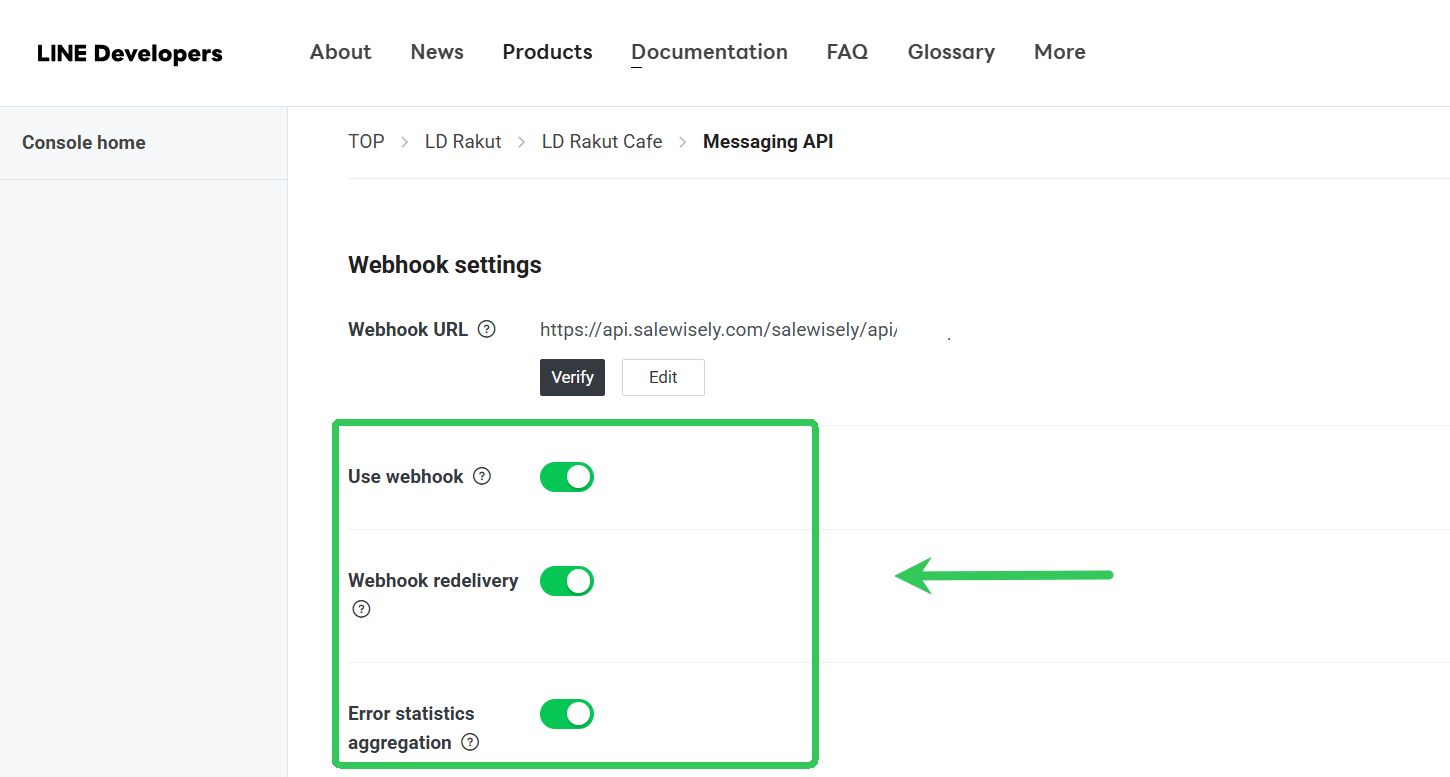
4. In the Line developer console, find the {Message API} and enable {Use webhook, webhook redelivery, error statistics aggregation} *.
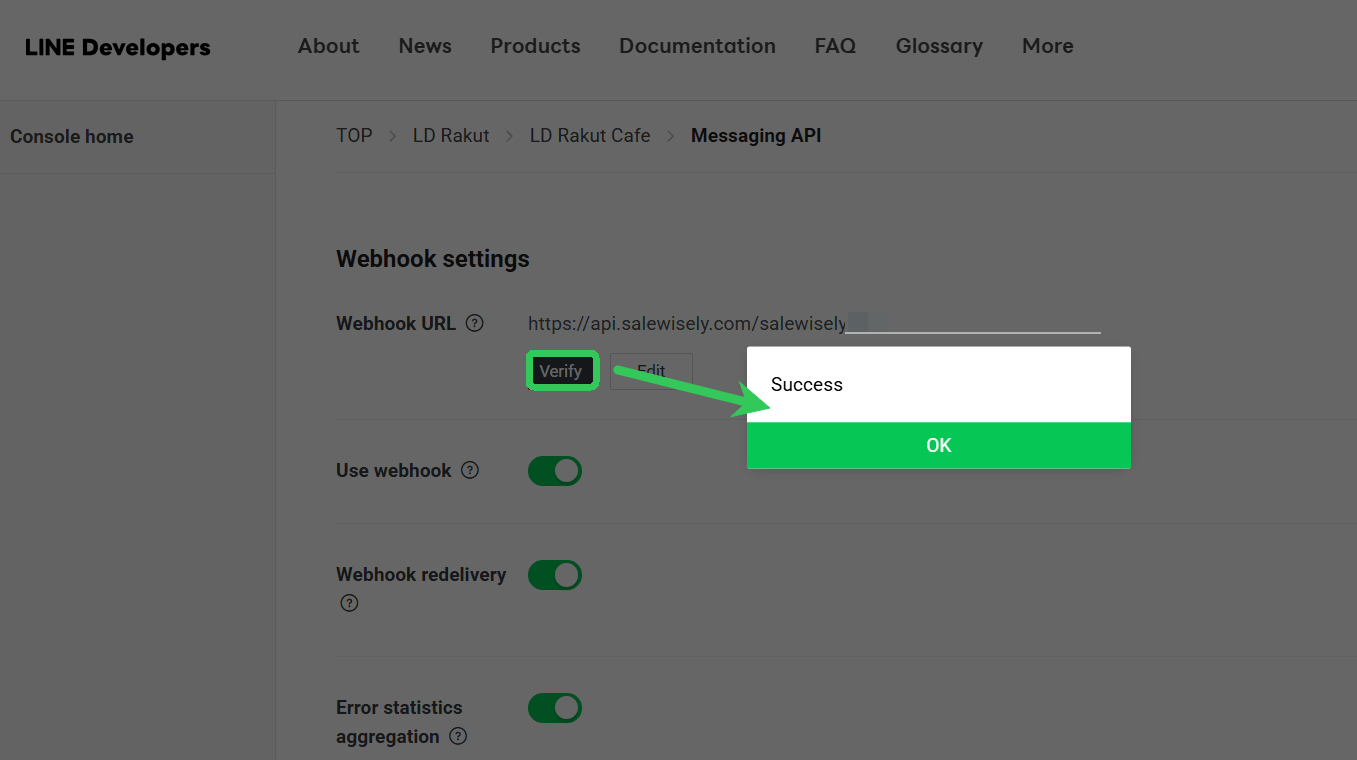
5. Click {Verify} to confirm the webhook was successful.
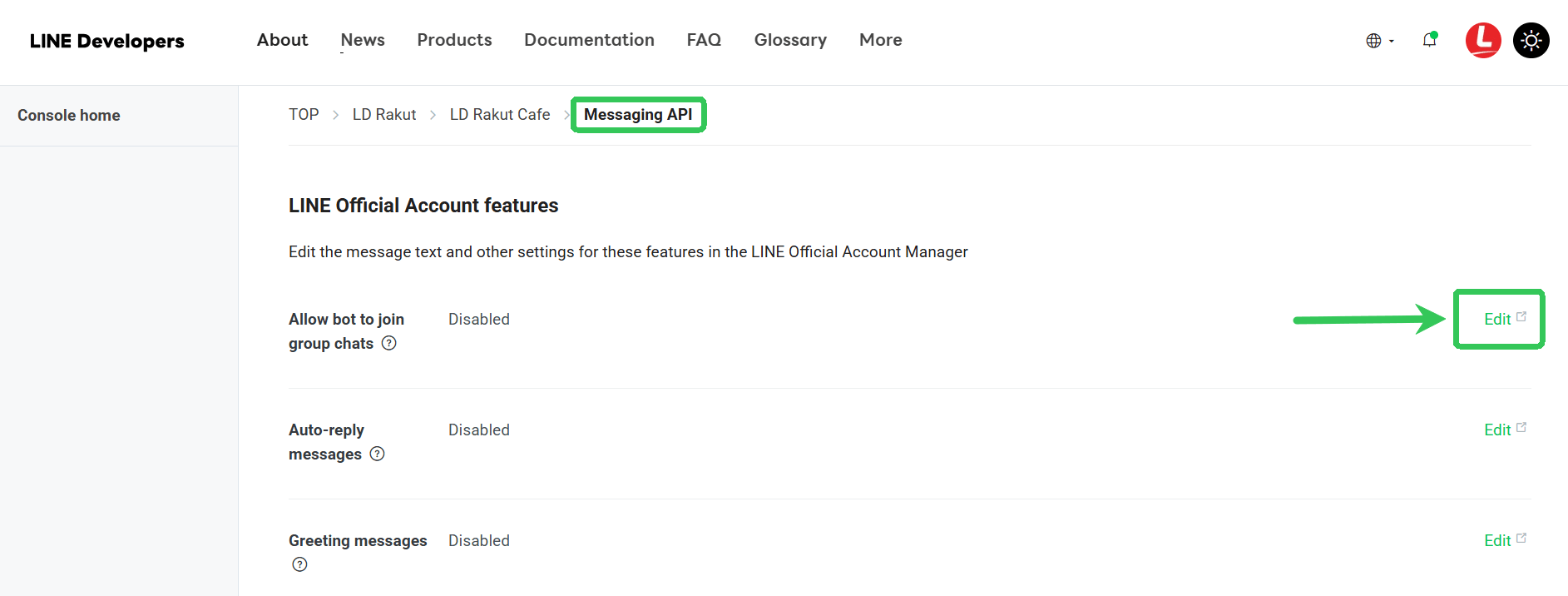
6. How to receive LINE group chat messages
Select the corresponding {Messaging API → Enable Allow bot to join group chats}.
FAQ
Q. Should I pay for using the Line Messaging API?
A: Not at all. According to LINE's official 2026 policy, the Messaging API cost primarily depends on the calculation of message counts. Currently, receiving and replying to user messages does not count; however, calling the Messaging API's Push, Multicast, Broadcast, and Narrowcast methods will count.
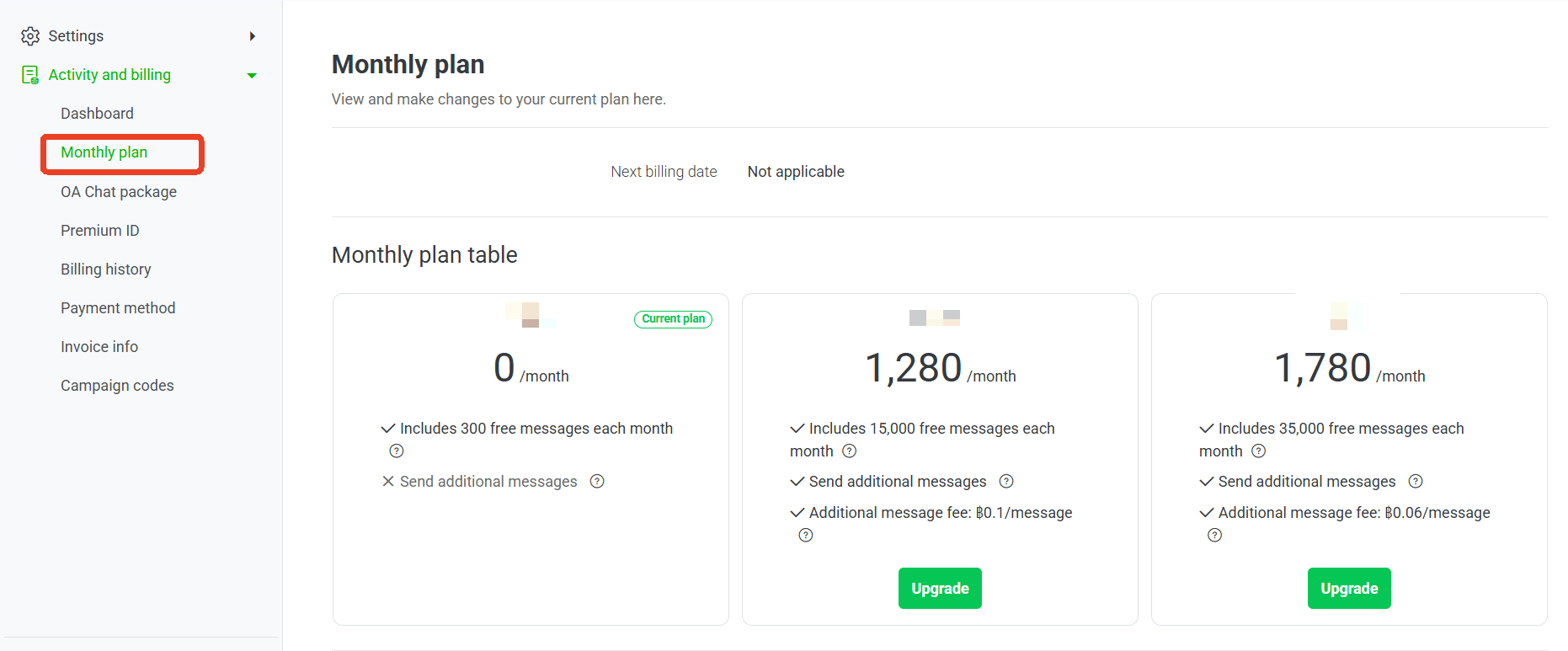
LINE OA currently offers three plans: free plans and fixed monthly fees (Communication, Light, Standard). The pricing varies in different regions such as Japan, Taiwan, and Thailand, and you can subscribe to one according to your needs.
For detailed information on how to count Line messages, please refer to the official counting standards.
Q. Where to check how many free messages I can send on Line OA?
A: Log in to the Line official account manager
You can find {Dashboard → Messages sent this month] to view your current account's monthly free credit.
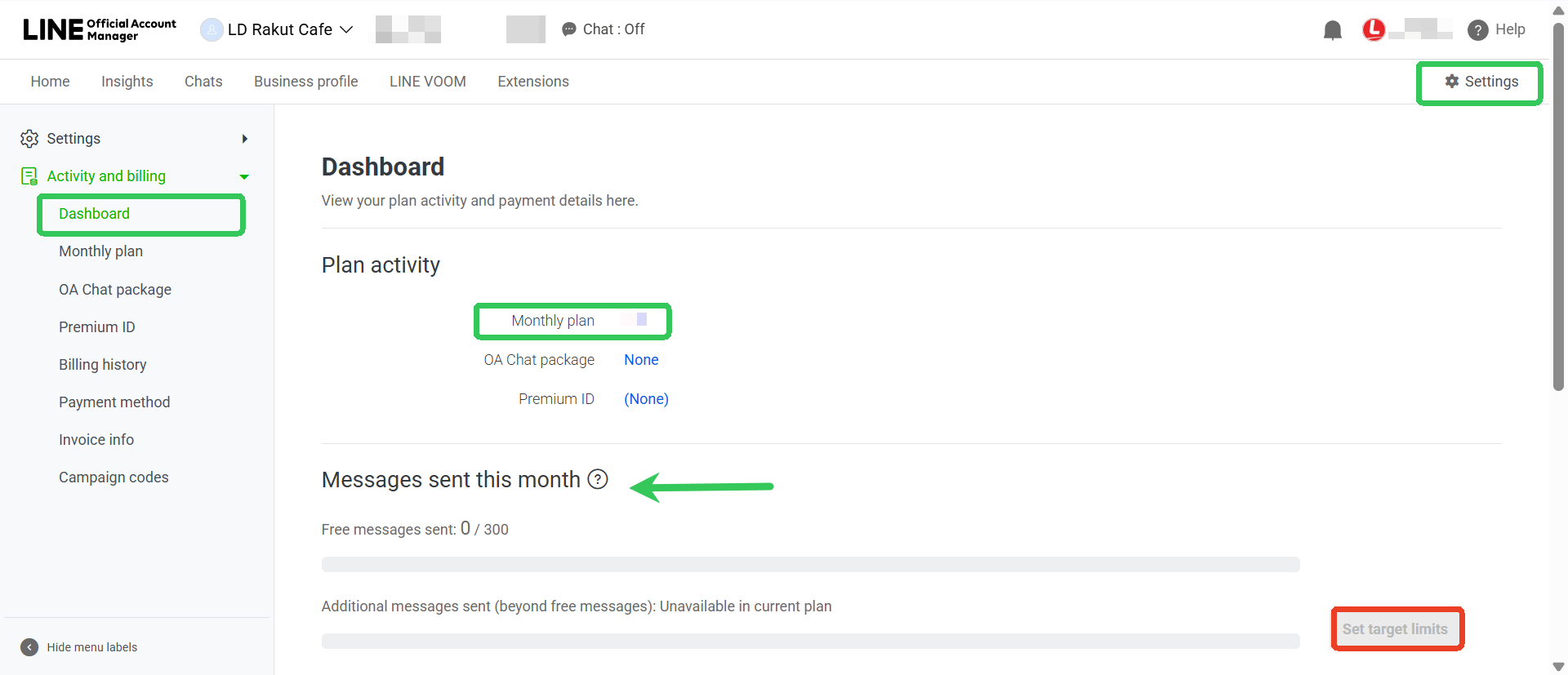
Find {Monthly plan} to upgrade your current plan for more message allowance.
Q. How to continue sending additional messages when I've reached the free limit on Line OA?
A. If you've used up your monthly free messaging allowance for LINE OA and want to continue sending messages proactively, there are two ways:
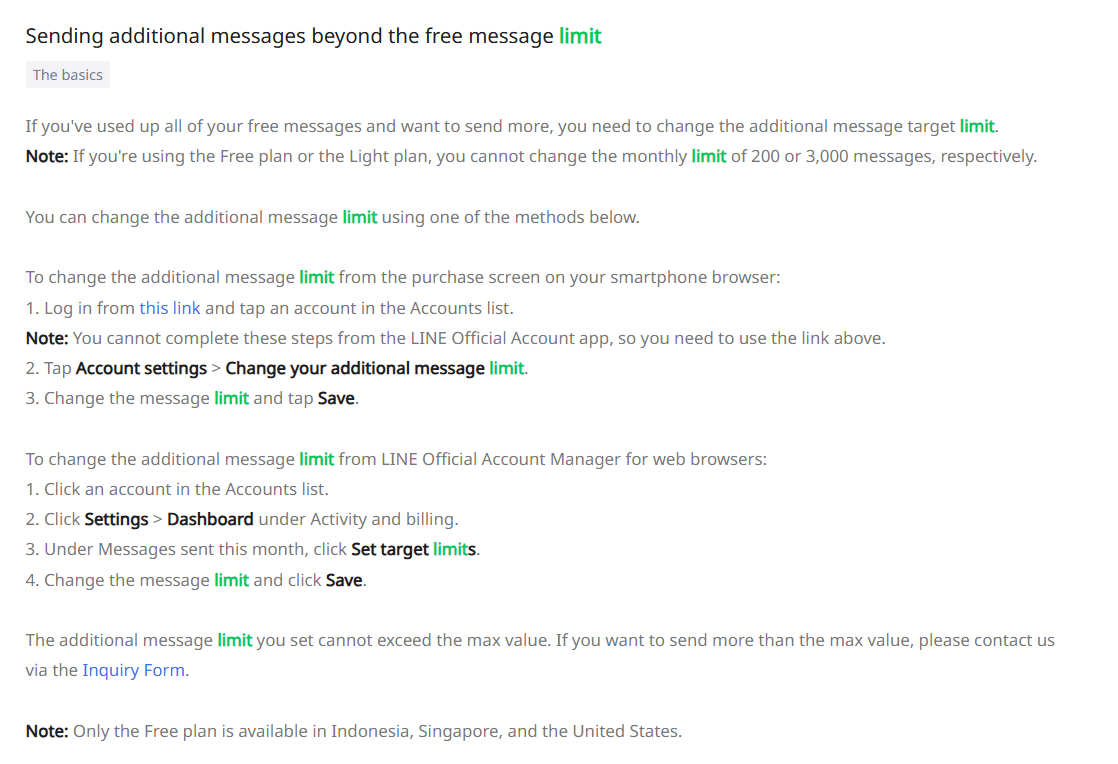
Note: If the monthly limit has been reached and no additional messages are available, proactive sending via Push, Broadcast, or Multicast will fail, and the Messaging API will typically return 429 or You have reached your monthly limit.