After switching to SaleWisely, customer service teams can migrate their full Instagram comment and direct message history to the platform.
Before connect, please make sure all required:
IG must be a Professional Account (personal won't work) : follow part 1 to see how to set this.
Must be linked to a Facebook Page (Meta requirement)
You are admin of that Page
1. Switch Instagram account to a business or creator account
Please jump to part 2 if your account is already verified as Professional Creator or Business. The differences between this two types of account please visit | Instagram Help Center- About professional accounts on Instagram.
Instagram noted that Professional accounts can't be set to private. All pending follow requests will be automatically accepted when you go public.
a. How to switch Instagram account type on the desktop
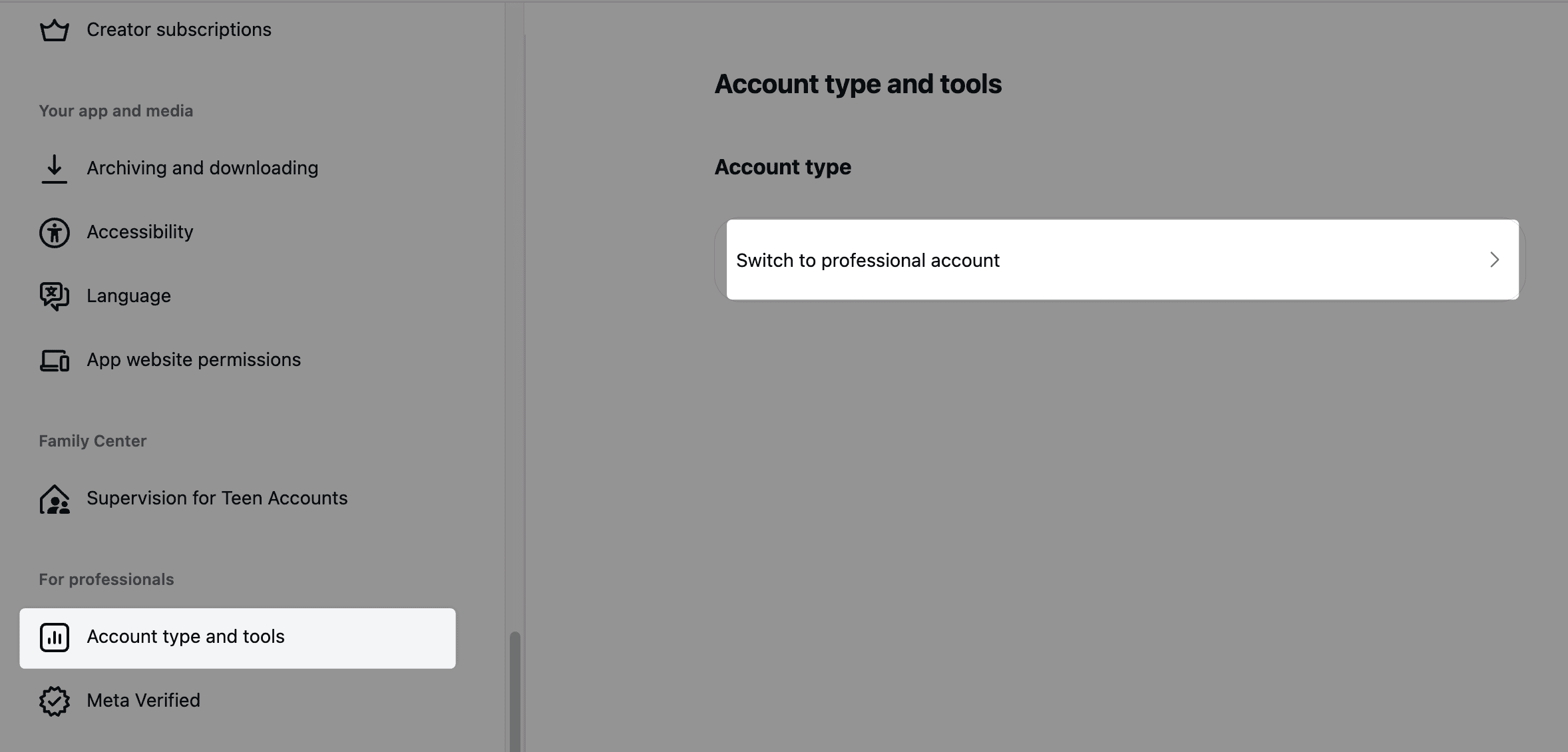
1. Go to the official Instagram website, click { More→ Settings → Account type and tools} to switch to a professional account.
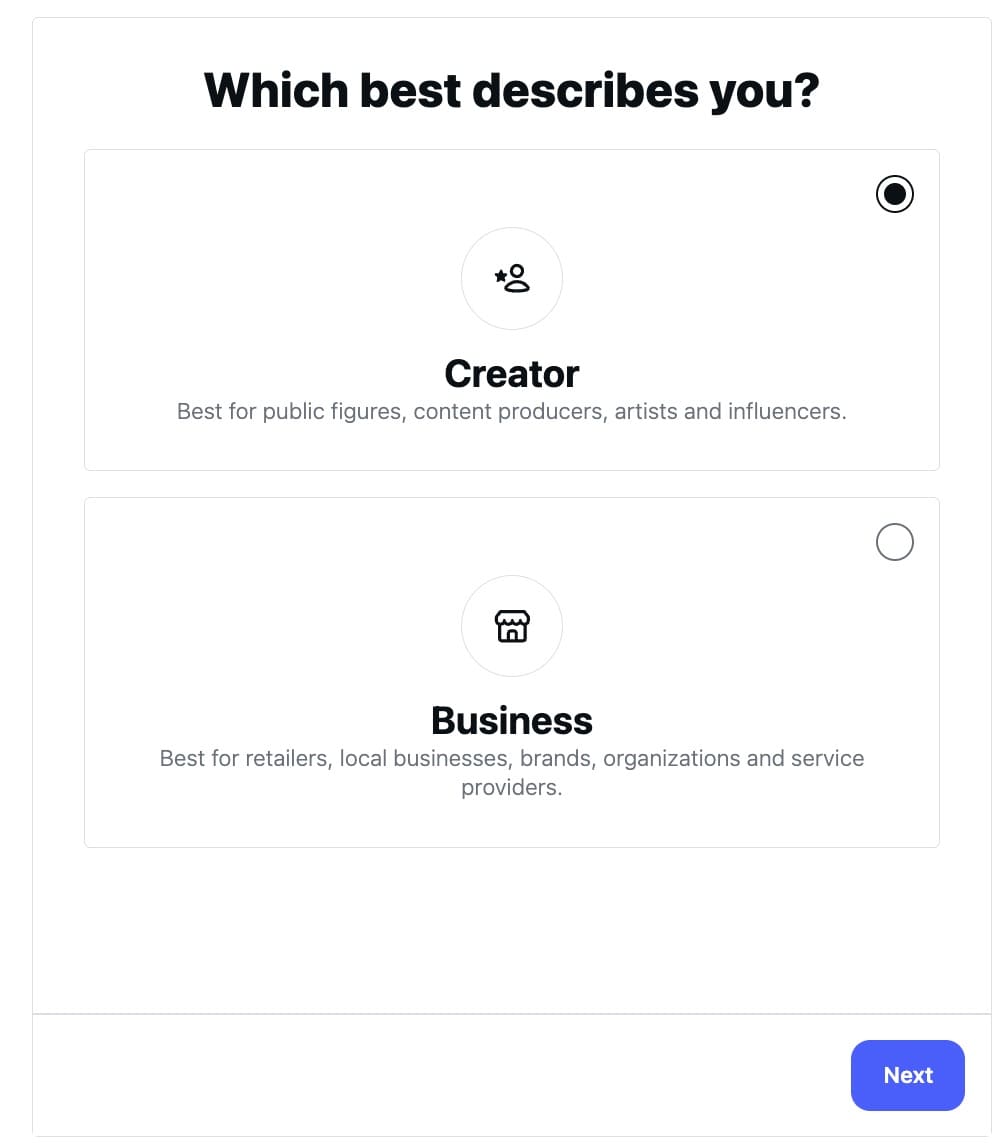
2. { Creator or Business}, select one of professional accounts to {Continue} and go ahead.
b. How to switch Instagram account type on the mobile
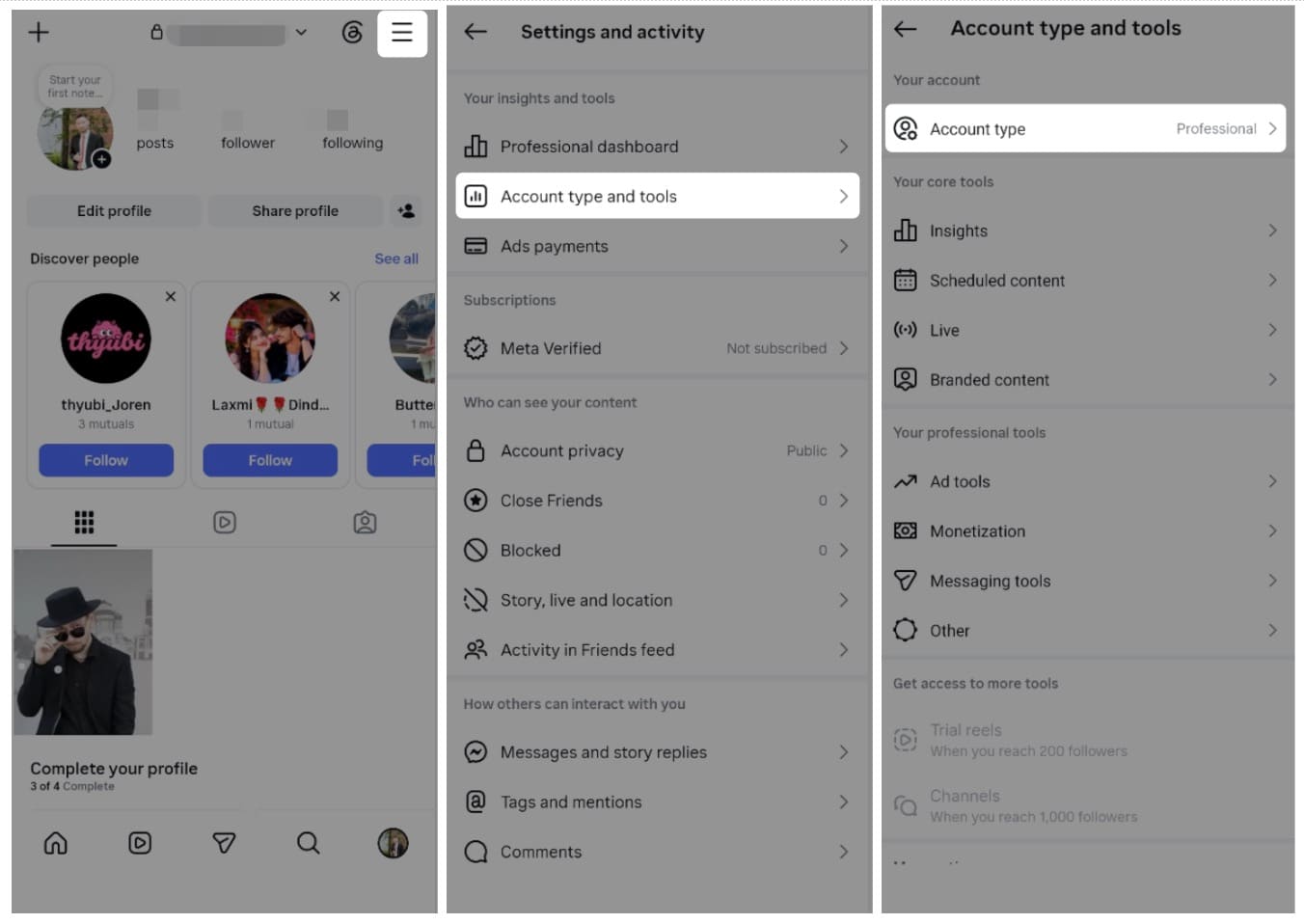
Tap the Menu icon in the top-right corner of the profile, find { Account type and tools→ Account type } to switch to the professional account.
2. Steps to integrate Instagram in SaleWisely
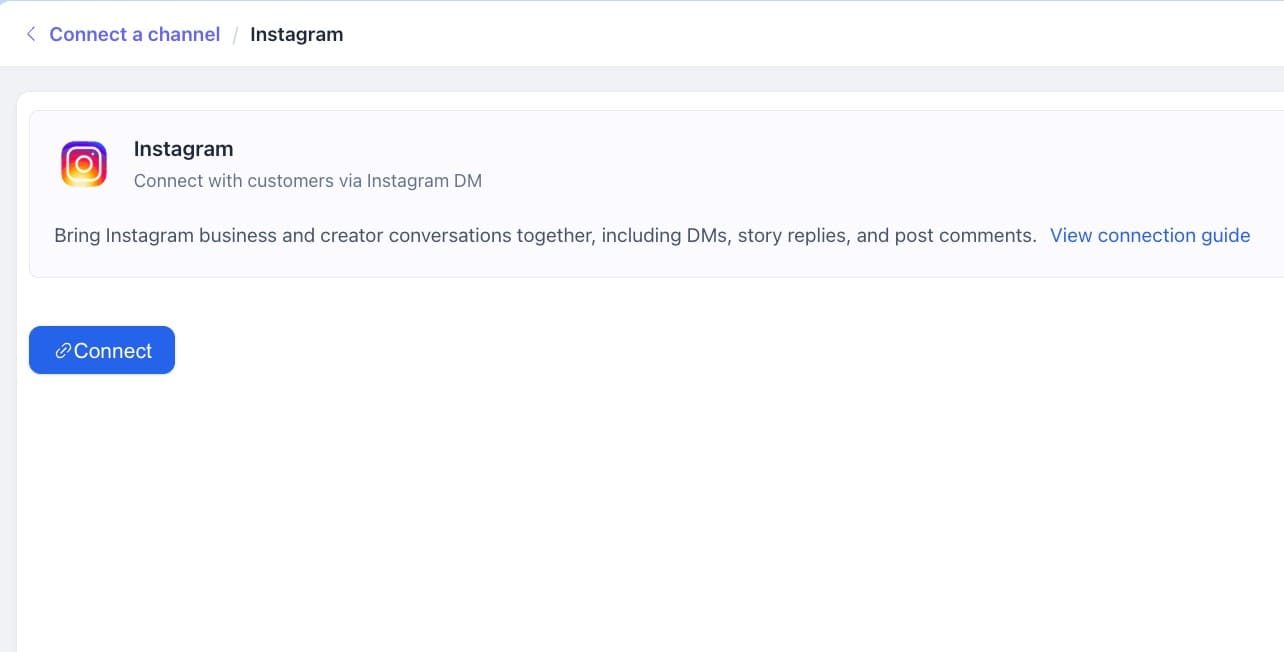
1. Log in to the SaleWisely platform, and find { Integration→ Official API channels→Instagram→ Connect→ Start authorization } in the left-side bar.
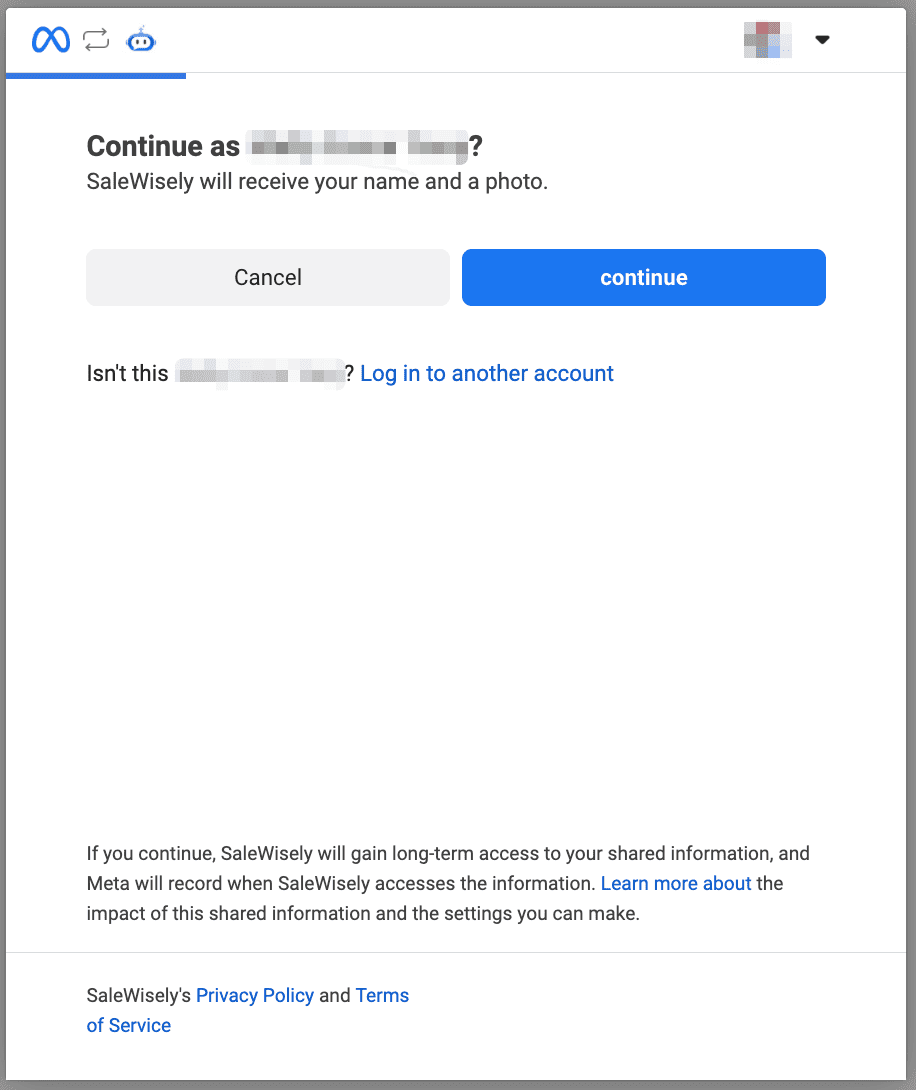
2. After logging into your Facebook account, click { Continue } and select the Instagram professional account you wish to link. Simply check the box to grant permission.
3. Once the account integration is successfully enabled in a valid status, you can start sending and receiving Instagram direct messages and post comments on SaleWisely.