1. Overview
Dify is an open-source LLM app platform combining workflow / RAG / agent / model management. Build a chat app in Dify, then enter its API Key in SaleWisely to use it as an AI customer-service bot engine — RAG, knowledge bases and workflows all run inside your Dify app.
2. Steps
Log in to Dify and open a chat app
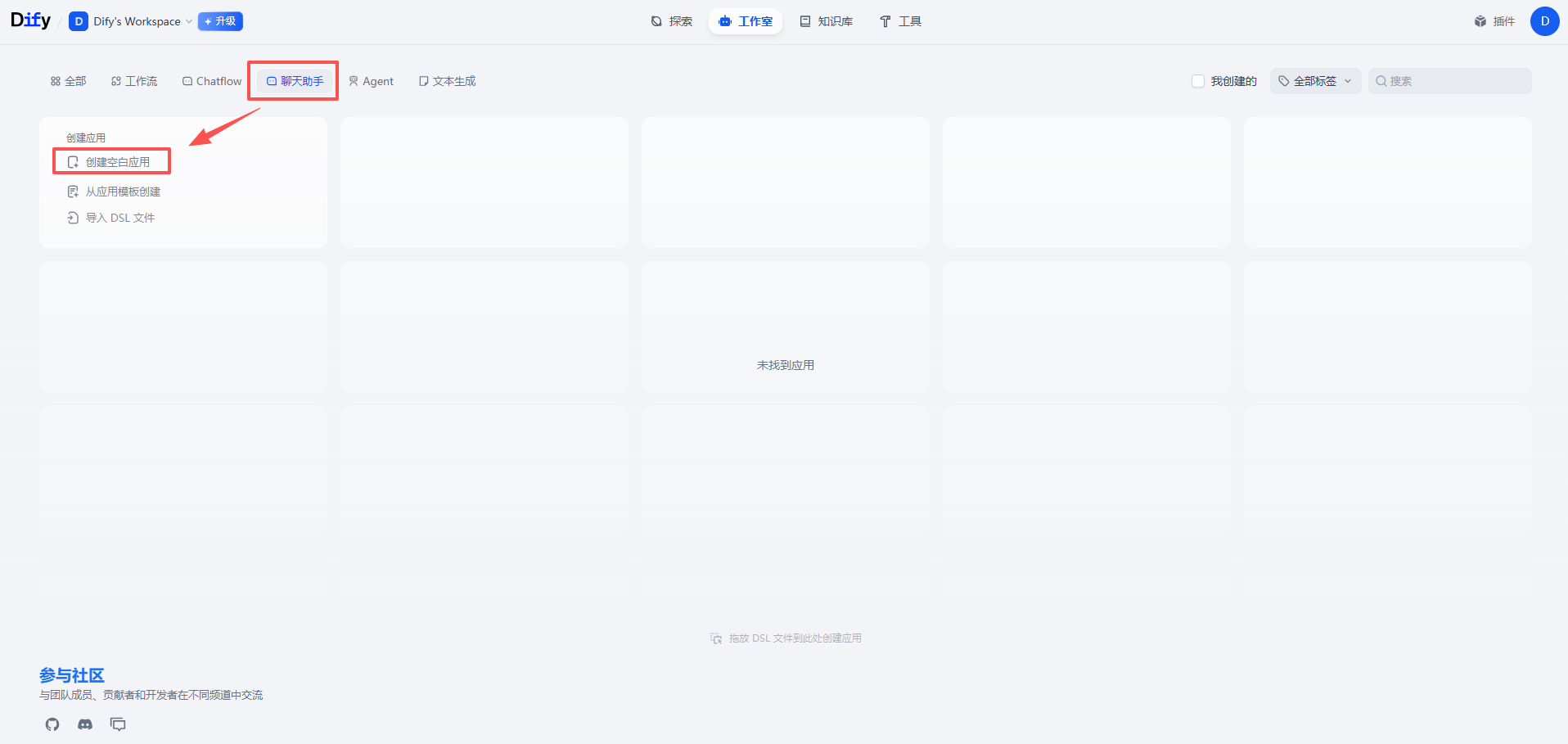
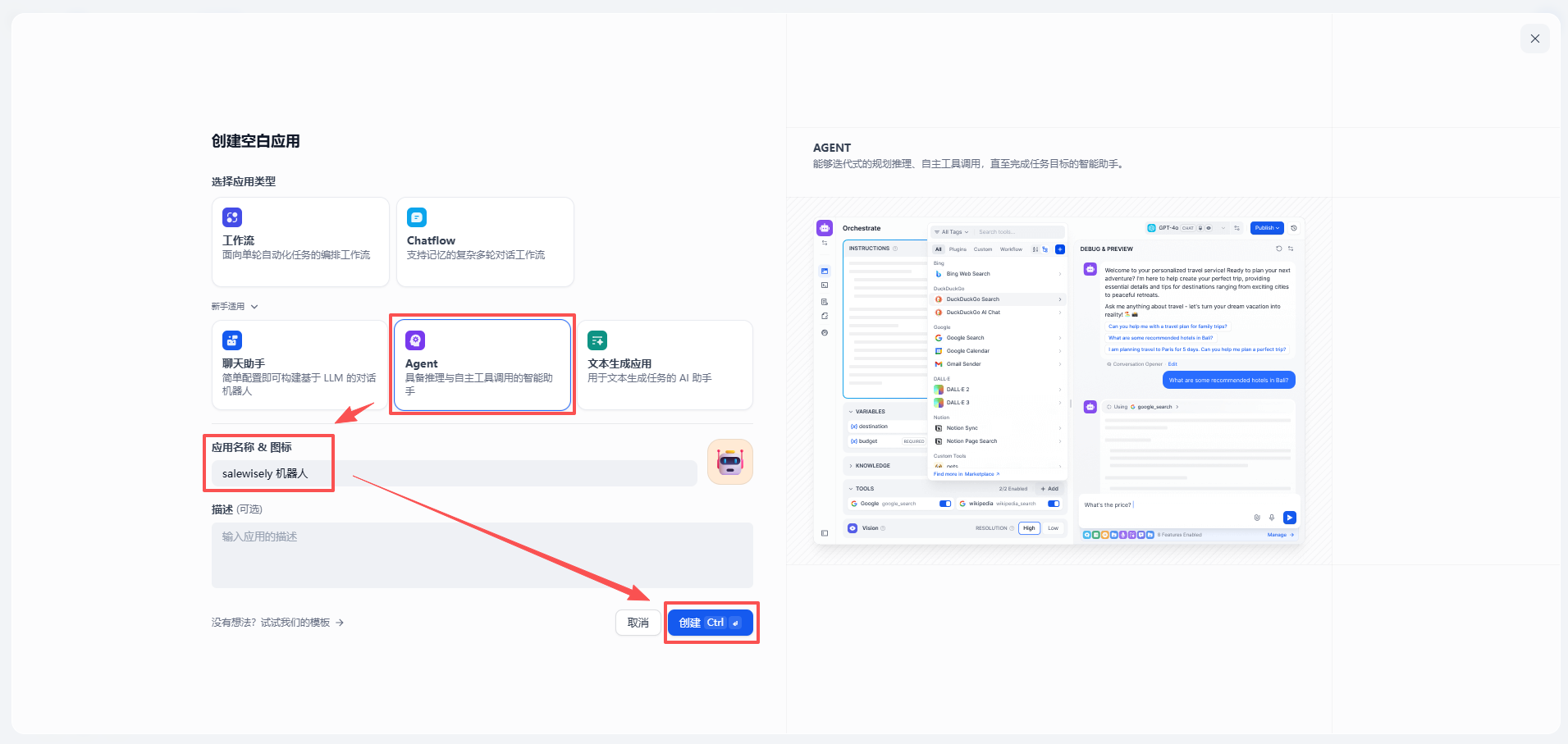
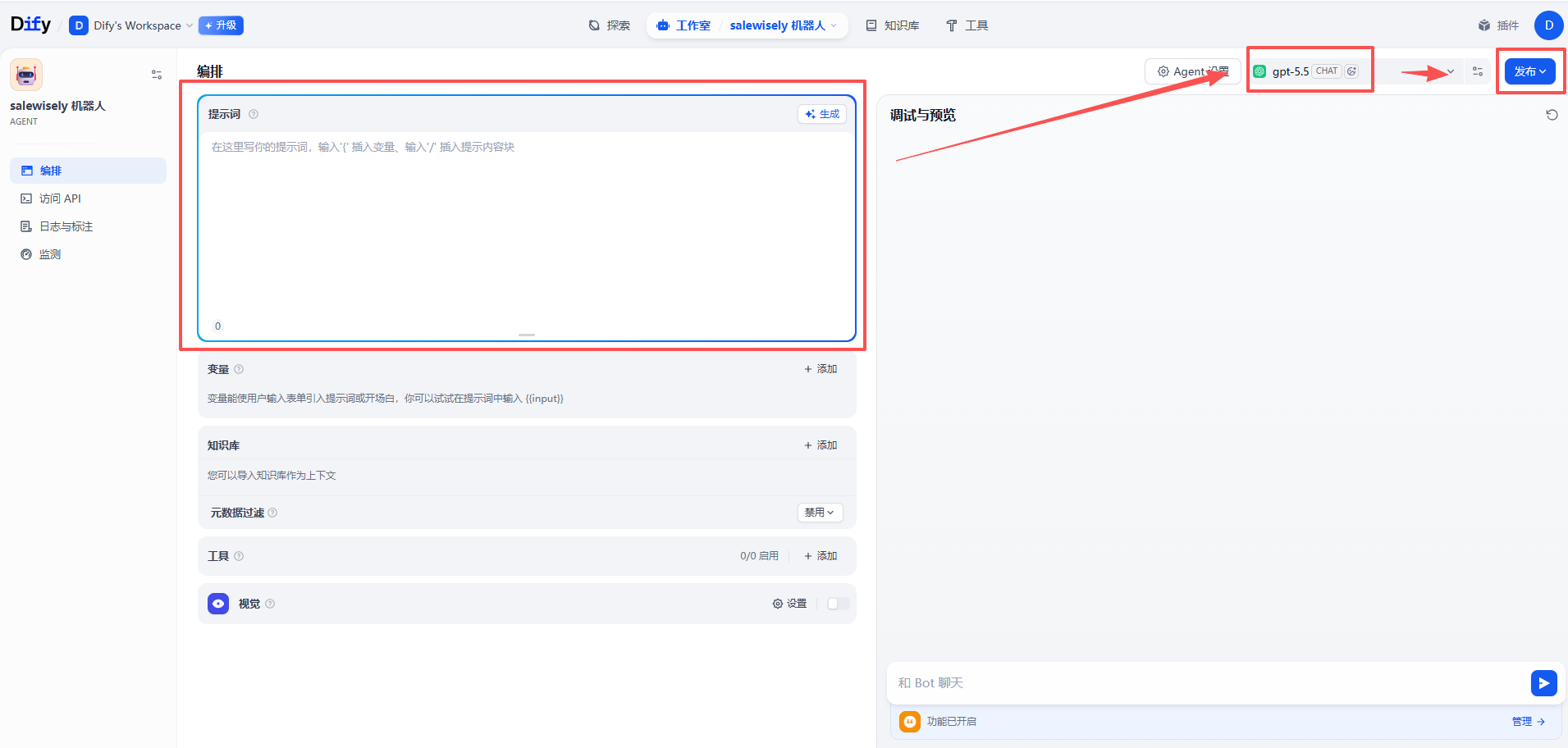
Sign in to Dify Cloud at https://cloud.dify.ai (or your self-hosted address). Open Studio, switch to the Chat Assistant tab and click Create from Blank; in the dialog pick an app type (Chat Assistant or Agent both work), enter an app name and click Create. On the Orchestrate page write the prompt, choose a model and test it, then click Publish in the top-right to publish the app. The app must stay published and running, otherwise the next step cannot fetch it with the API Key.
Get the API Key
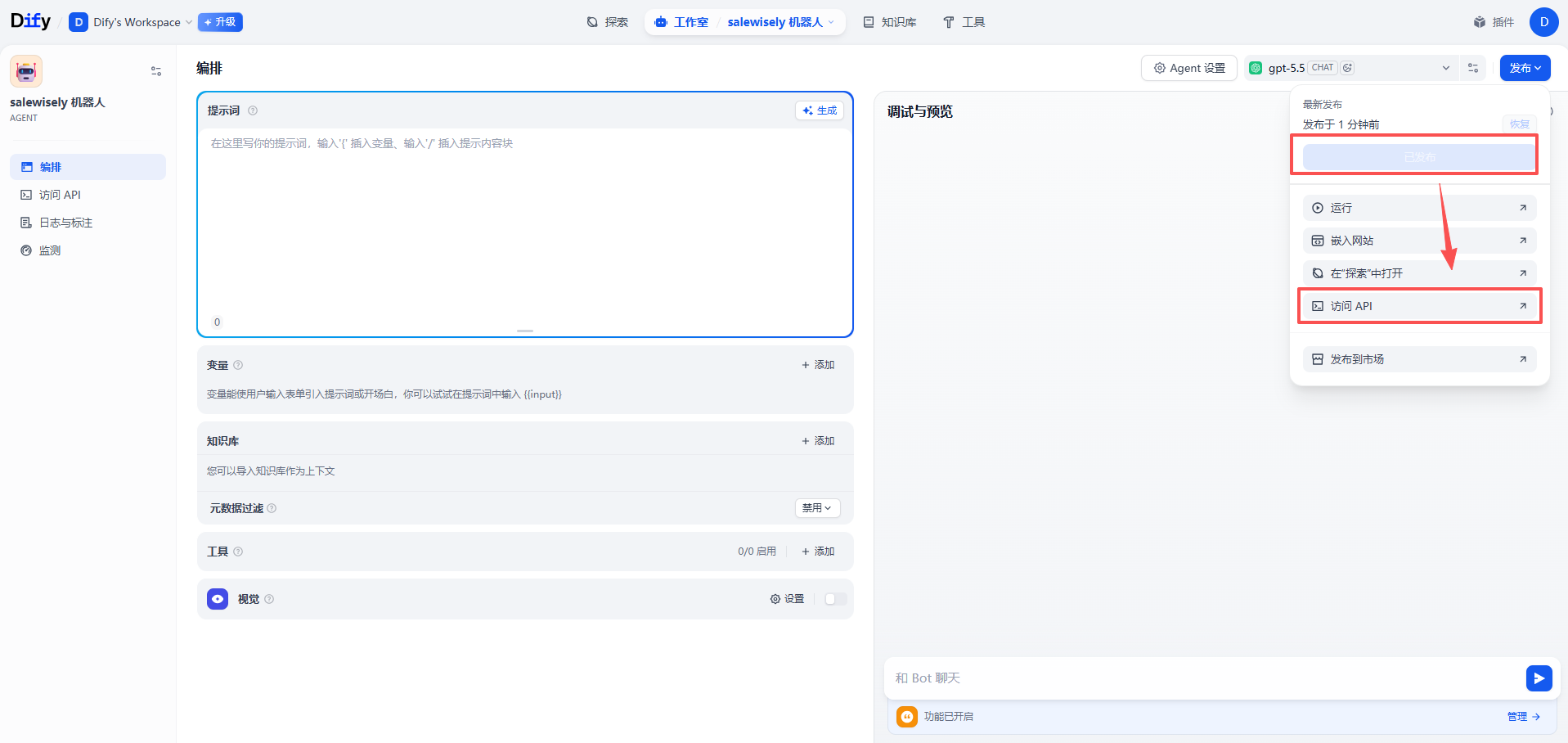
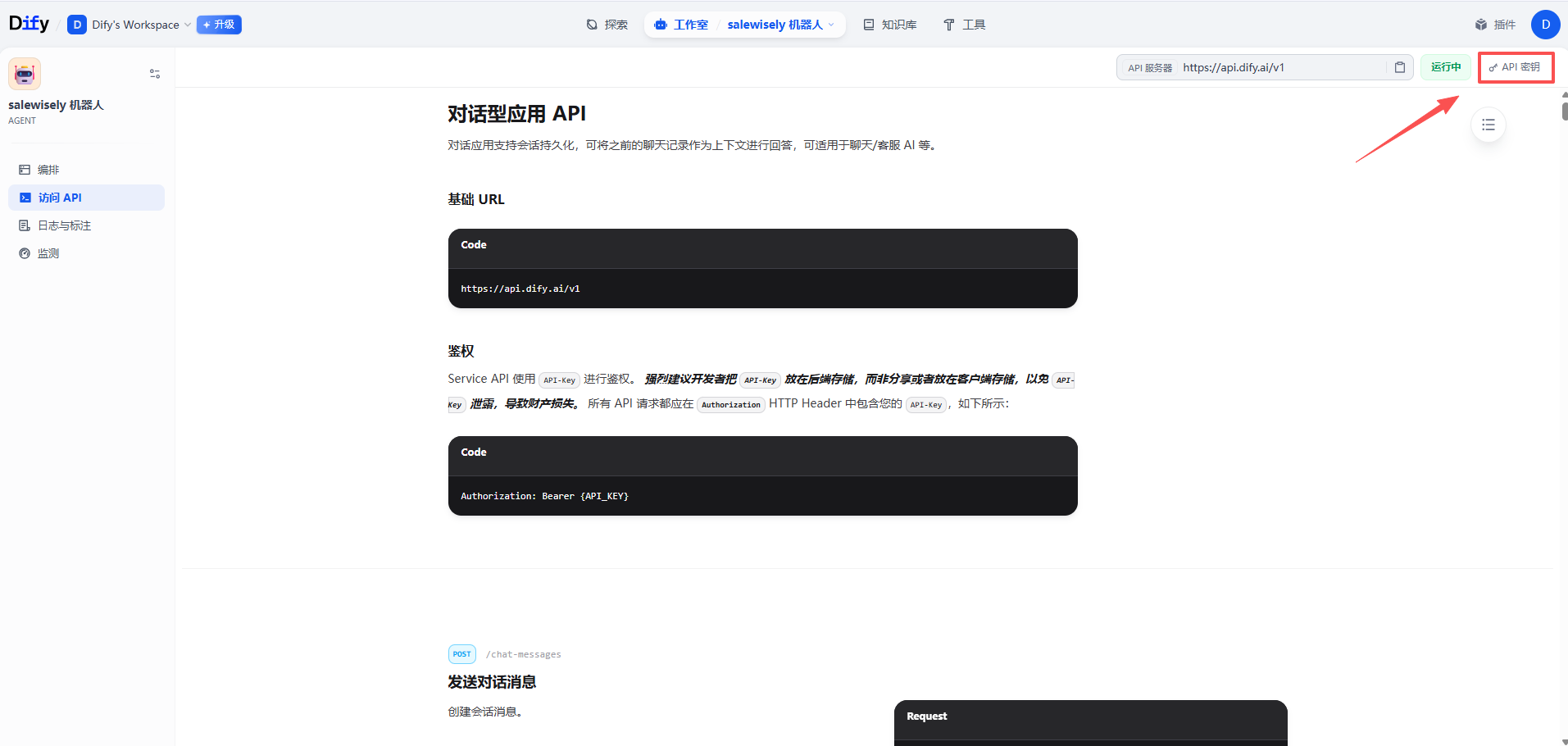
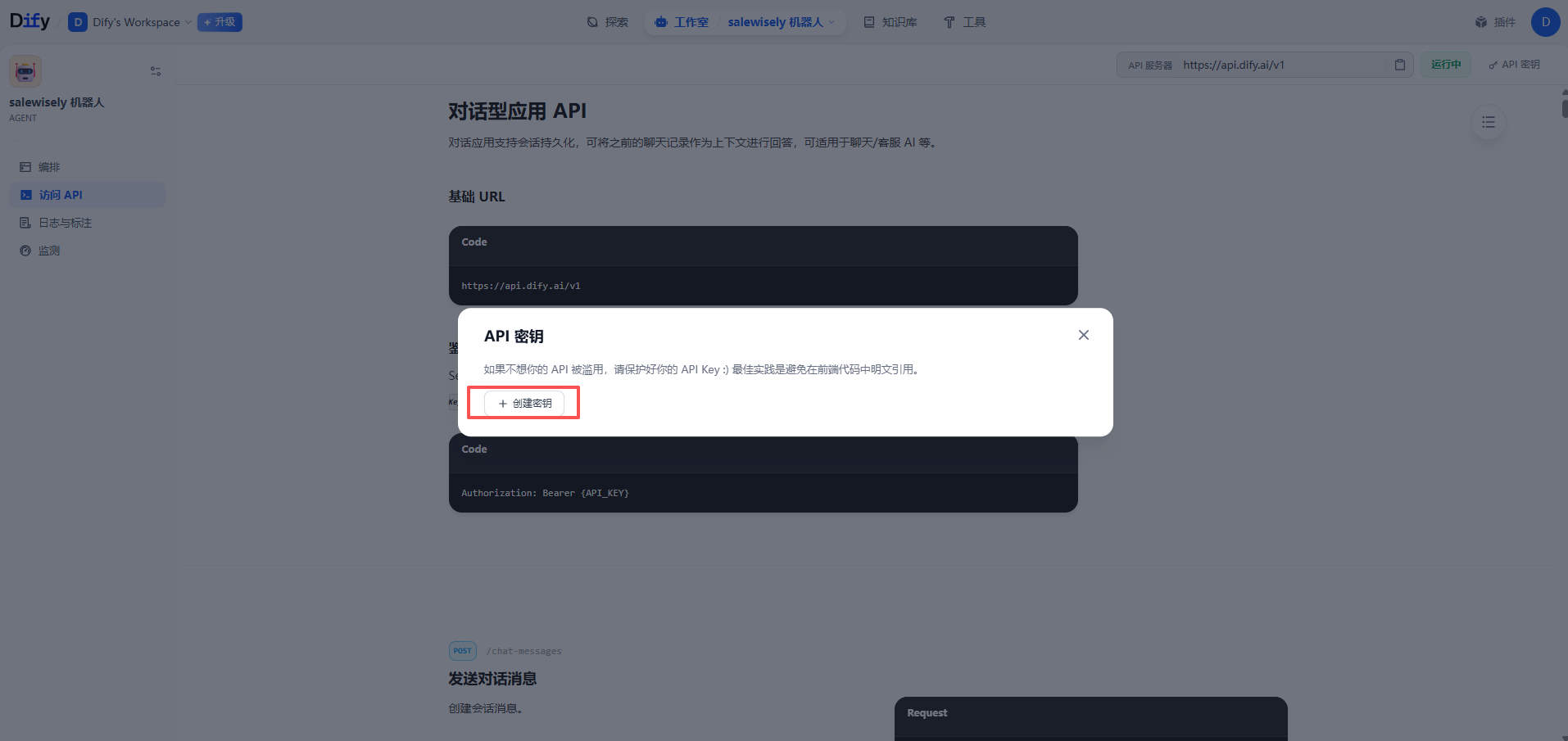
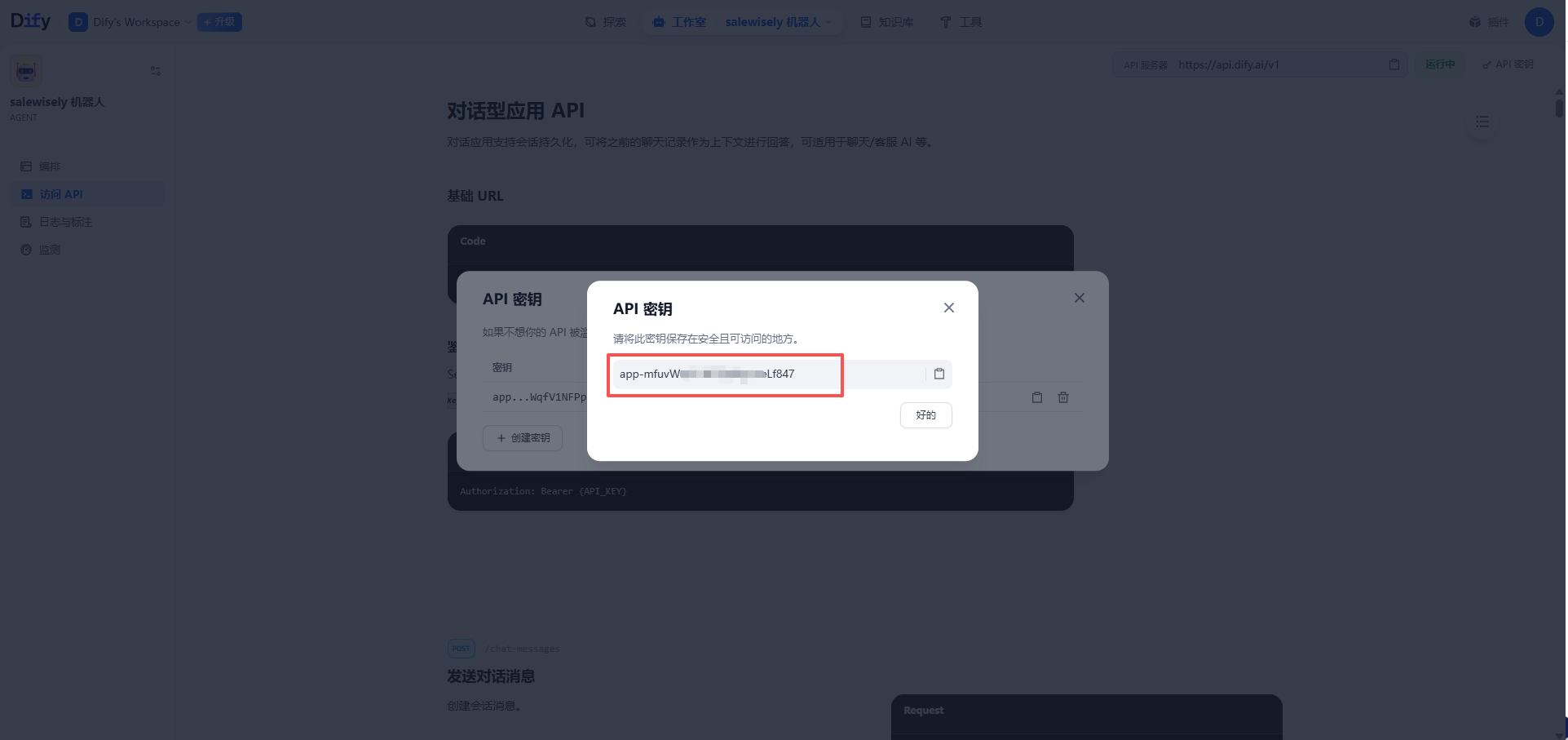
After publishing, open Access API from the Publish dropdown in the top-right (or via the Access API item in the left menu); then click API Key in the top-right and choose Create new secret key. The key is shown only once, so copy and save it immediately — this single key is all you need.
Enter the credentials in SaleWisely
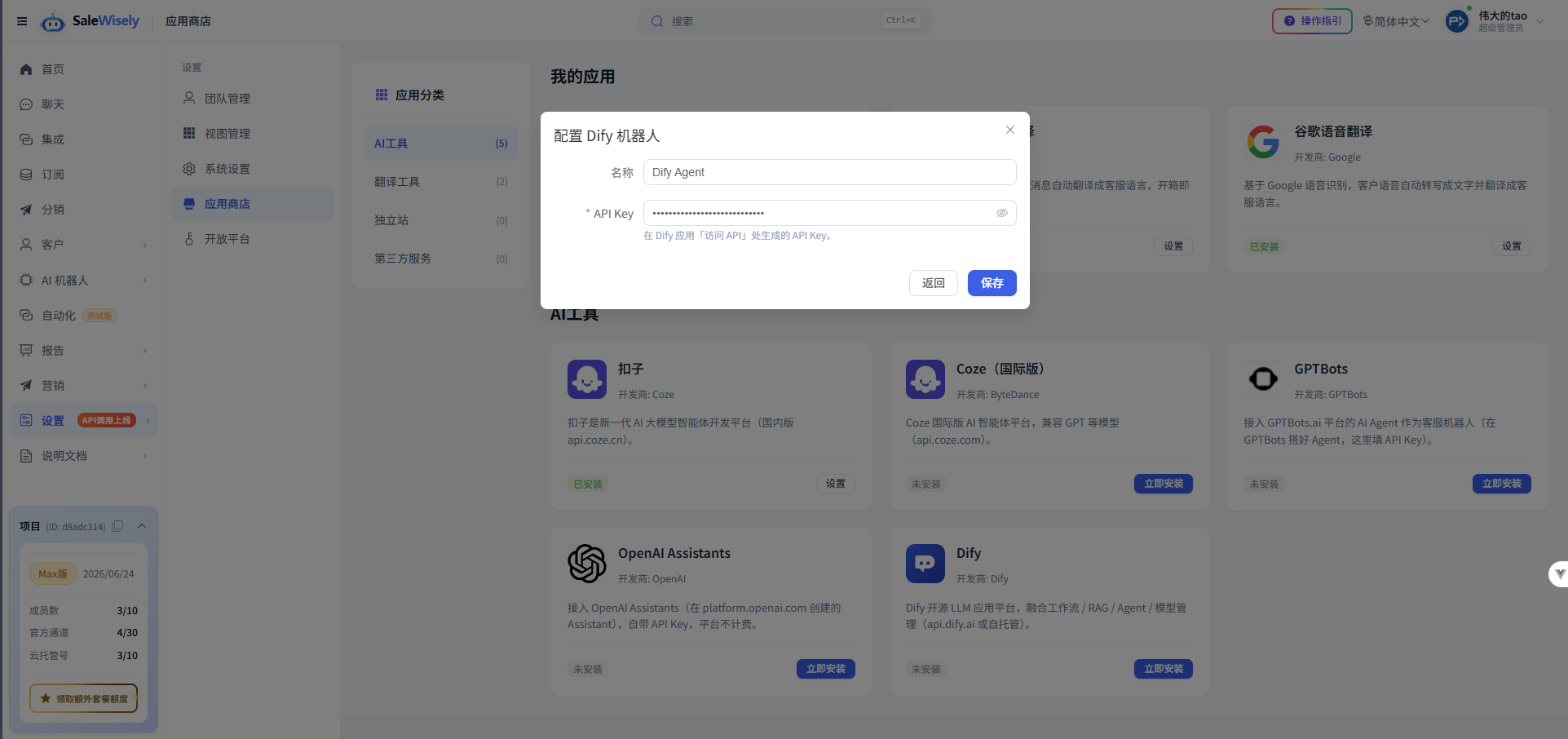
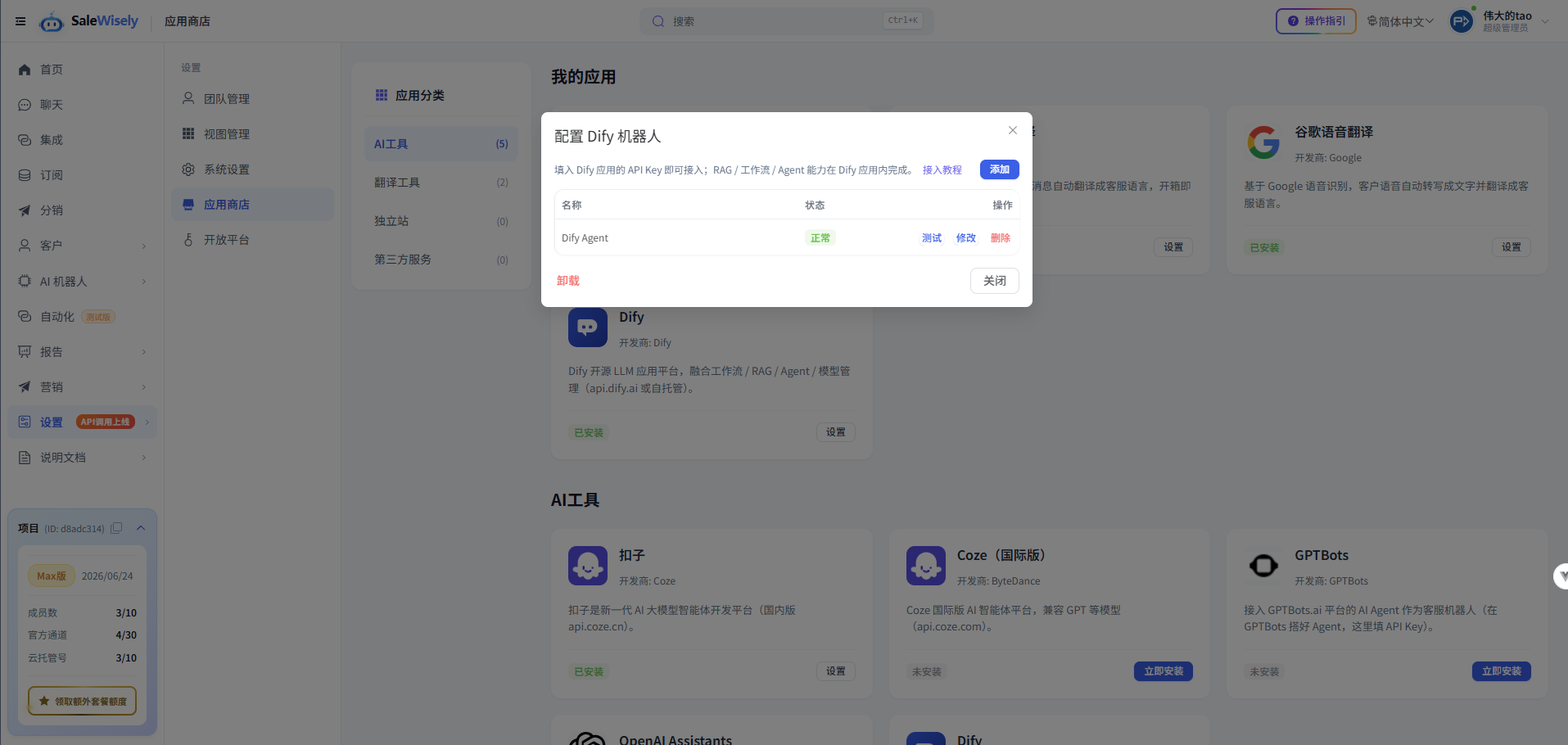
In SaleWisely go to Settings → App Store → AI Tools → Dify, click Set up, then Add. Just paste the API Key (name optional) and click Save (it validates the connection on save).
Use Dify in a bot
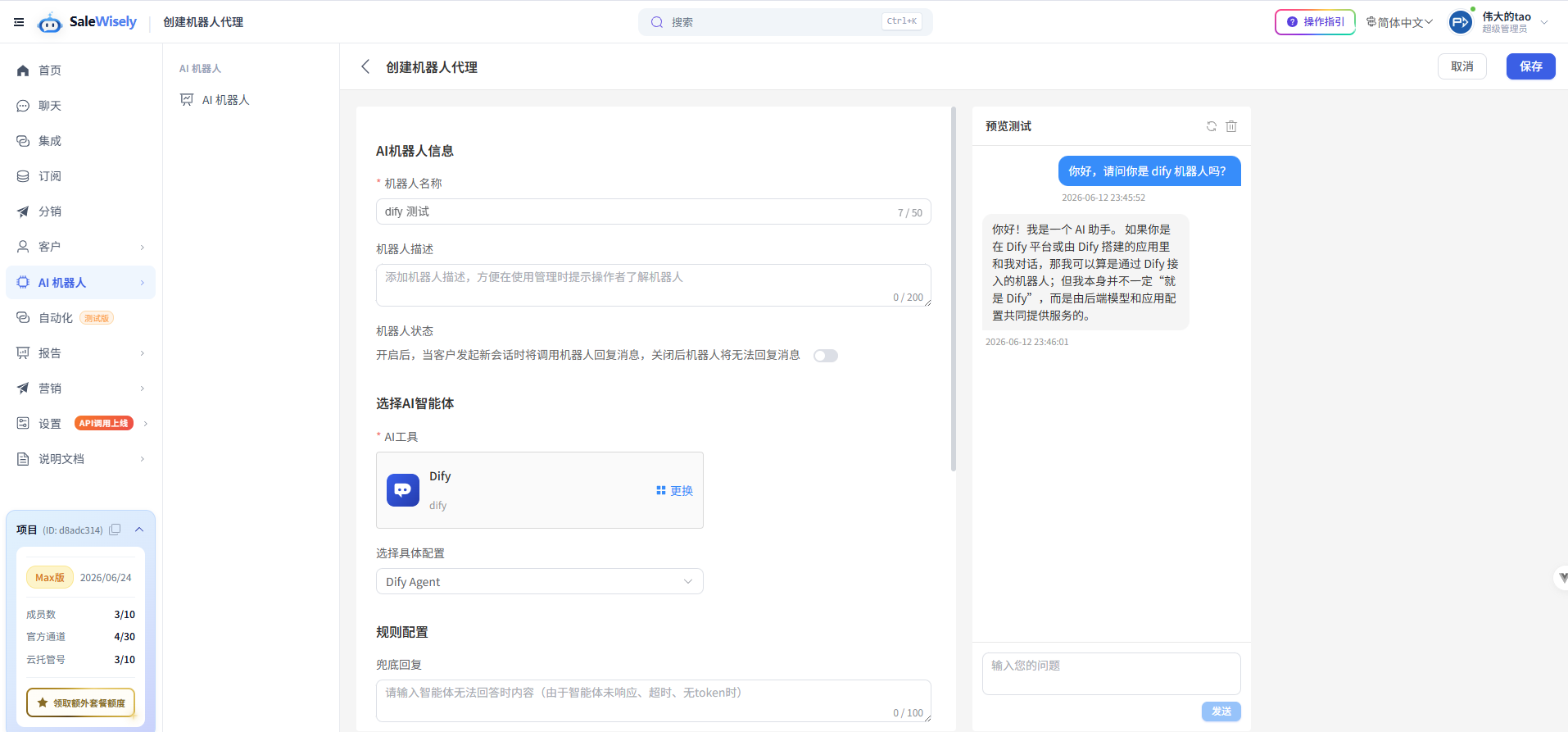
In AI Bots, create or edit a bot agent; under Select AI Agent → AI Tool choose Dify and pick the config you added; after saving you can test it in the preview panel, and it will auto-reply on your channels.
3. FAQ
Which Dify app types are supported?
Chat Assistant, Chatflow and Agent conversational apps are all supported, connected via Dify chat-messages API. Make sure the app is published and stays running, otherwise the API Key cannot fetch it. You only need the API Key generated under the app's Access API page (it connects to Dify Cloud api.dify.ai by default).
The bot does not reply — how to troubleshoot?
1) Verify the API Key is correct and the Dify app is published and running; 2) All three app types (Chat Assistant / Chatflow / Agent) are supported, so you do not need to worry about the response mode; 3) If the Dify app defines required input variables, set default values for them on the Dify side, otherwise messages may fail due to missing variables.