Overview
This guide explains how to connect an AI Agent from the GPTBots.ai platform as a customer-service bot. The model, persona, and knowledge base are all built on GPTBots; here you only enter the API Key and region.
After integration, you get:
- The Agent you built on GPTBots (model, persona, knowledge base, workflows) auto-replies as a customer-service bot
- Multi-turn memory: the same conversation continues automatically, no need for the customer to repeat
- Per-channel control: choose which channels (Telegram, WhatsApp, web widget, etc.) the bot handles
Prerequisites
Before you start, make sure you have these two things:
- A GPTBots.ai account (sign up or log in at gptbots.ai)
- At least one Agent created and Published on GPTBots — unpublished Agents cannot generate a usable API Key
Integration Steps
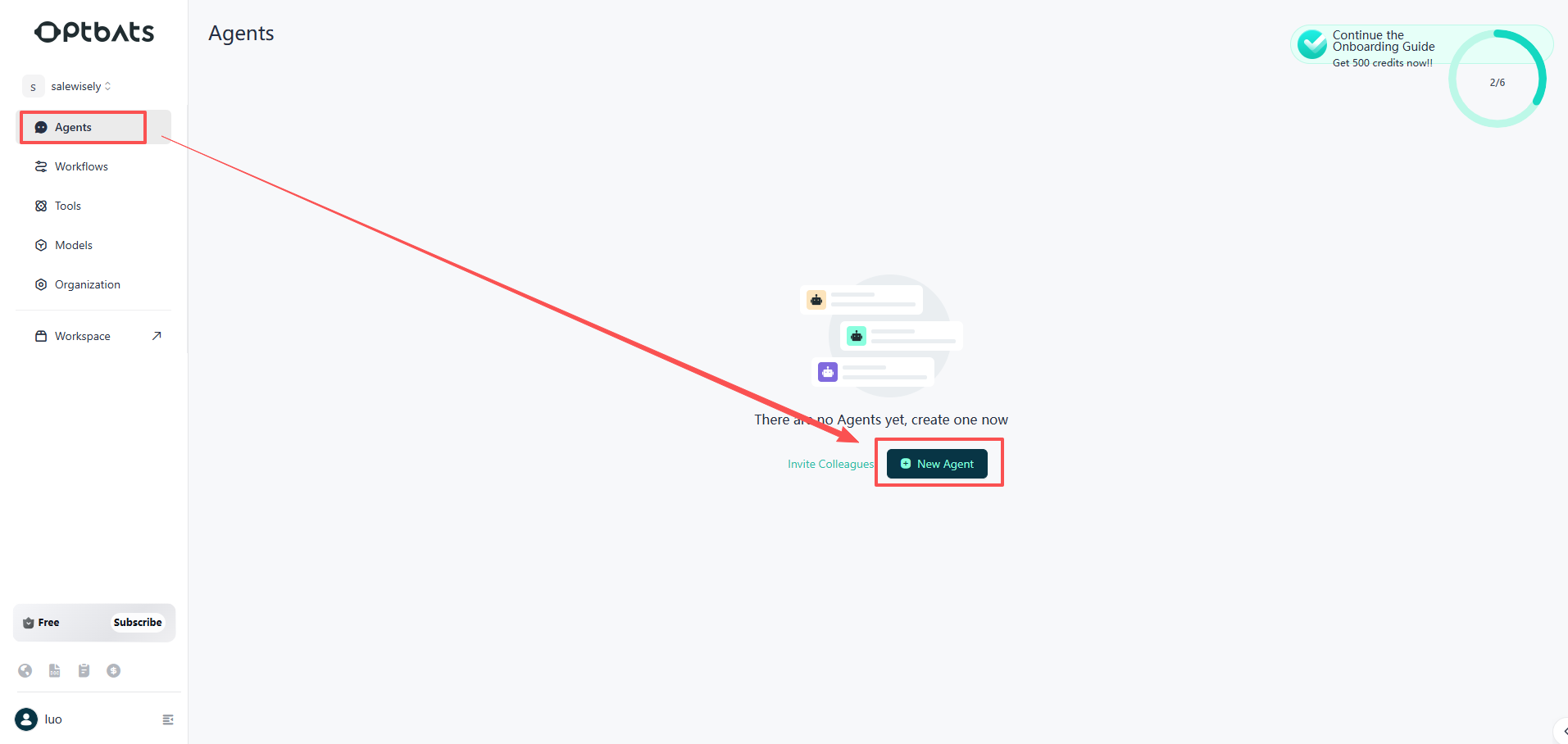
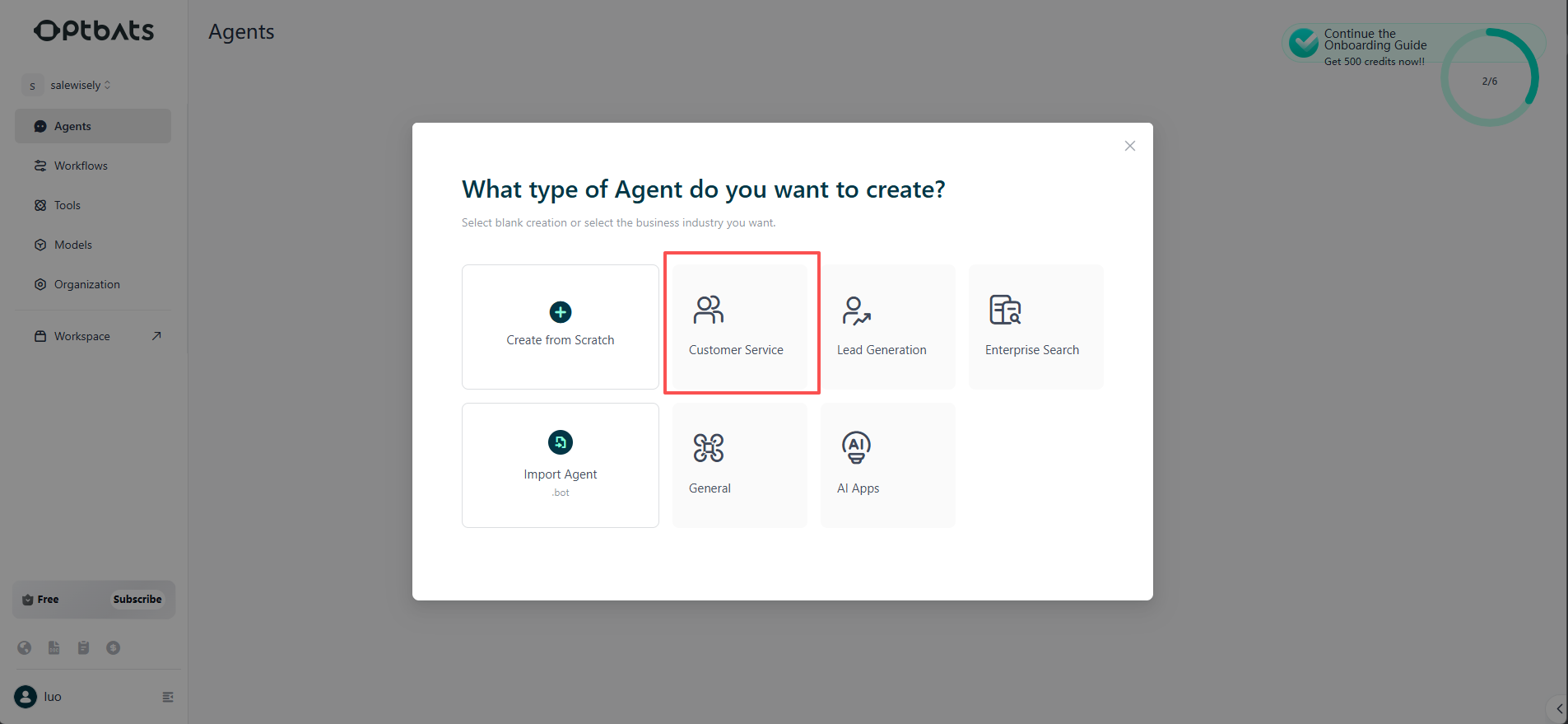
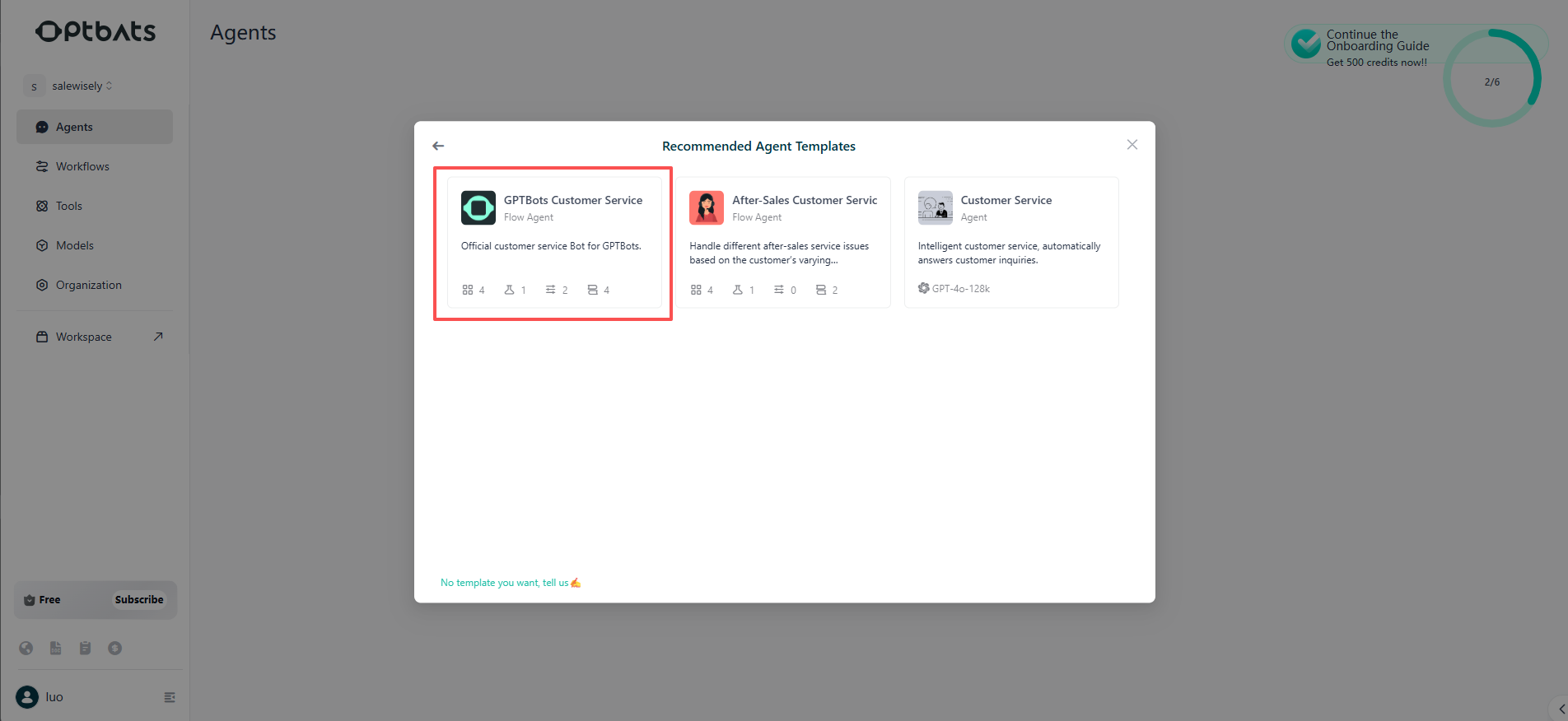
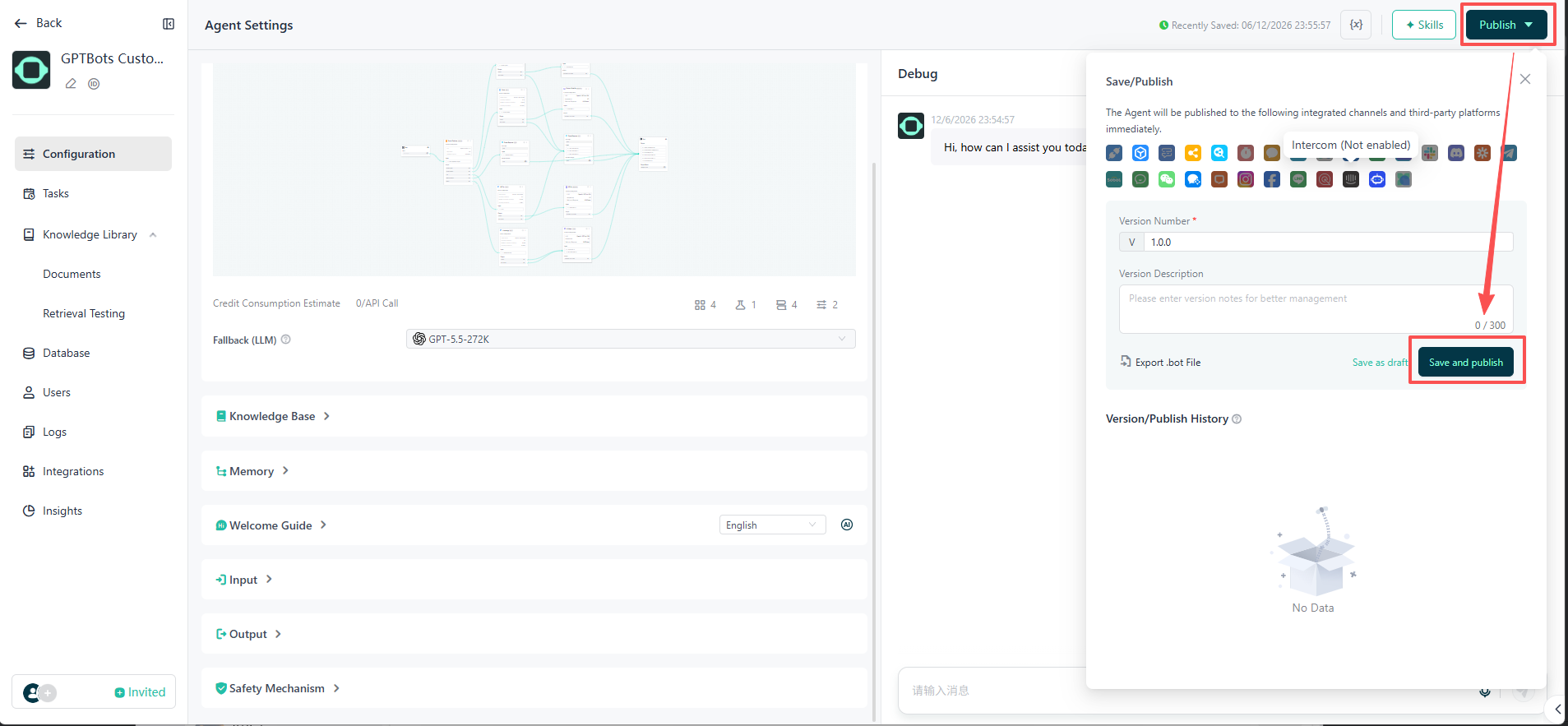
Log in to GPTBots and publish your Agent
Click here to log in to GPTBots. Once logged in, open the Agent you want to connect (or create and build one first). Make sure this Agent is Published — this matters, because only a published Agent can generate a usable API Key.
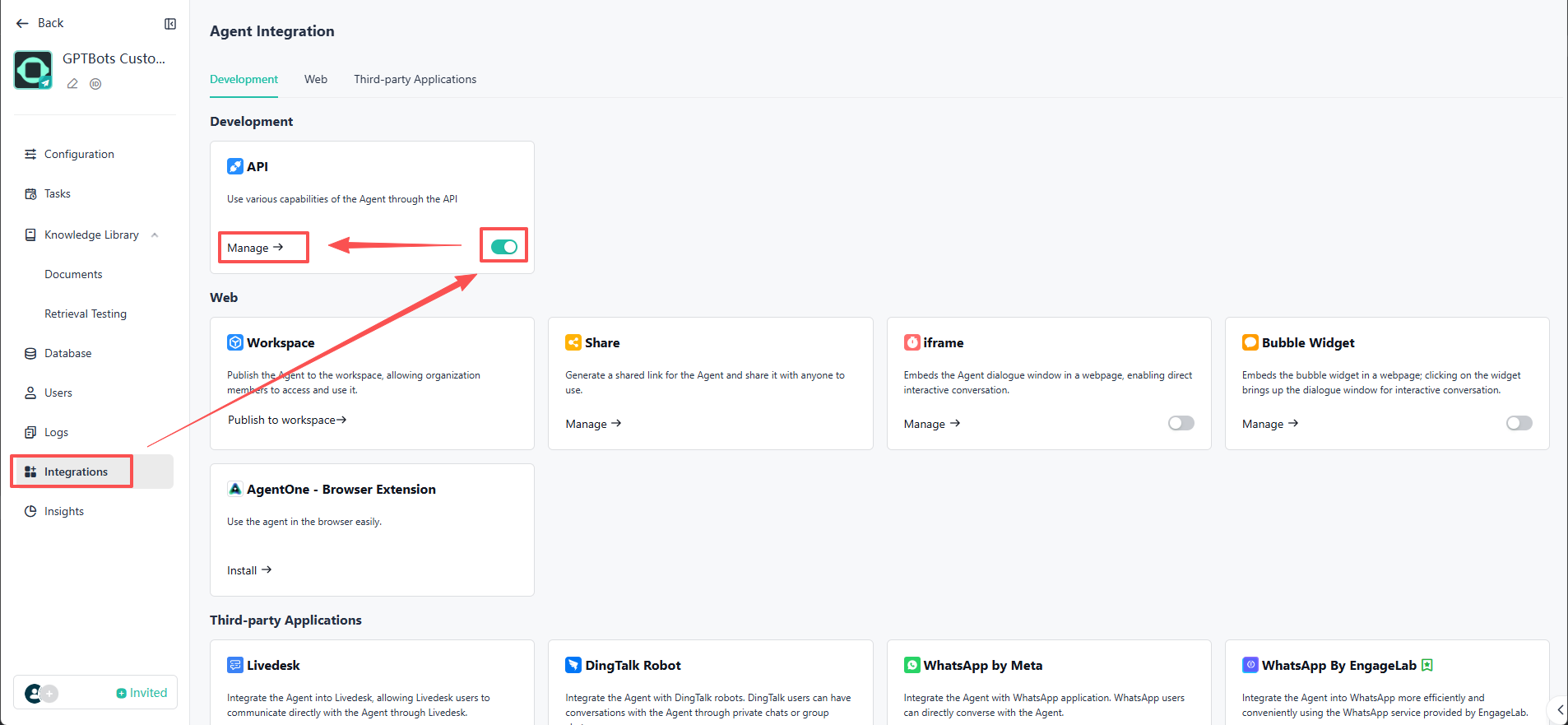
Open the Agent’s Integrate → API
In the Agent’s left menu, click Integrations, under the Development tab find the API card, first turn on the toggle on the right to enable the API, then click Manage to open the API management page.
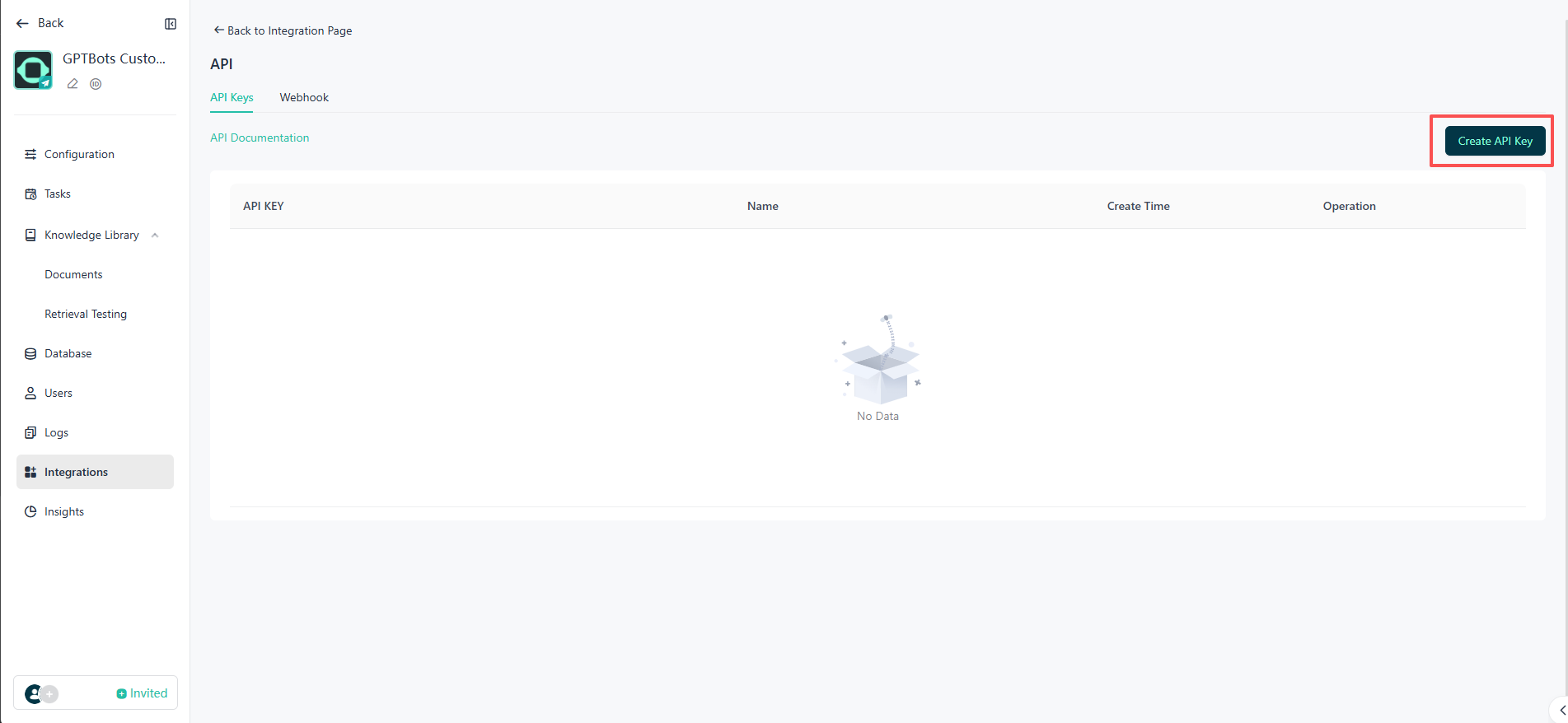
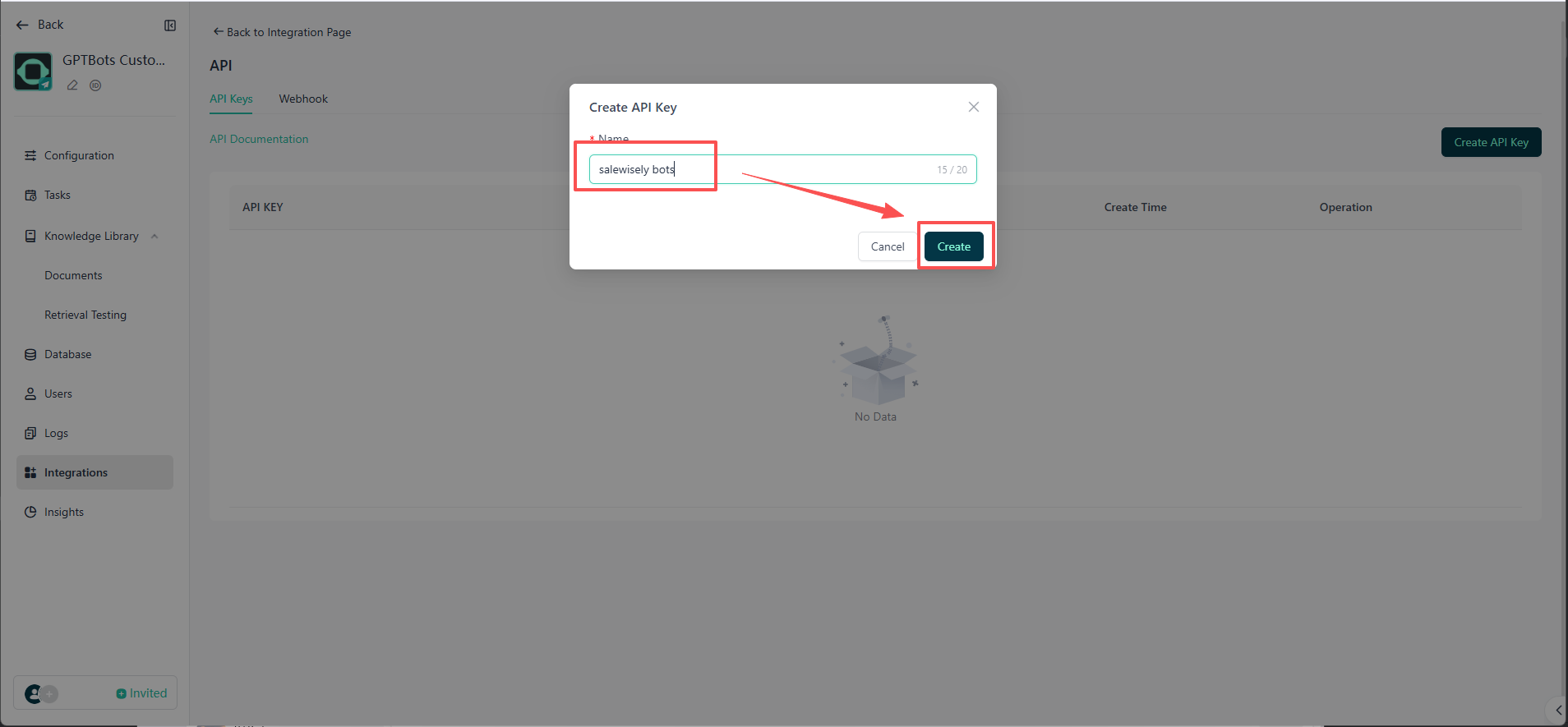
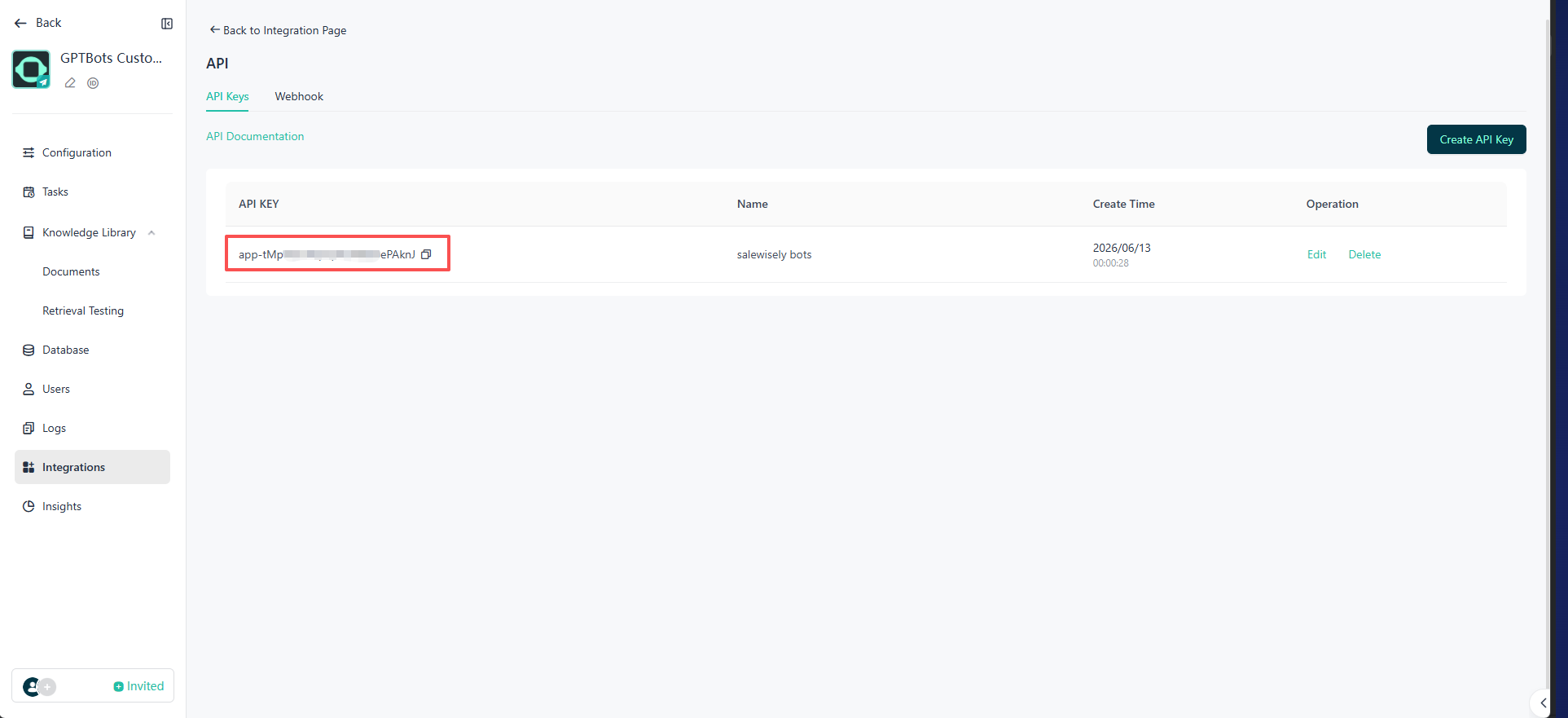
Create and copy the API Key
Click Create and give the key a name you’ll recognize (e.g. “SaleWisely”). After it’s created, click the copy icon next to API KEY and copy the whole key (it usually starts with app-).
Enter the API Key in the App Store
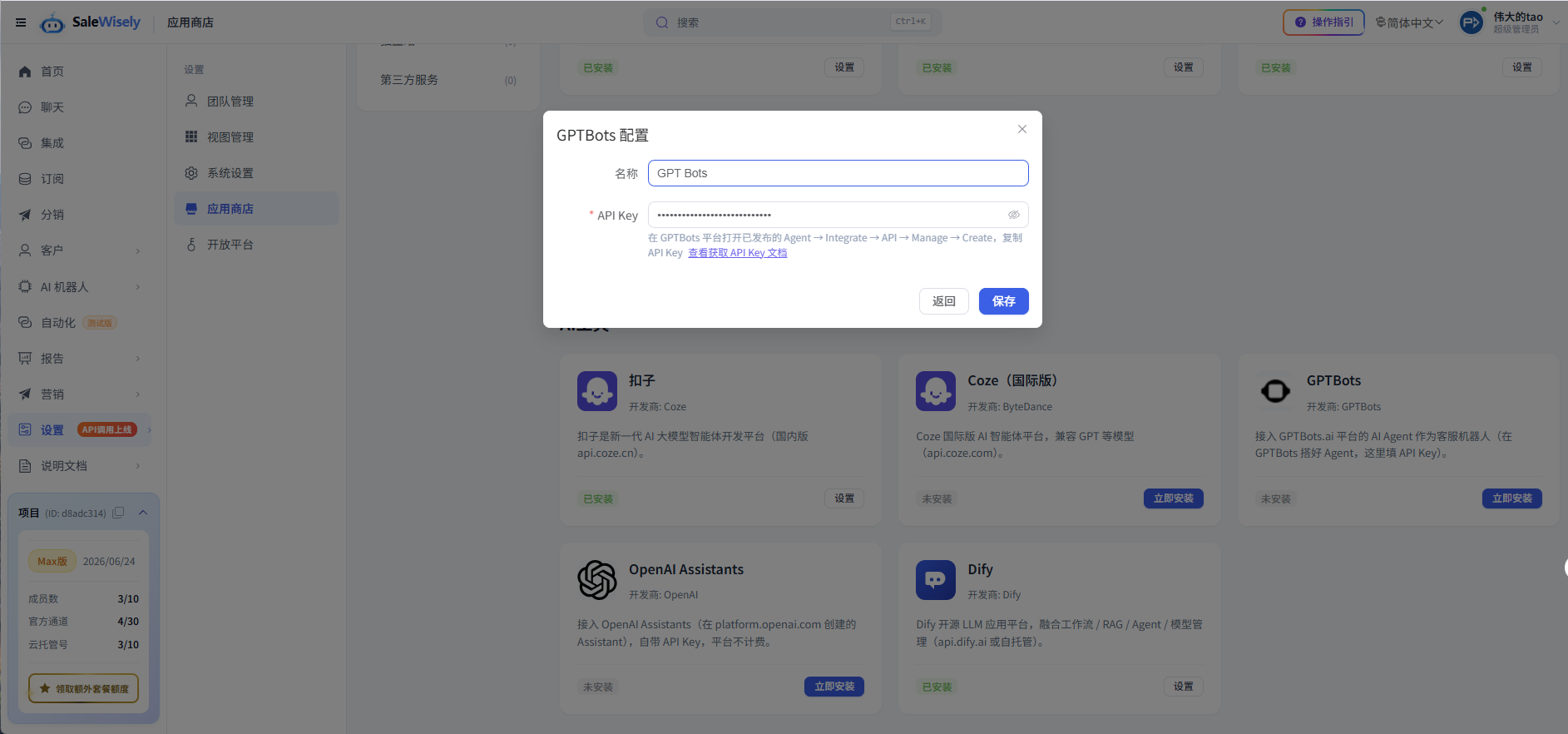
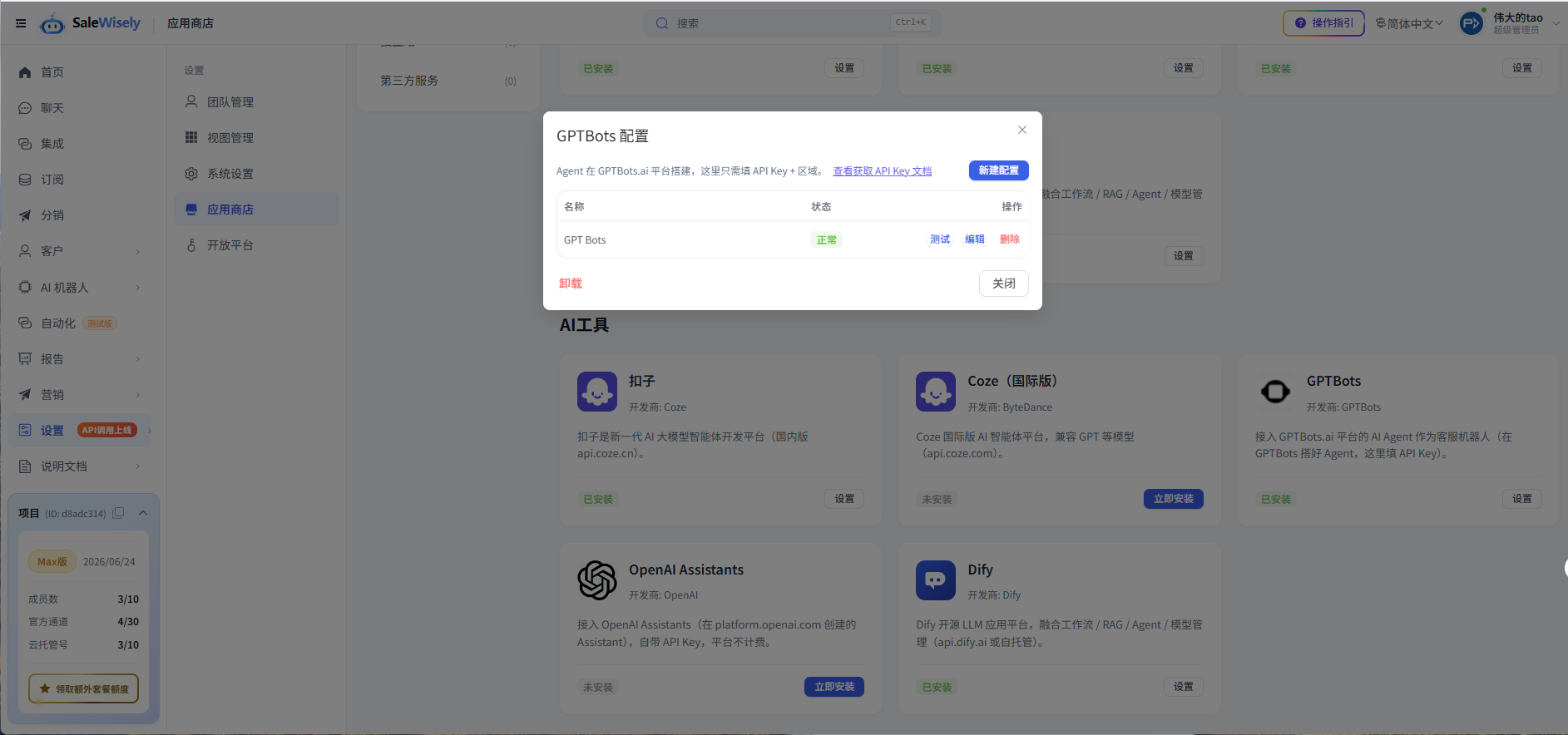
Back in SaleWisely, open App Store → GPTBots, click Install / Settings, paste the API Key you just copied (a name is optional), and click Save — that’s it. The region and other details are handled automatically; you don’t need to set them.
Create a bot agent and bind channels
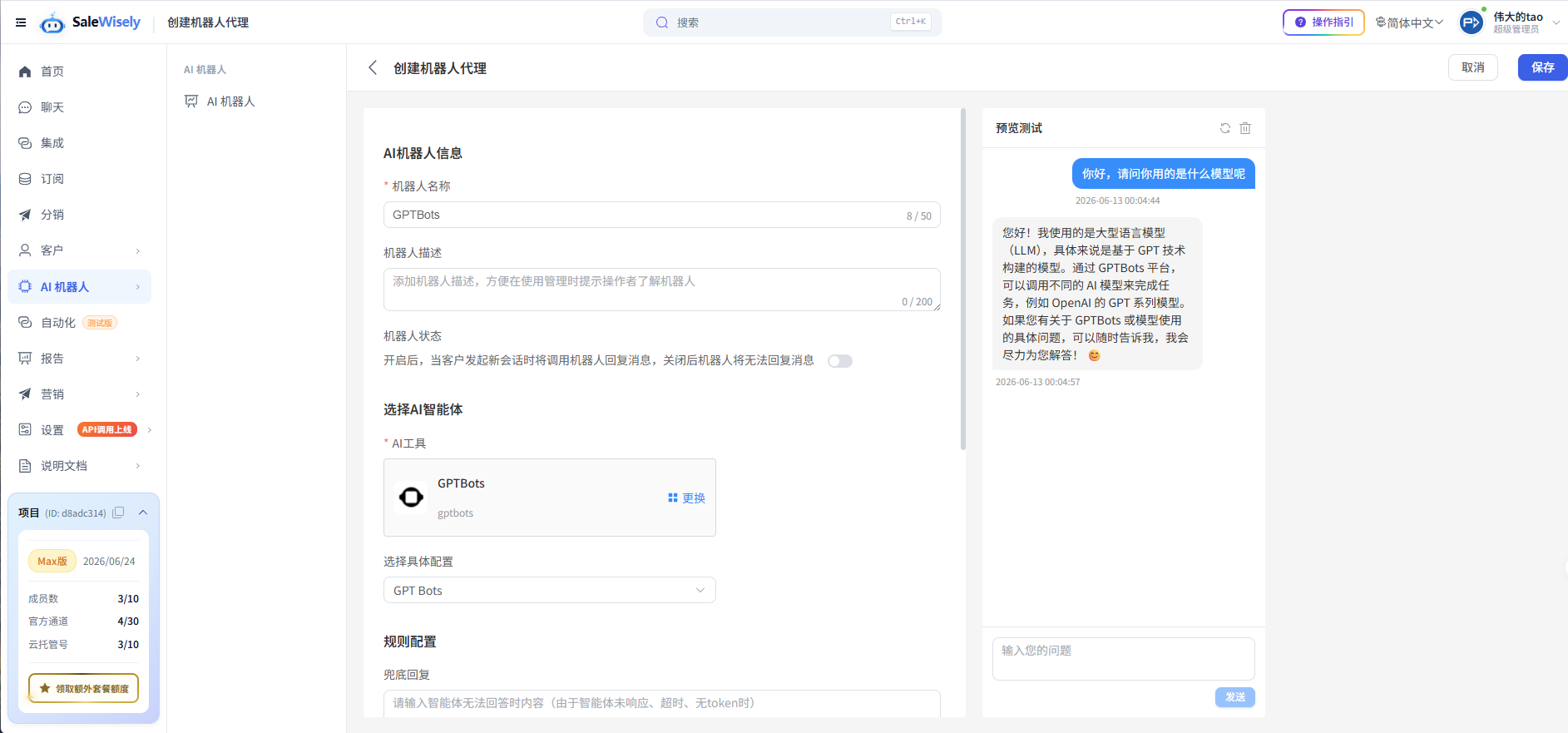
Finally, go to Bots → New / Edit Agent, set the engine to GPTBots, select the API Key you just configured, tick the channels that need auto-reply, and save — your bot will start handling customers.
Verify & Use
After configuring, verify before going live:
- In “App Store → GPTBots”, click Test in the config list; getting a reply means the API Key and region are correct
- Once the status is Normal, go to “Bots → New/Edit Agent”, choose the GPTBots engine, and bind the channels
- Send a message in that channel to confirm the bot takes over and replies
FAQ
Why can’t I find API in Integrate / the option is greyed out?
GPTBots requires the Agent to be Published on the platform first; unpublished Agents cannot use API integration. Publish the Agent and try again.
Does the bot remember context?
Yes. Multiple turns within the same conversation continue automatically (via GPTBots conversation context), so the customer needn’t repeat. Different conversations are independent.
Test returns no reply / an error — what now?
Check in order: (1) is the Agent Published on GPTBots; (2) is the API Key copied fully with no extra spaces; (3) does the region match your account; (4) is your GPTBots quota exhausted. Then test again.
Does using GPTBots in SaleWisely cost extra?
GPTBots model calls consume your own GPTBots account quota and are billed by GPTBots; SaleWisely does not charge again for that. Usage and pricing follow the GPTBots platform.