An AI employee answers customer questions using your own business information — its knowledge base and reply rules — instead of canned replies. This article covers setup, testing, and going live.
Tags: AI employee, knowledge base, reply rules, handoff, AI agent
Prerequisites
- A registered SaleWisely account with access to AI Center.
- Admin access if you need to create knowledge bases or publish AI employees.
- Your business materials ready (product info, FAQs, policies, contact details).
1. What is an AI employee?
An AI employee handles customer questions using the knowledge and rules you configure. It takes the questions your team answers over and over — FAQs, product details, order status — so agents can spend their time on conversations that actually need a person.
What an AI employee can do depends on your configuration and the features available in your plan.
2. Create an AI employee
- Sign in and open AI Center → AI Employees.
- Click +New AI Employee and enter a name.
- Follow the prompts to create the employee, then open its configuration page.
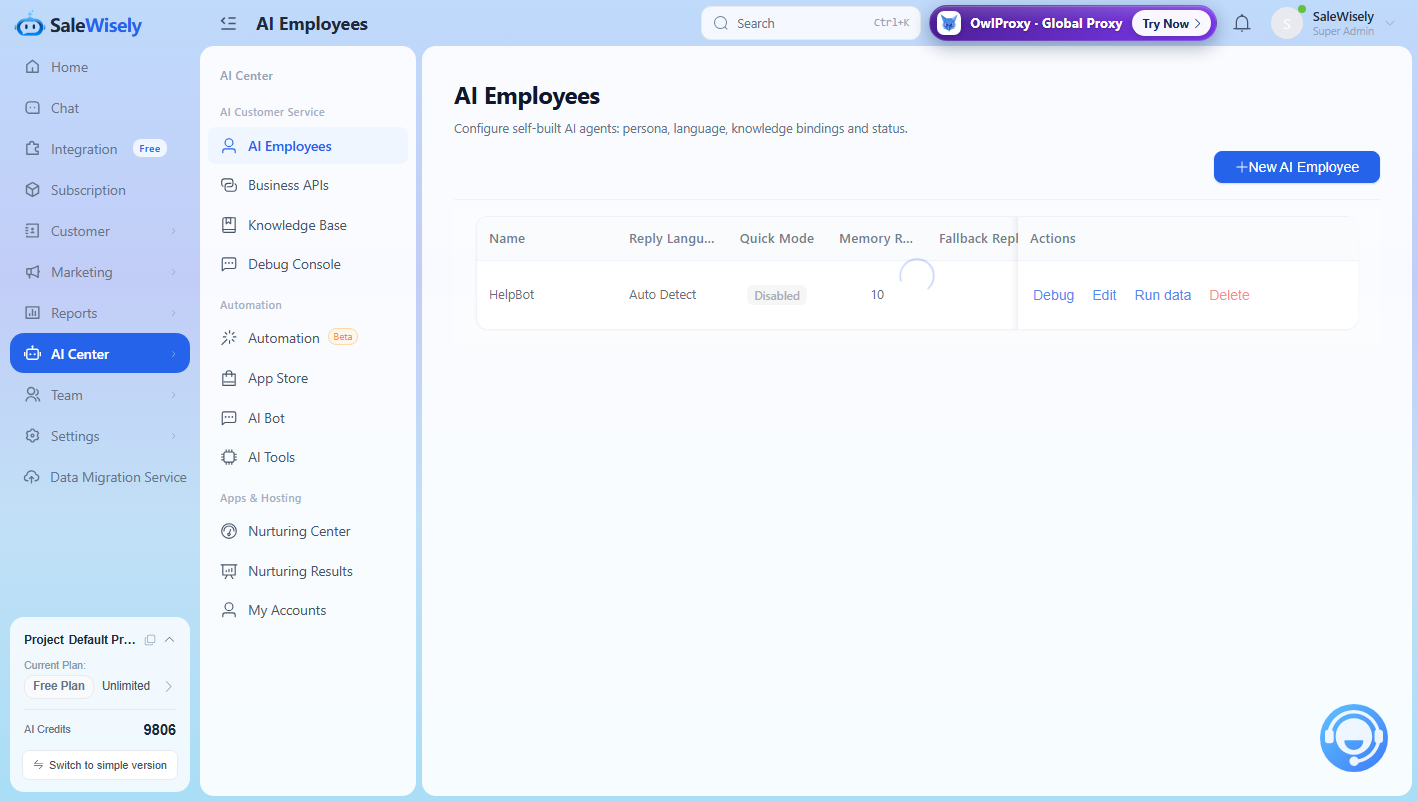
3. Configure the AI employee
The configuration page has these sections: Basic settings, Knowledge and memory, Skills and business APIs, Reception settings, Replies and handoff, and Debug and publish.
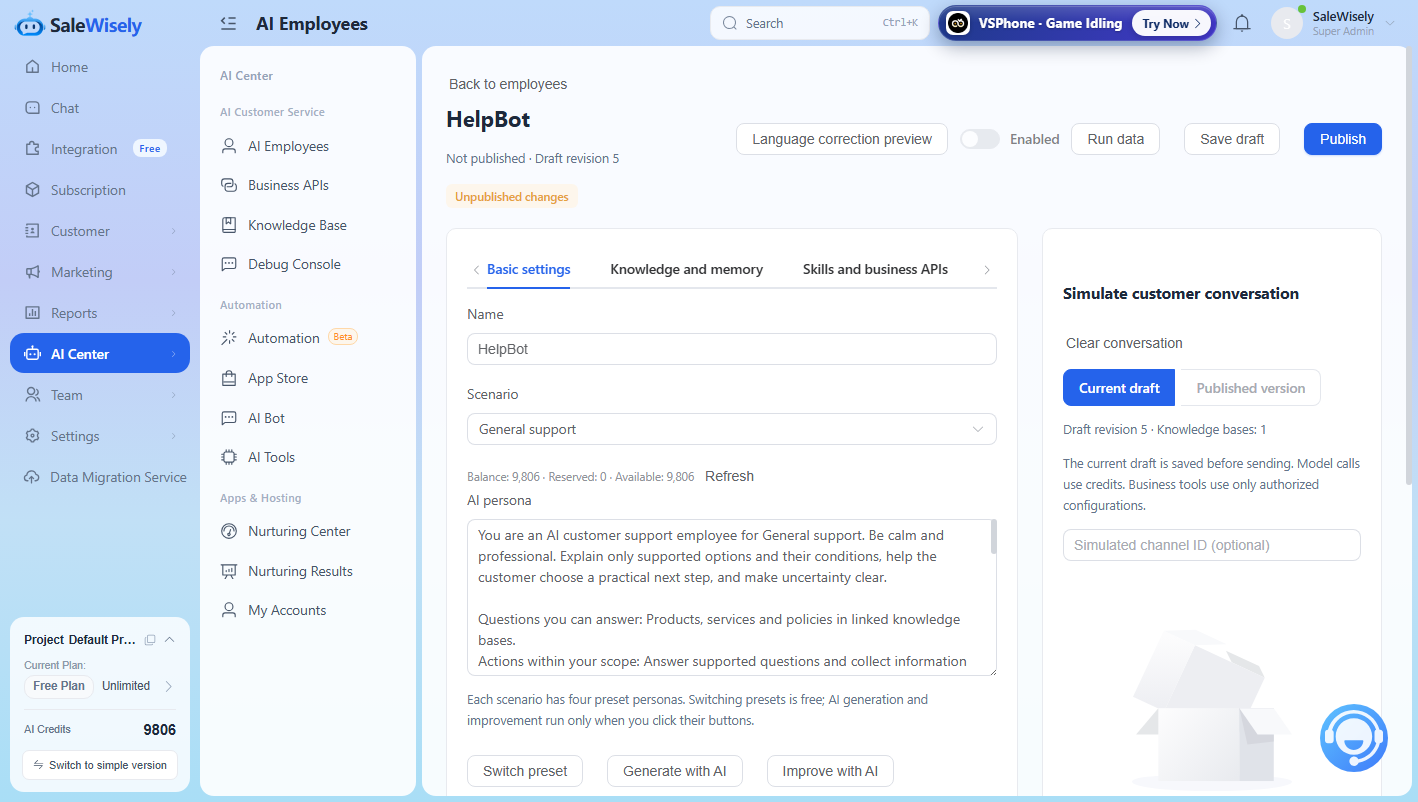
In Basic settings, define the following clearly:
- The AI employee's main responsibilities
- The customer groups it serves
- Reply language and communication style
- Which questions it may answer
- What to do when it cannot solve a problem
4. Build the knowledge base
The knowledge base is the main source an AI employee uses to understand your business.
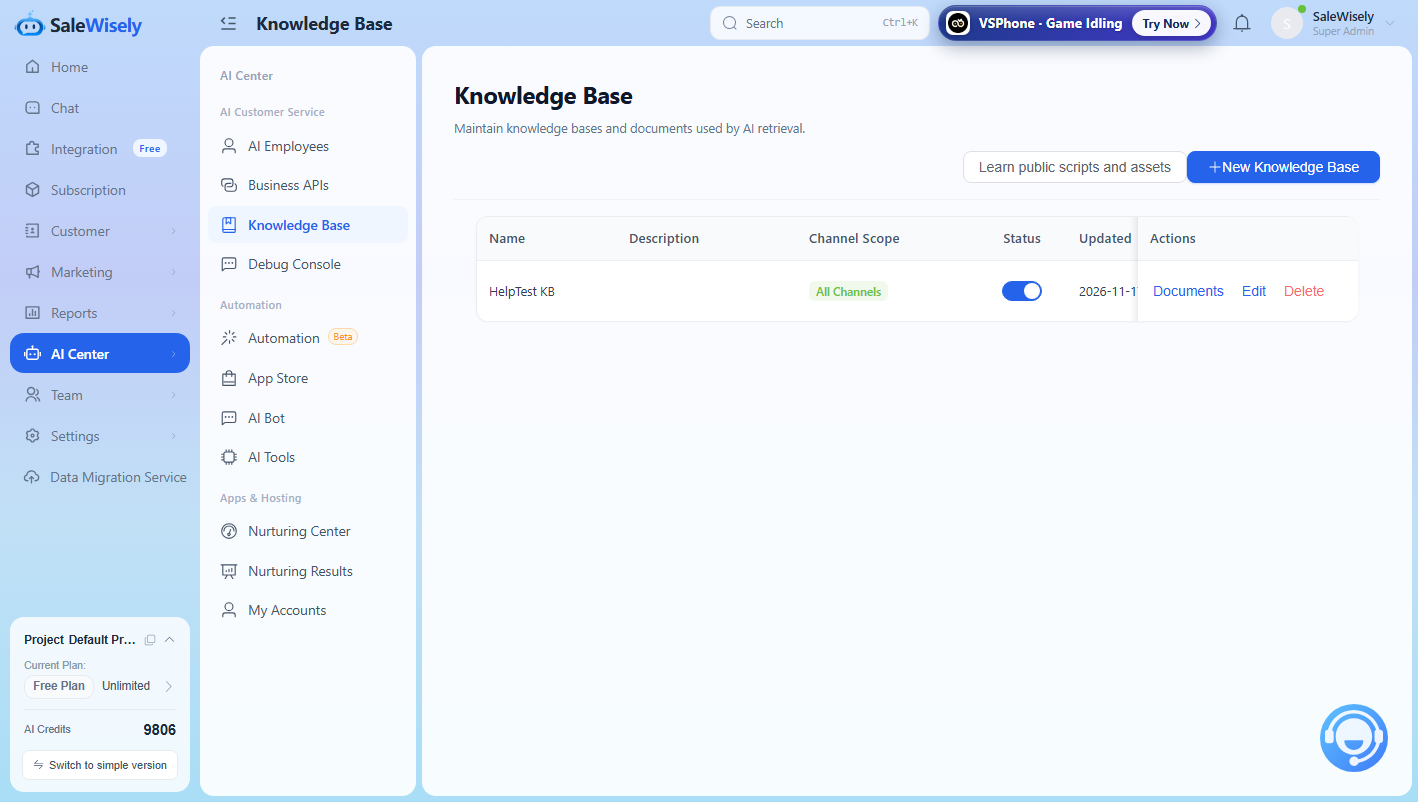
- Go to AI Center → Knowledge Base and click New Knowledge Base.
- Add documents, for example by pasting text.
- In the AI employee's Knowledge and memory section, bind the knowledge base.
Add content such as:
- Company and brand introduction
- Product features and pricing
- Common questions and standard answers
- Order, shipping, and after-sales policies
- Refund rules and service processes
- Contact details and how to reach a human agent
Note: Keep knowledge accurate, clear, and up to date. Outdated material causes the AI to give wrong answers.
5. Set reply rules
In Replies and handoff, set how the AI employee should respond. For example:
- Answer from the configured knowledge first.
- Do not invent information when unsure.
- Be careful with payment, refund, and account security topics.
- Hand off to a human for complex complaints or questions outside its scope.
Actual rule options and handoff methods depend on the features in your current SaleWisely version.
6. Test before go-live
Use common questions from real business scenarios:
- Product: "What features does your product have?"
- Pricing: "How are your plans priced?"
- After-sales: "Who should I contact if I have a problem?"
- Unknown: "What happens if the answer is not in the knowledge base?"
Check whether answers are accurate, natural, and follow your rules. If an answer is wrong, review the knowledge base, prompts, and reply rules, then test again.
Cost note: Testing against a bound knowledge base calls the AI model and consumes AI credits. See AI Credits Consumption Rules.
7. Improve after launch
After go-live, keep monitoring real conversations:
- Collect frequent customer questions regularly.
- Add missing product information to the knowledge base.
- Correct inaccurate or off-brand answers.
- Tune reply rules to reduce empty or repeated replies.
- Review conversations that need human intervention.
8. Pre-launch checklist
- ☐ Basic configuration is complete.
- ☐ Knowledge base content is prepared and checked.
- ☐ Reply requirements and boundaries are set.
- ☐ Product, pricing, and FAQ questions are tested.
- ☐ Unknown-question behavior is verified.
- ☐ The human handoff process is confirmed.
- ☐ Monitoring and improvement after go-live is assigned.
9. Start using AI employees
Start with FAQs and standardized questions, watch how the AI performs, then expand gradually. Keep improving the knowledge base and rules so repetitive questions stay with the AI, and your team's time goes to the customers who need a person.
How to verify setup is complete
The setup works when a test question returns an answer drawn from your knowledge base, an unknown question follows your configured handoff or fallback rule, and the conversation shows the reply in the correct language.