Binding a VMOSCloud cloud phone lets you import accounts running on cloud devices into SaleWisely. This article covers creating an API credential in the App Store, getting the VMOSCloud key, and importing devices.
Tags: VMOSCloud, cloud phone, API key, device binding, import
Prerequisites
- A VMOSCloud account with cloud devices.
- Admin access to SaleWisely's App Store.
- Devices must have a proxy bound and the target app (for example LINE) already logged in.
1. Open VMOSCloud OpenApi
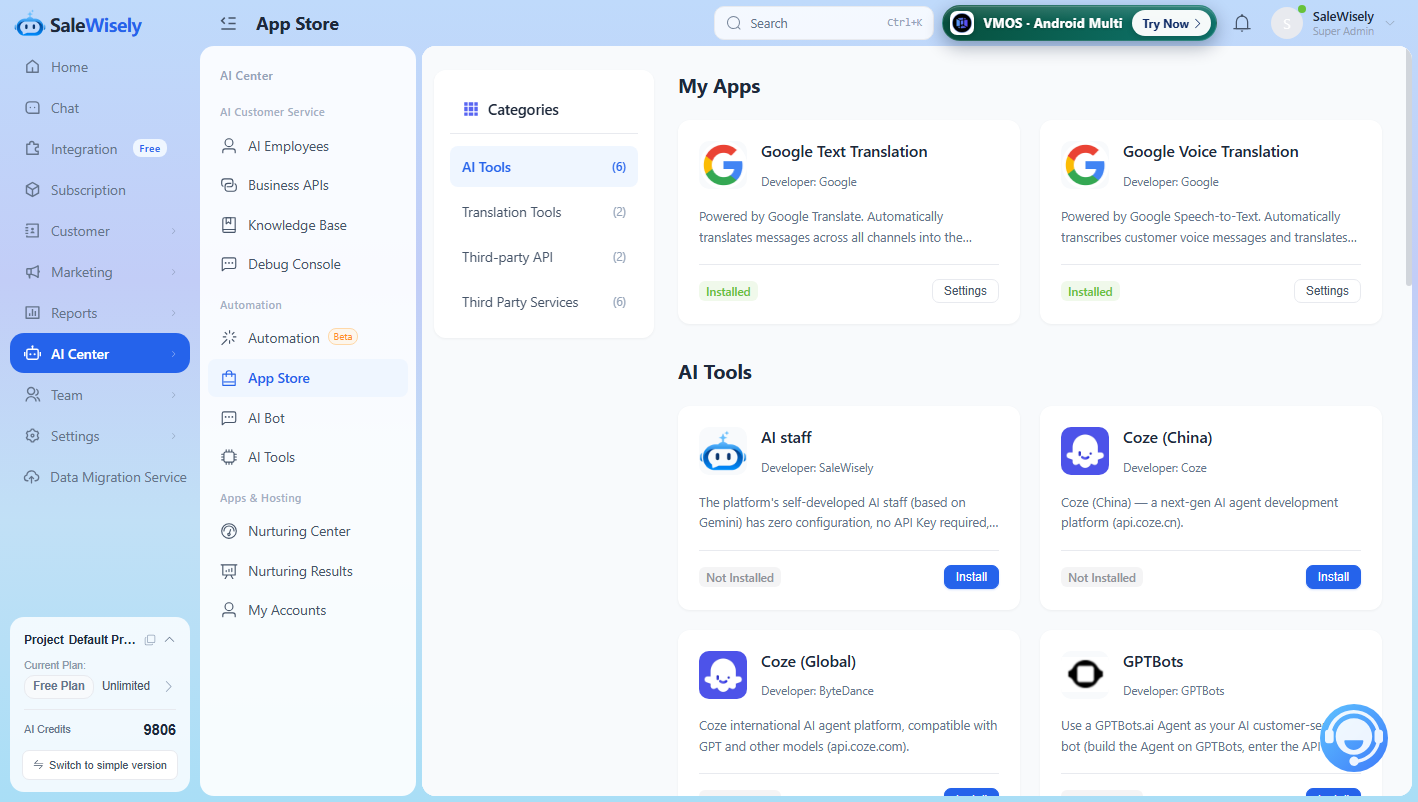
- In the left sidebar, open AI Center → App Store.
- Scroll to Third-party API and find VMOSCloud OpenApi.
- Click Settings.
2. Add a credential
Click Add credential to open the input field.
3. Get the API key from VMOSCloud
- In the VMOSCloud interface, open Developer.
- Open API and copy the KEY shown in the box.
4. Save the credential
Paste the copied KEY into the input field from step 2 and click Save.
5. Bind the cloud phone
- Click Cloud phone binding and select LINE.
- Choose the credential you just bound. It is selected by default; if you added new credentials later, select the right one manually.
- Choose the account type:
- Personal account — use Select cloud phone below to import an account from a specific device, or choose a device group and click Import whole group to import only that group. Choose All groups to import all devices.
- Team account — choose the team under Current team and the device scope under Device range to import that team's sub-accounts.
6. Import devices
After selecting devices, click Import to start the task.
Warning: Only devices with a proxy bound can be imported, and the target app (for example LINE) must already be logged in on the device. Otherwise the import fails.
How to verify setup is complete
The binding works when the imported accounts appear in the channel's device list with a valid status, and their conversations can be viewed in SaleWisely Chat.