A broadcast sends one message to many customers at once — promotions, new arrivals, holiday greetings, renewals. In SaleWisely it lives in Marketing → Broadcast Outreach, where the product calls each send a mass sending plan.
Tags: broadcast, mass messaging, marketing, message template, scheduling
Prerequisites
- Access to Marketing in the left sidebar.
- The target channel connected under Integration.
- Template approval where the channel requires it. WhatsApp templates are managed per WhatsApp Business Account (WABA), and every phone number under the same WABA shares them.
1. Create the plan
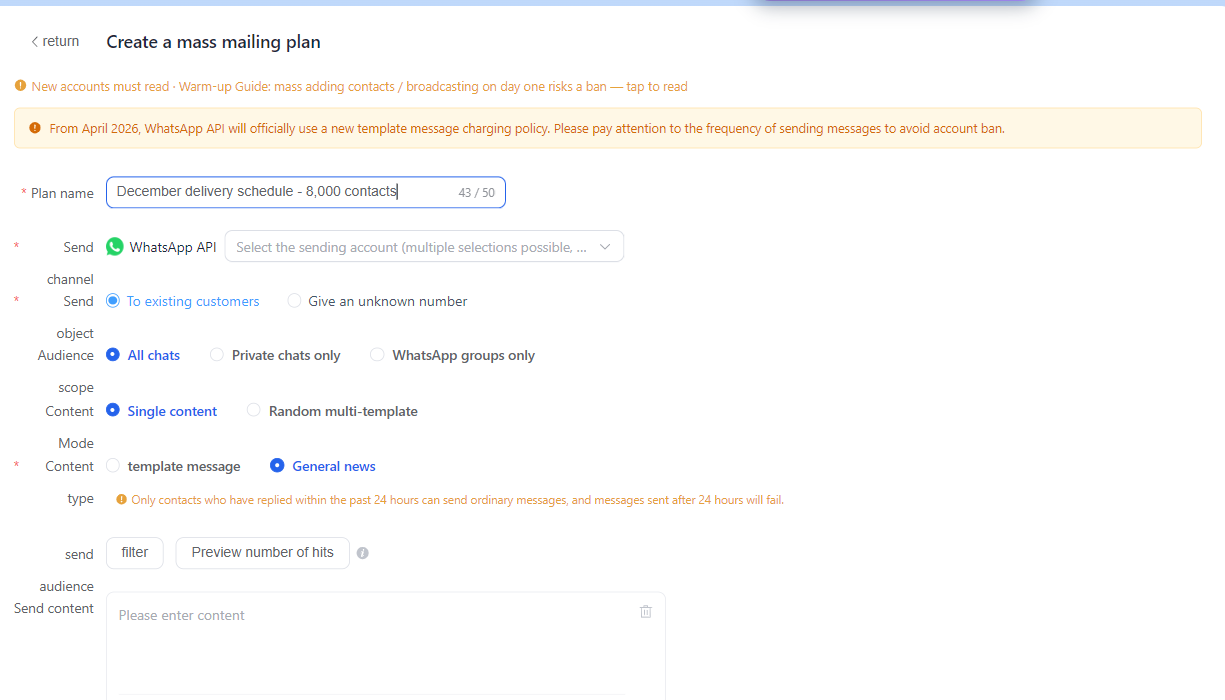
Open Marketing → Broadcast Outreach → Broadcast and click Create plan.
Choose the sending channel and, if the channel has more than one connected account, the account it sends from. One account can only carry one active send at a time — a second plan on the same account waits its turn.
2. Choose the audience
Select who receives the message — normally a customer segment defined by tags. This is why a consistent tag vocabulary matters: tags set in conversations, or in the customer profile panel, are what make an audience selectable here.
Channel limits apply and differ:
- Instagram sends reach only contacts who messaged the selected account in the past 24 hours. Contacts outside that window are skipped at send time, not queued.
- WhatsApp bulk sends require an approved Message Template in the right category — Marketing or Utility.
3. Write the message
Pick a Message Template from Marketing → Broadcast Outreach → Message Template, or write the content and save it as one for reuse. Personalize where the channel allows it — broadcasts support inserting the customer's nickname and comment name, so a bulk message reads like a personal one.
Broadcast Templates store a whole saved plan — audience, content and timing — which is what you want for a monthly promotion you run the same way each time.
Keep the message short and honest. Anything you promise in a broadcast arrives at scale: a wrong price is a hundred complaints, not one.
4. Schedule or repeat
Send now, or schedule a date and time. Ticking the recurring option turns the plan into a recurring plan, which sends on a repeating interval — useful for weekly offers or recurring reminders. Recurring plans are listed separately from one-off sends via All recurring plans.
5. Read the results
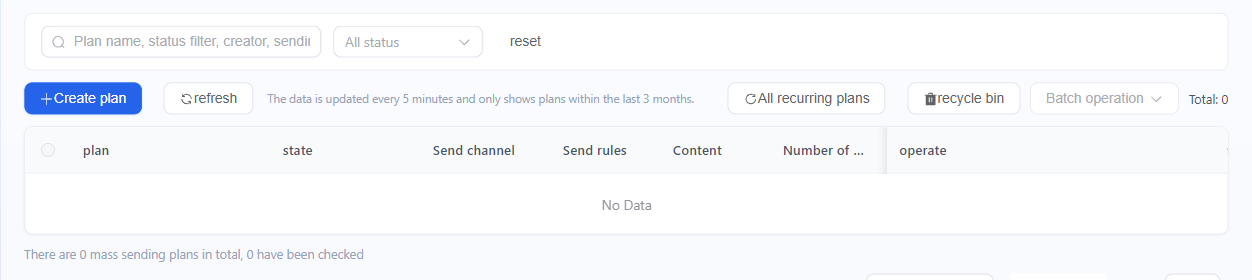
The broadcast list is a table, and each column answers a different question:
|
Column |
What it tells you |
|---|---|
|
plan / state |
Which send, and where it is in its lifecycle |
|
Send channel / Send rules |
Where it went and under which rule |
|
Content |
The message that went out |
|
Number of people planned to send |
The audience size at creation |
|
Number of people sent successfully |
Actual deliveries |
|
success rate |
Delivered ÷ planned — the real health metric |
|
Number of people who have read / Read rate |
Read receipts where the channel reports them |
|
Number of replies / response rate |
Whether the message produced conversations |
|
Send time, Creator |
When and by whom |
The table refreshes every 5 minutes and only keeps plans from the last 3 months, so export anything you need for longer-term records. Deleted plans sit in the recycle bin.
Read the gap between planned and sent successfully first. A large gap usually means expired 24-hour windows on Instagram, unapproved or miscategorised WhatsApp templates, or contacts who have blocked the account.
Rate limits and account health
- Ramp up volume gradually on new or recently warmed-up accounts — see the WhatsApp Number Warm-up Guide and LINE Number Warm-up Guide.
- Use Batch operation to manage many plans at once instead of editing them one by one.
- Follow each channel's messaging policy: repeated policy violations restrict the account, and recovery takes far longer than the send was worth.