This article shows where to view your current plan, compare plans, check your AI credit balance and daily consumption, buy extra credits, and find your orders. It is written for both Free and paid users who want a clear picture of their plan and credit usage.
Tags: subscription, pricing, plans, billing, AI credits, booster packs, wallet balance, orders
Prerequisites
- A registered SaleWisely account and access to Subscription in the left sidebar.
- Admin access is needed to subscribe, recharge, or view order details for the project.
- Prices and credit amounts below reflect the English product UI on 2026-11-17. Always check the live Subscription page for current pricing.
Step 1 — Open the Subscription page
Click Subscription in the left sidebar. The page has three tabs: Plans, My plan, and Compare.
Step 2 — Compare plans on the Plans tab
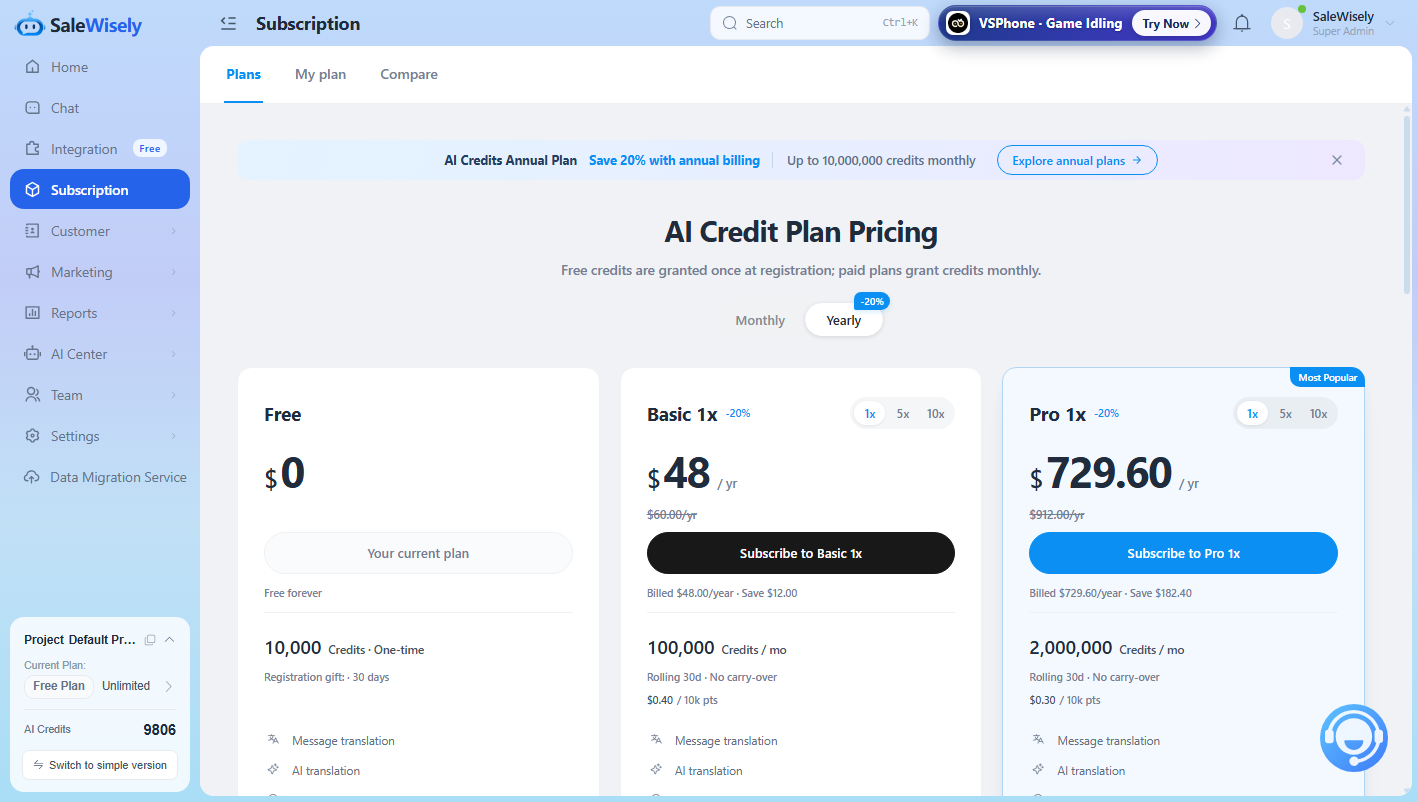
The Plans tab explains the credit rule in the product's own words:
Free credits are granted once at registration; paid plans grant credits monthly.
You can switch between Monthly and Yearly billing. The yearly view shows a -20% discount. Example figures from the English UI at the time of writing:
|
Plan |
Price |
Credits |
Notes |
|---|---|---|---|
|
Free |
$0 |
10,000 credits · one-time |
Free forever; registration gift, valid 30 days |
|
Basic 1x |
$48/yr (was $60.00/yr) |
100,000 credits / mo |
Rolling 30 days · no carry-over |
|
Pro 1x |
$729.60/yr (was $912.00/yr) |
2,000,000 credits / mo |
Rolling 30 days · no carry-over |
Note: Credit allowances and included features depend on the multiplier you select (1x, 5x, or 10x). The table above shows the 1x yearly figures only.
Step 3 — Check your current plan on the My plan tab
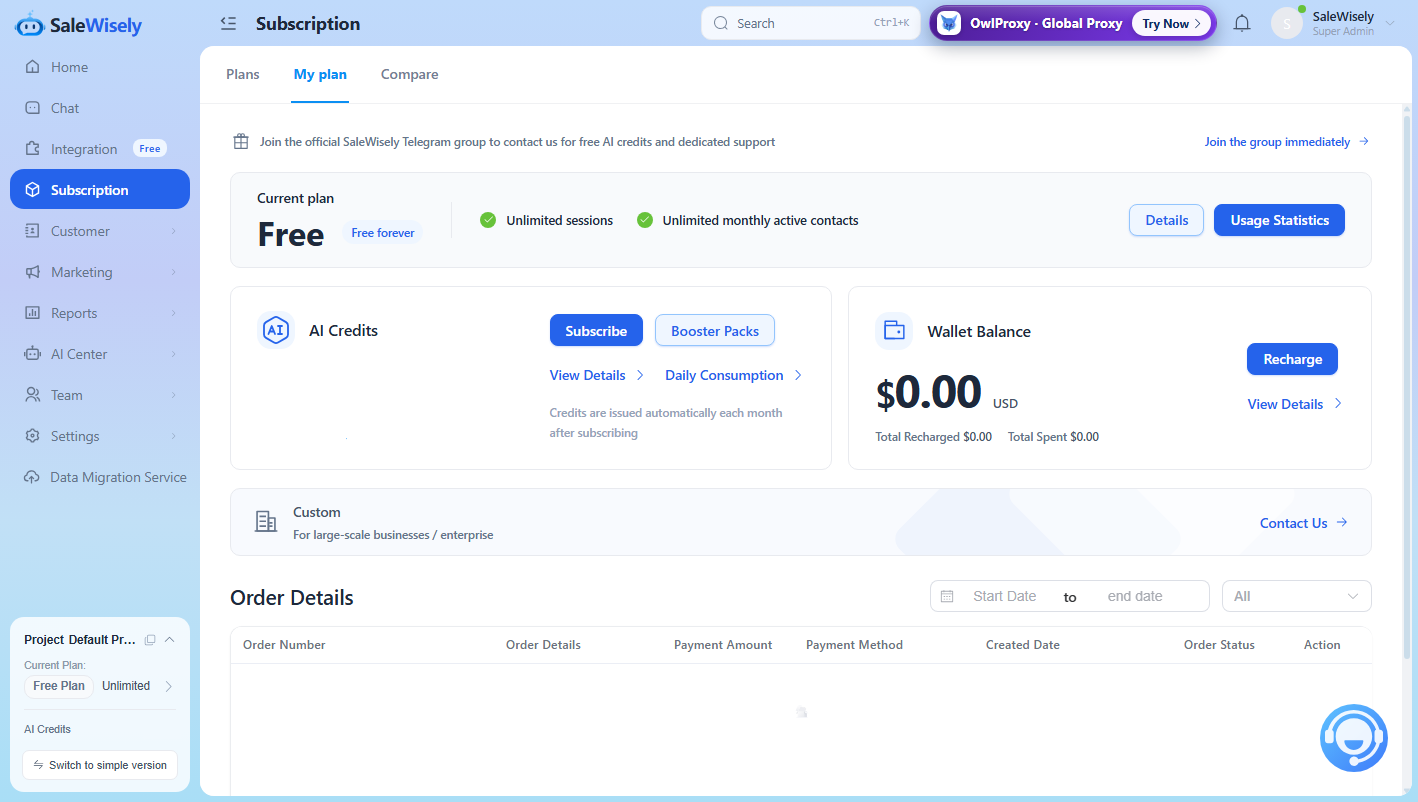
Open the My plan tab to see:
- Current plan — for example Free (Free forever), with Unlimited sessions and Unlimited monthly active contacts. Use the Details and Usage Statistics buttons for more information.
- AI Credits — your remaining balance and Consumed amount.
- The note: "Credits are issued automatically each month after subscribing."
- Booster Packs — buy extra credits when you need more.
- Wallet Balance — balance, Total Recharged, and Total Spent, with Recharge and View Details buttons.
- Custom — for large-scale businesses or enterprise, with a Contact Us link.
- Order Details — filter by date range and status to review past orders.
Step 4 — Check daily credit consumption
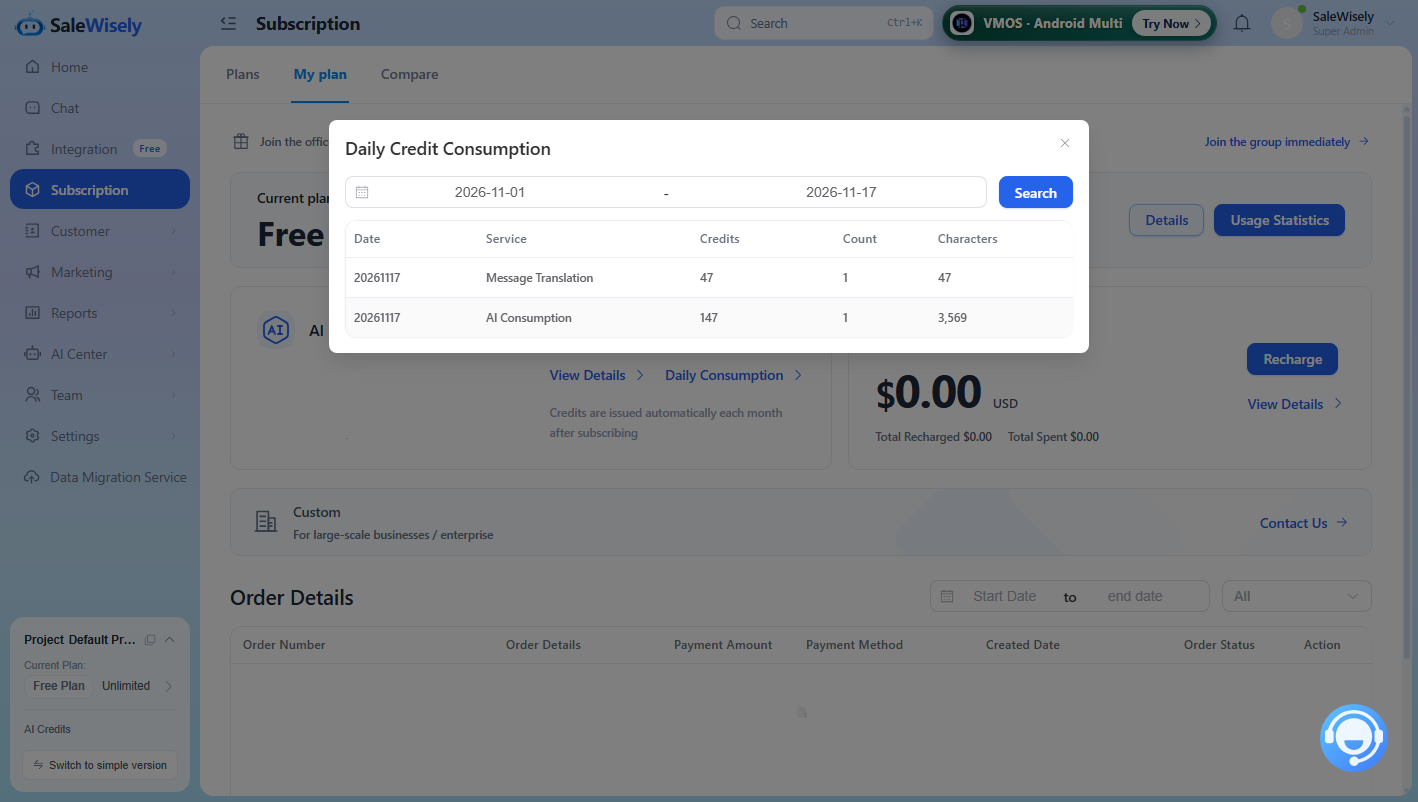
- On the My plan tab, click Daily Consumption in the AI Credits card.
- Select a date range and click Search.
- Read the result table. The columns are Date, Service, Credits, Count, and Characters.
Example records from a test account:
|
Date |
Service |
Credits |
Count |
Characters |
|---|---|---|---|---|
|
20261117 |
Message Translation |
47 |
1 |
47 |
|
20261117 |
AI Consumption |
147 |
1 |
3,569 |
Reading the table: Credits is what was deducted for that service, Count is the number of operations, and Characters is the text volume processed. For how each service is metered, see AI Credits Consumption Rules.
Step 5 — Subscribe, buy credits, or recharge
- To change plan, open the Plans tab and click Subscribe to <plan name> under the plan you want.
- To buy credits without changing plan, click Booster Packs on the My plan tab.
- To add funds to your wallet, click Recharge in the Wallet Balance card.
- To review a payment, use the Order Details filters and check the Order Status column.
Note: Payment methods, taxes, and currency are shown at checkout. This article does not list them because they vary by region and account.
Step 6 — Use the Compare tab
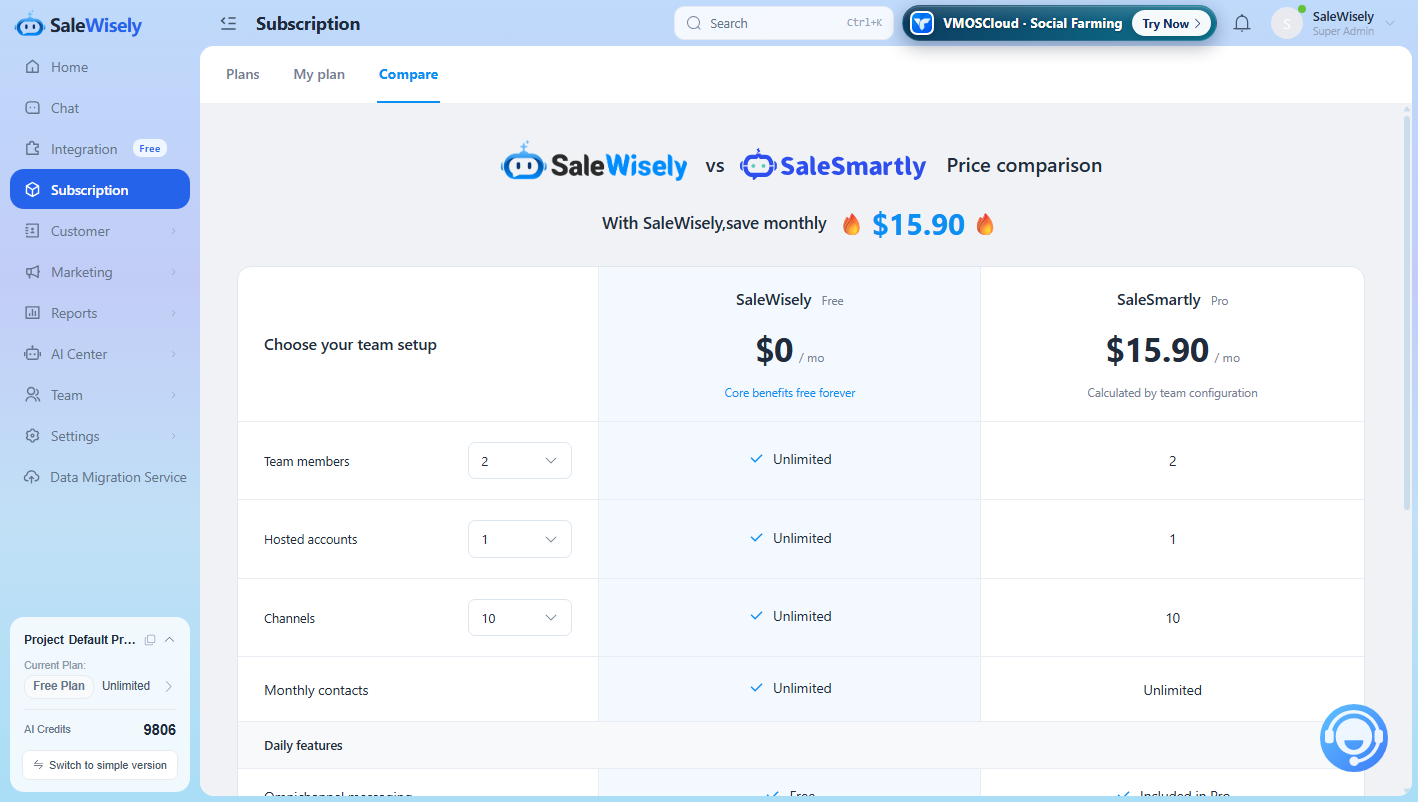
The Compare tab shows a price comparison between SaleWisely and Salesmartly. Use the dropdowns for Team members, Hosted accounts, and Channels to match your team size before reading the figures.
How to verify a purchase or credit change
After subscribing or buying a booster pack, return to My plan and confirm the new balance in AI Credits. Then open Daily Consumption and set the date range to today — new charges appear as service-level rows. If the balance did not change, check Order Details for the order status and contact support with the order number.
FAQ
Why did I only get free credits once? Free credits are granted once at registration. Paid plans grant credits monthly, as stated on the Plans tab.
Where can I see exactly what consumed my credits? Open Subscription → My plan → Daily Consumption and search the date range you want to inspect.
Can I get more credits without changing plan? Yes. Use Booster Packs on the My plan tab.
Do unused monthly credits carry over? The paid plan cards shown in the English UI say "Rolling 30d · No carry-over". Check your own plan card for the current rule.
Can I switch to yearly billing? Yes. The Plans tab has Monthly and Yearly switches; the yearly view shows a 20% discount banner.
What should I do if a payment fails? Check Order Details for the order status and contact support with the order number. Payment methods and taxes shown at checkout vary by region.