System settings let administrators control message notifications, conversation assignment, translation behavior, channel offline alerts, and account security for the whole project. This article shows where each setting lives and what it changes, so you can configure the workspace before your team starts replying.
Tags: system settings, admin, notifications, conversation assignment, translation settings, two-factor authentication
Prerequisites
- A Super Admin or admin account with access to Settings → System settings.
- Changes in this area affect the entire project, not just your own account.
Where to find system settings
In the left sidebar, click Settings, then select System settings. The page groups settings into sections such as Notifications, Visitor-facing service status, Reply Timeout Notification, Channel Account Offline Notification, Session assignment mode, Group Chat Visibility, and Translation settings.
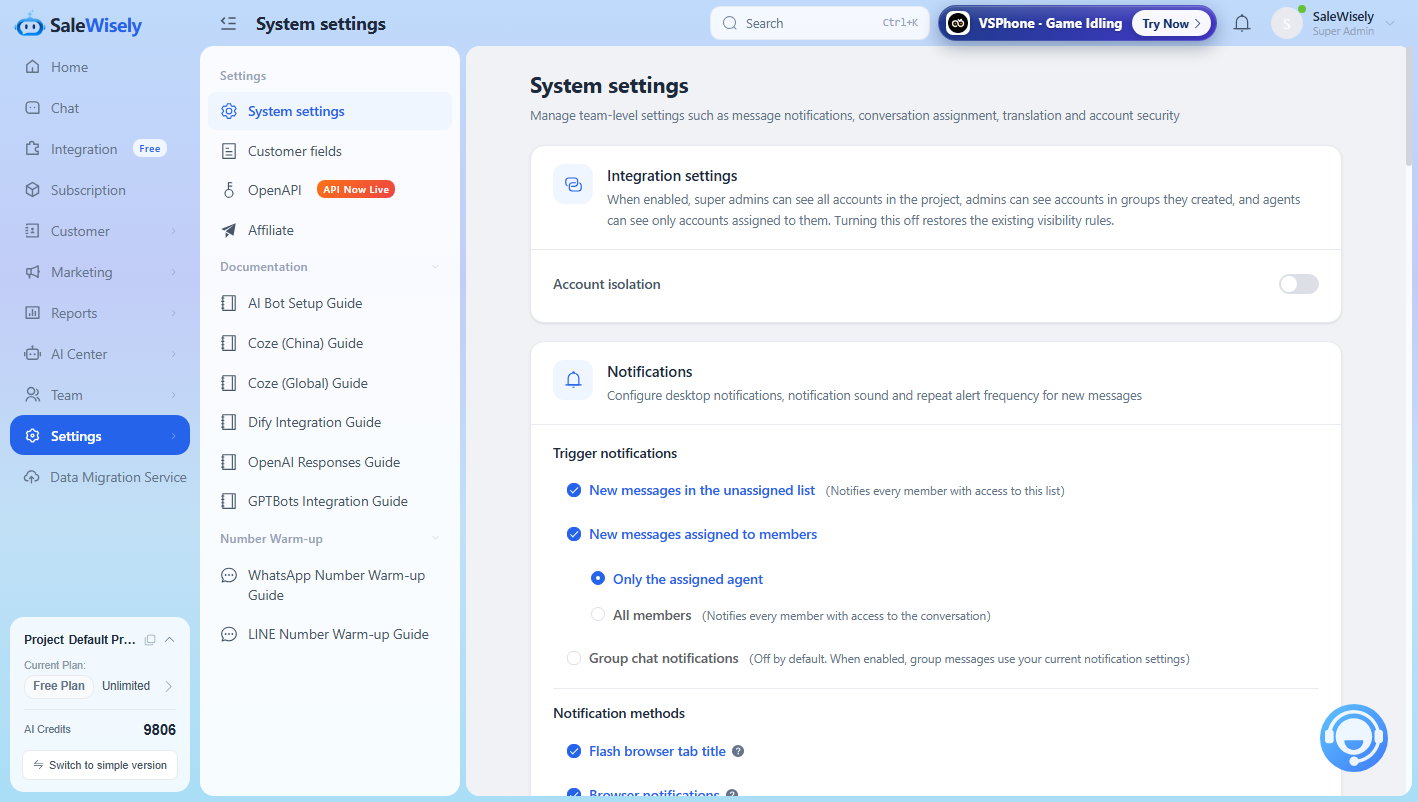
1. Notifications
This section controls how teammates are alerted about new messages.
- Under Trigger notifications, choose which events should raise an alert:
- New messages in the unassigned list — notifies every member with access to that list.
- New messages assigned to members — then choose Only the assigned agent or All members.
- Group chat notifications — off by default. When enabled, group messages use your current notification settings.
- Under Notification methods, enable the channels you want: Flash browser tab title, Browser notifications, Browser sound, or Official account notifications.
- Under Sound, choose Mute, Always play (respect interval), or Only when tab is in background, and select a Sound type.
- Click Test notification sound to confirm audio works in your browser.
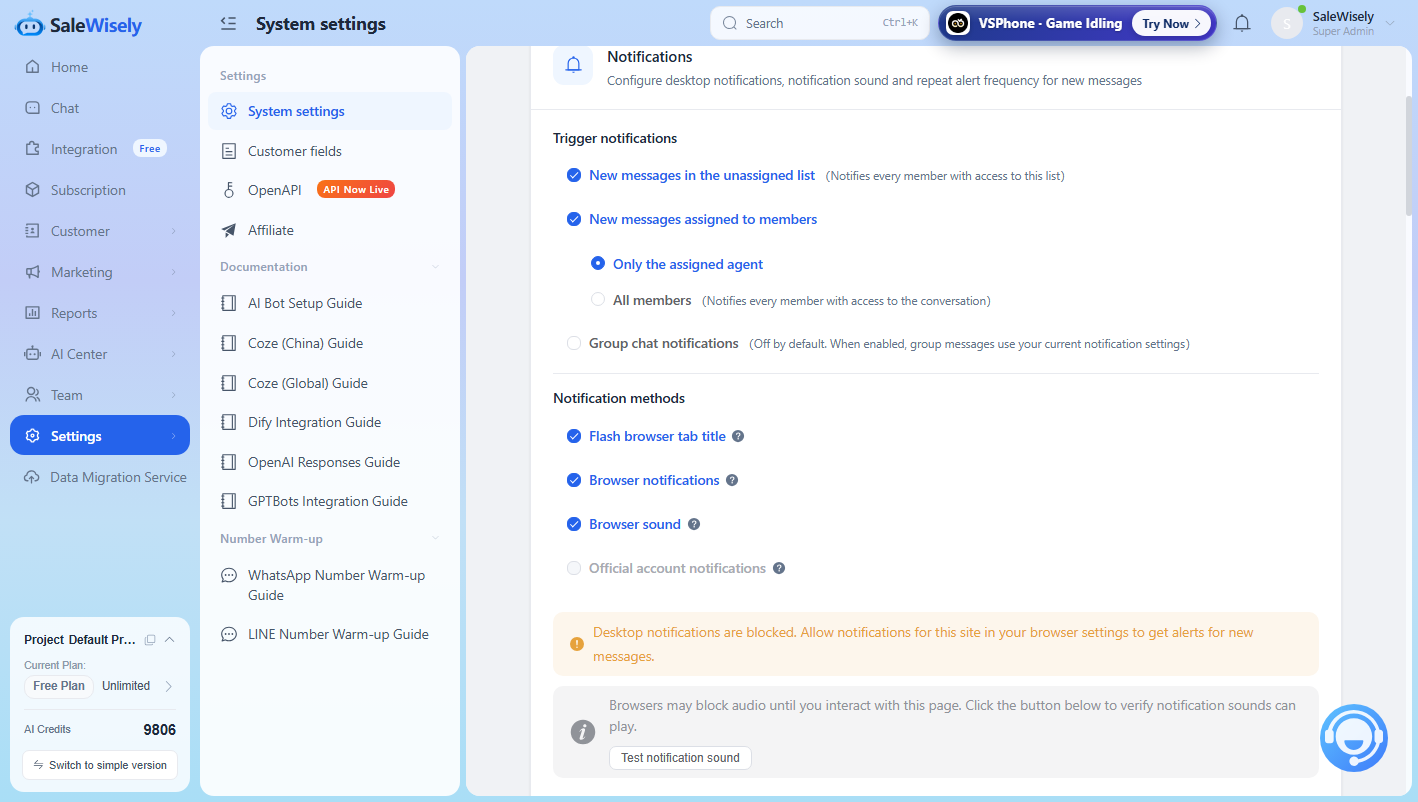
If notifications do not appear: browsers can block alerts for a site. The product shows this message:
`
Desktop notifications are blocked. Allow notifications for this site in your browser settings to get alerts for new messages.
`
Allow notifications for app.salewisely.com in your browser settings, then reload the page. Browsers may also block audio until you interact with the page.
2. Reply Timeout Notification
Turn on Reply Timeout Notification to catch messages that have gone unanswered. Pair it with the Unreplied view in Chat to work through pending conversations.
3. Visitor-facing service status
When this option is on, the Website Plugin shows whether a visitor is talking to an AI agent or a human agent, and displays states such as "transferring to a human" and "typing". Turn it on if you want visitors to understand who is replying.
4. Channel Account Offline Notification
Enable Channel Account Offline Notification to monitor connected accounts. You can receive alerts by email or DingTalk push. This helps you notice a disconnected social account before customers are affected.
5. Session assignment mode
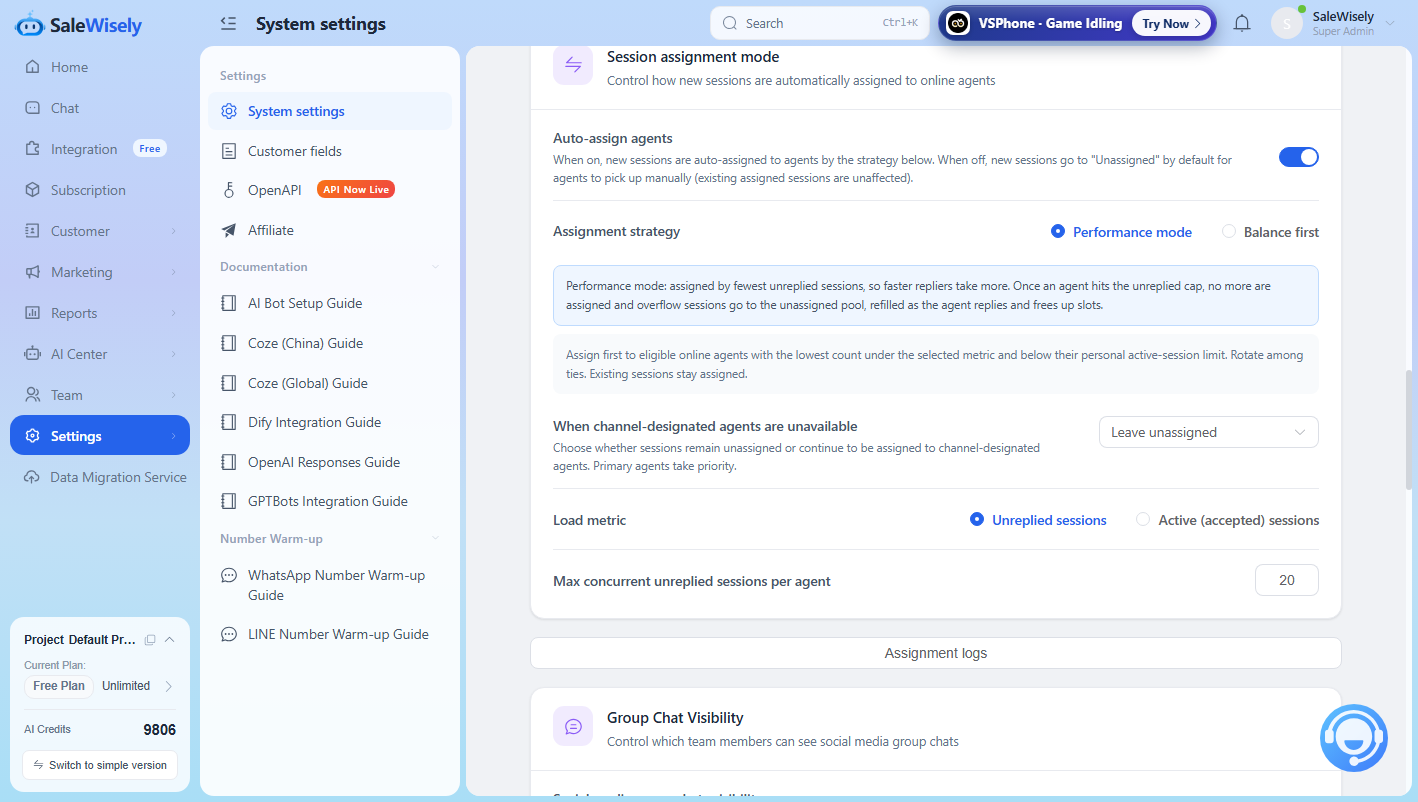
This section controls how new conversations are assigned to online agents.
- Turn Auto-assign agents on to distribute new sessions automatically. When it is off, new sessions go to Unassigned for agents to pick up manually; existing assigned sessions are unaffected.
- Under Assignment strategy, choose Performance mode or Balance first.
- Performance mode assigns by fewest unreplied sessions, so faster repliers take more. Once an agent hits their unreplied cap, no more are assigned and overflow sessions go to the unassigned pool.
- Balance first assigns to eligible online agents with the lowest count under the selected metric, below their personal active-session limit.
- Under When channel-designated agents are unavailable, choose whether those sessions stay unassigned or continue to channel-designated agents.
- Under Load metric, choose Unreplied sessions or Active (accepted) sessions.
- Set Max concurrent unreplied sessions per agent to cap the workload.
Default behavior: when the same customer is assigned again, the system prioritizes the original agent.
6. Group Chat Visibility
Choose which team members can see group chats from social media channels. Set it as broadly or as narrowly as your team needs.
7. Translation settings
This section controls automatic translation across the workspace.
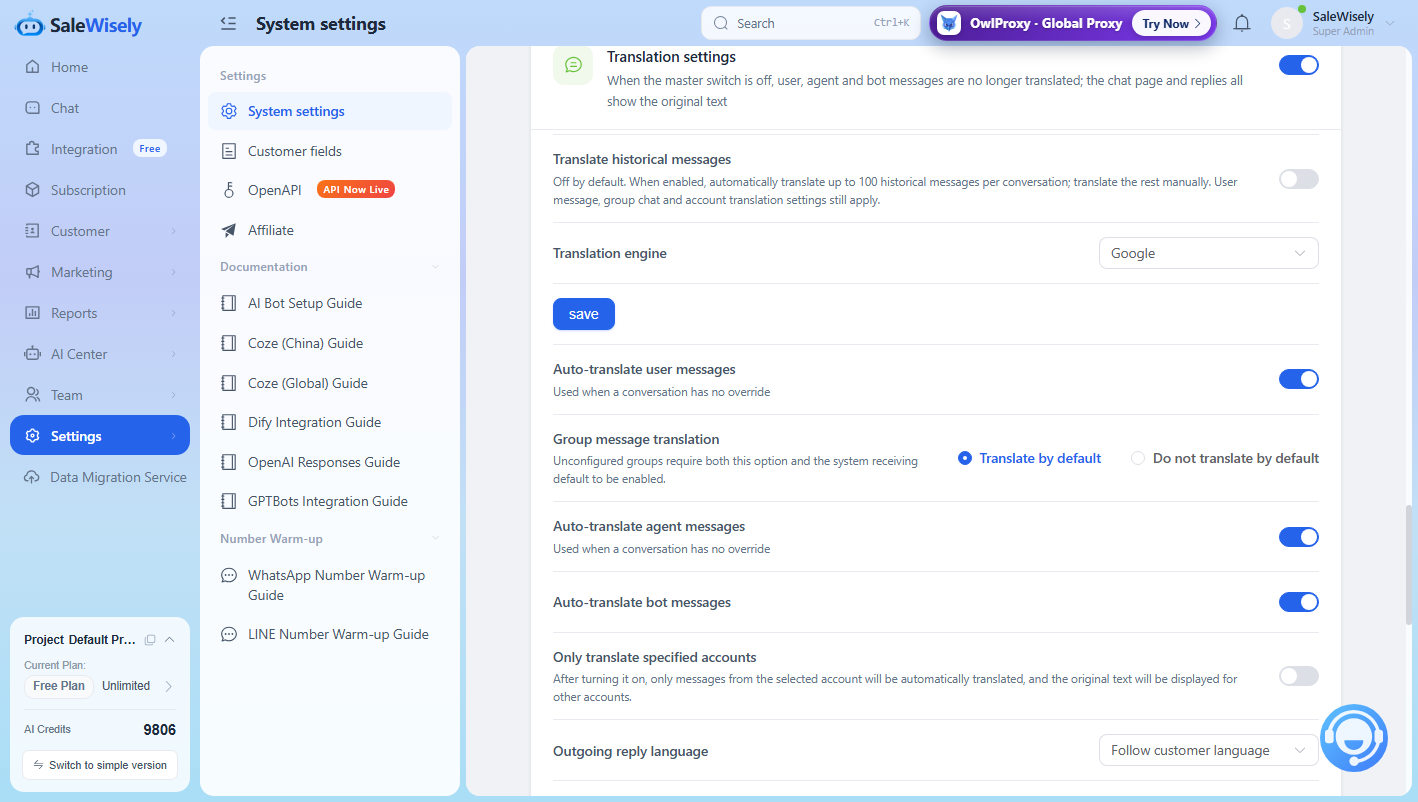
- Keep Translation master on. When it is off, user, agent, and bot messages are no longer translated, and the chat page and replies show original text only.
- Translate historical messages is off by default. When enabled, the system automatically translates up to 100 historical messages per conversation; translate the rest manually. User, agent, group chat, and account translation settings still apply.
Cost note: translating historical messages can consume a large number of AI credits. See AI Credits Consumption Rules.
- Select a Translation engine. Available options in the product UI include Google, DeepL, Youdao, and AI translation with multiple models.
- Turn on Auto-translate user messages, Auto-translate agent messages, and Auto-translate bot messages as needed. These apply when a conversation has no override.
- For Group message translation, choose Translate by default or Do not translate by default. Groups without their own setting follow these defaults; both this option and the account-level default need to be on.
- Turn on Only translate specified accounts if you want automatic translation limited to selected accounts; other accounts will show the original text.
- Set Outgoing reply language to Follow customer language or choose a fixed language.
- Click save to apply changes.
8. Other settings
The same page also includes:
- Automatic extraction of questions at the end of session
- Sensitive word filter
- Two-factor authentication (Google Authenticator)
- Human–AI collaboration
- Show SaleWisely support — hides or shows the SaleWisely support entry in the agent interface.
Security note: enabling two-factor authentication adds a verification step at sign-in. Keep your authenticator device accessible before you turn it on.
How to verify changes took effect
After saving, reload the page and confirm the switches stayed in the position you set. For notification changes, send a test message and check the alert. For translation changes, open a conversation in another language and check whether the translation appears and which engine output is shown.