Every SaleWisely automation flow is built from three parts: a trigger condition (what starts the flow), an action (what the system does automatically), and an end condition (when the flow stops or hands off to a human). This reference explains what each part can do, so you can design a flow before opening the builder. For the click-by-click steps, see Automation: How to Build a Flow.
Tags: automation, trigger, action, end condition, keyword, session state, timeout
Prerequisites
- Access to AI Center → Automation.
- Note: Automation is marked Beta in the product UI. Available features may change.
1. Session states a trigger can test
Timeout and state triggers match the customer's current conversation state. The states are:
|
State |
Meaning |
|---|---|
|
Bot |
The conversation is currently hosted by the bot |
|
Unassigned |
No agent is assigned to the conversation (includes bot-managed ones) |
|
Assigned |
A human agent is assigned |
|
All |
No restriction on state |
A timeout trigger fires when the conversation matches the selected state and goes without a reply for the configured time. That pairing matters: "Unassigned + 10 minutes" catches a dropped conversation, while "All + 10 minutes" also catches a customer waiting on a reply from a busy agent.
2. Other trigger types
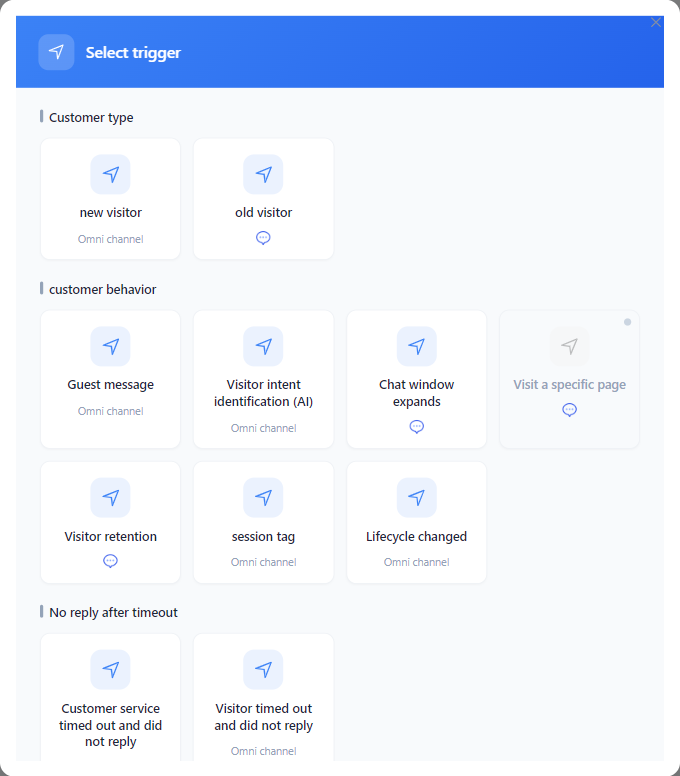
|
Trigger type |
Example |
|---|---|
|
Customer sends a keyword |
Customer asks about "price" — the flow sends pricing info; keywords support contains and exact match modes |
|
Conversation enters a status |
A conversation is closed — the flow tags it and archives it |
|
Agent goes offline |
Fires when the agent owning a session logs out or drops for about 3 minutes — route the conversation to someone else |
|
Intent match |
The customer's intent matches a configured rule (intent recognition runs on the session types you select) |
|
Customer inactive |
Long silence — the flow runs a re-engagement task |
3. What actions can run
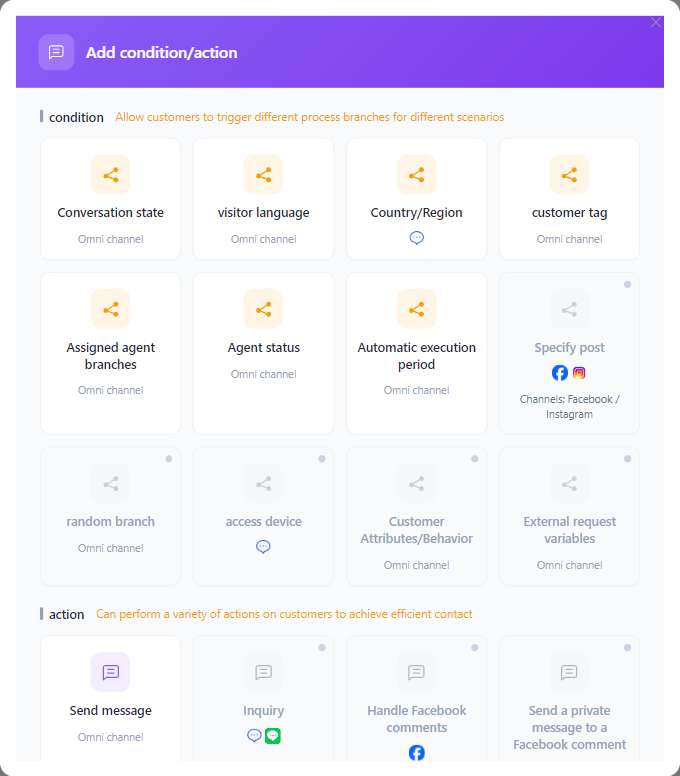
|
Action |
What it does |
|---|---|
|
Send a message / auto-reply |
Answers FAQs, sends welcome or template messages |
|
Add a tag |
Tags the customer or conversation for classification |
|
Close the conversation |
Ends finished sessions on a status or timeout rule |
|
Notify an agent |
Alerts the owner about an unanswered or pending conversation |
|
Scheduled task |
Runs on a preset time — silent-customer wake-up, unpaid-order reminder, SLA follow-up |
|
Handoff to a human |
Ends automation and passes the conversation to an agent |
4. End conditions
Decide in advance when the flow stops: after the action runs once, when the customer replies, when the conversation reaches a status, or when the question needs a human. A clear end condition prevents loops and keeps messages away from the wrong customers.
5. Automation vs AI employees
|
|
AI employee |
|
|---|---|---|
|
Core logic |
Executes preset rules |
AI understanding and judgment |
|
Handling |
Condition matching, flow execution |
Natural-language understanding, smart answers |
|
Typical tasks |
Tagging, reminders, closing sessions |
Answering questions, intent recognition |
|
Flexibility |
Depends on rule configuration |
Handles varied phrasings |
They work well together: the AI employee understands what the customer wants, then automation tags, routes, or notifies your team.
6. Templates
The builder offers templates grouped by scenario (English UI):
- Reception — Business-hours reception, Multilingual welcome, Window self service, Welcome and ask email, Welcome and ask phone, Agent timeout fallback, Replies by assigned agent
- Follow-up — Lead follow-up, Staged visitor follow-up, Intent follow-up, Visitor timeout closing
- Assignment — Profile-based assignment
- Risk control — Spam blocking
How to verify a flow works
Run the flow with a Test before enabling it. Verify the trigger fires, the action produces the expected message, and the end condition stops or hands off correctly. After it runs, use the flow list to check Triggers in the last 7 days (how often it ran) and Completion (whether it answered fully); Data, Edit, Test, and Copy are available per flow.