Chat is where every channel meets: WhatsApp, Instagram, Telegram, LINE, Facebook, Email and your website widget all arrive in the same conversation list. This article walks through the workspace left to right, so a new agent knows where everything is on day one.
Tags: unified inbox, chat, conversation list, views, assignment
Prerequisites
- Access to Chat in the left sidebar.
- At least one channel connected under Integration. Without one the list stays empty.
The workspace, left to right
|
Area |
What it is for |
|---|---|
|
View filter rail (far left) |
Saved views and built-in filters — this is how you narrow the list |
|
Conversation list (second column) |
Status tabs on top, the conversations in the selected view below |
|
Conversation panel (centre) |
The message thread, the chat header, and the reply box |
|
Customer profile (right panel) |
Tags, notes, source channel and this customer's conversation history |
|
Main navigation (far left edge) |
Home, Chat, Integration, Subscription, Customer, Marketing, AI Center, Reports, Team, Settings |
The main navigation is grouped: Workspace (Home, Chat, Integration), Subscription, Business operations (Customer, Marketing, AI Center) and Insights & governance (Reports, Team, Settings). Menu management at the bottom lets an admin hide what a team does not use.
Views and status tabs
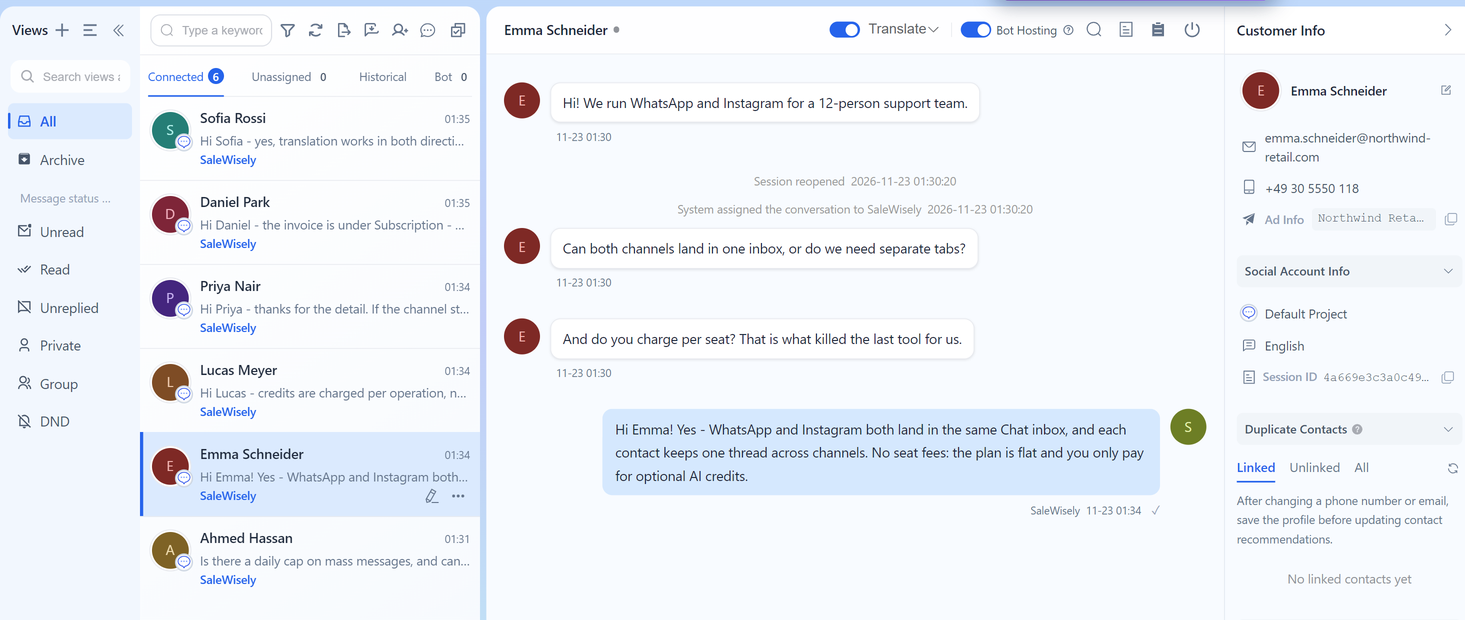
Two different things narrow the list, and it helps to keep them apart.
Views (left rail) are saved filters:
- All — every conversation, whatever its state
- Archive — conversations moved out of the working list
- Message status & conversation type — Unread, Read, Unreplied, Private, Group, DND
Status tabs (above the list) are the lifecycle of a conversation:
- Connected — an open conversation with a live channel
- Unassigned — waiting for an agent to pick it up
- Historical — closed sessions
- Bot — conversations currently handled by an AI bot
Click + at the top of the view rail to create a custom view from rules — for example "WhatsApp only, assigned to me, tagged VIP". Saved views appear in the rail for one-click switching, which is faster than rebuilding the same filter every morning.
Filtering and finding a conversation
- Search above the list matches the customer's name, account and message content. Press Enter to apply.
- More filters (the funnel icon) opens the advanced popover: date range (today, this week, this month, custom), channels (multi-select), customer tags, staff groups, assignment state, phone or email, and keyword. Conditions stack — click Apply when done.
- Refresh re-reads the list; Export and Export Chat History pull the current view out for reporting or handover.
Batch select puts a checkbox on every row. Once rows are ticked, a toolbar appears with Select All / Invert, Mark Read, Mark Unread, Toggle Mute and Close Sessions. Closing in bulk only affects sessions that are assigned to someone, and it cannot be undone.
Reading and replying
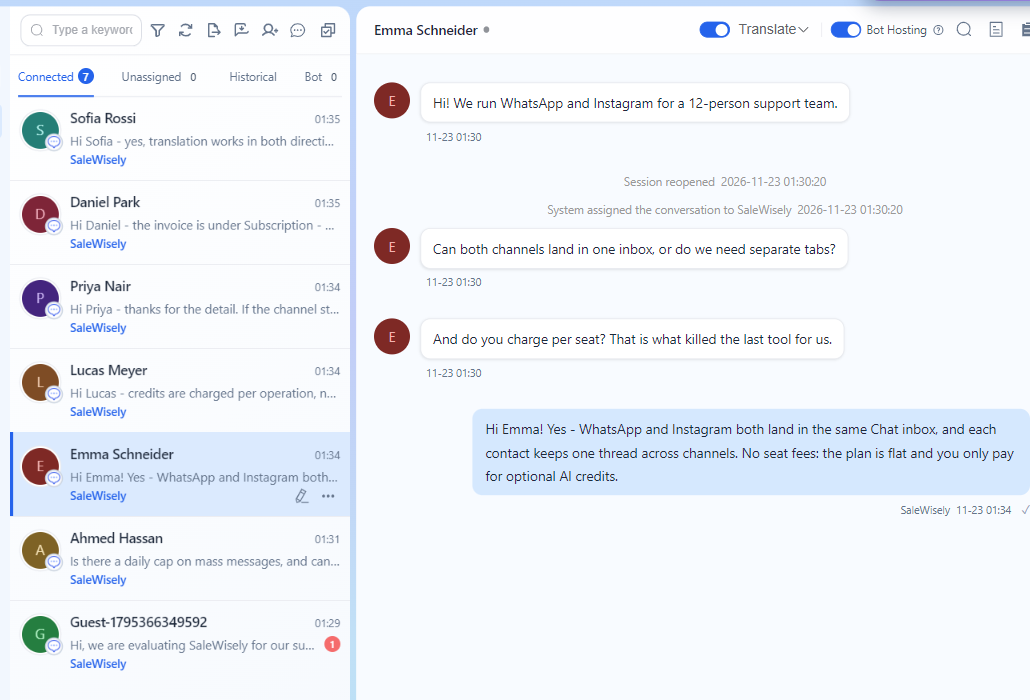
Selecting a conversation fills the centre panel. The chat header shows the customer's name, the channel they came from, a close-session action and history search. Below it the thread runs in real time, with translation, quote-reply and recall on individual messages.
In the reply box:
- Type your message and press Enter to send. The hotkey can be switched to Shift+Enter in settings if your team prefers.
- With translation on, choose Send Original or Send Translated before sending — see Real-time Translation Settings.
- The toolbar under the box holds three icons: upload a file, upload an image or video, and insert a quick reply.
Starting a new conversation is deliberate: Start Chat begins one with an existing contact, Start a LINE group chat creates a LINE group, and Test messaging proves the whole loop works before a real customer arrives. Test messages are real customer messages — they follow your assignment, automation and reporting rules, so expect them in your reports.
Working the right panel
The customer profile panel is where context lives: tags, notes, the source channel and this person's earlier conversations. Edit tags and notes inline — a tag added here is what makes the customer selectable in a broadcast audience later.
Closing a conversation
Close a session from the chat header when the issue is resolved. A closed session moves to Historical and the customer can open a new one by writing again. Do not leave solved threads open "just in case" — an accurate Historical tab is what keeps the Service Overview and close-rate numbers meaningful.
How to verify you are set up
- The conversation list shows counts on Connected, Unassigned, Historical and Bot.
- Search finds a conversation by message content, not only by name.
- A test message sent through Test messaging appears in Connected and opens normally.
- Your custom view shows the expected subset, and the count matches what you see.