Connecting an email account lets your team read and reply to customer email from the same inbox as your chats, and run bulk email campaigns. This article covers adding an account, authorizing it, and enabling it.
Tags: email, Gmail, business email, authorization, bulk email
Prerequisites
- The email account credentials, or admin access to authorize it.
- For Gmail, a Google account.
- For Alibaba business email, permission to generate a client-specific password.
Steps
1. Add an email account
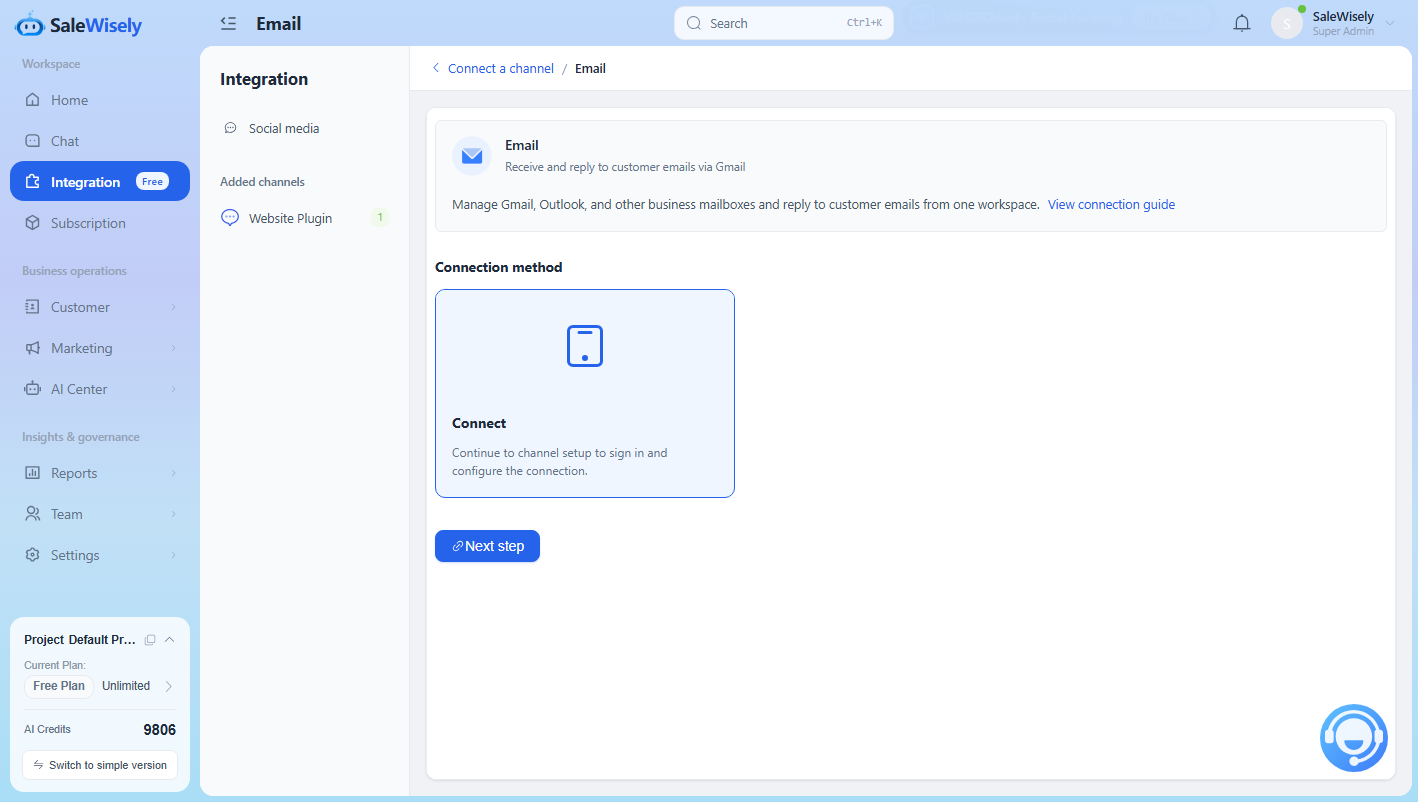
- Go to Integration and click Email.
- Click Add email.
- Select the email type, then choose official authorization.
2. Enable the account
Turn on the Enable email switch to use the account for chat replies.
Note: Email messages sync once every 5 minutes.
3. Gmail
- Select Gmail as the email type and click Connect. You will be redirected to the Google account login.
- Sign in with the Gmail account you want to use.
- On the Google confirmation screen, click Advanced, then Go to SaleWisely.
- Click Continue to sign in.
- Check both permission items and click Continue to finish the integration.
- Enable the email you just added. You can now send and receive email from Chat.
4. Alibaba business email
Alibaba business email has SMTP enabled by default. Generate a new password to sign in.
- In the email settings, click Generate new password.
- Use the generated password to add the account in SaleWisely.
If you see this error:
`
Failed to add client-specific password (error code: 80002)
`
Try setting the device language to Chinese and clicking OK. After you confirm, Alibaba mail turns off the third-party client password switch by default — turn it back on.
How to verify setup is complete
The integration works when the account is enabled in the channel list and a test email appears in your SaleWisely inbox within the 5-minute sync window.