Translation lets your team talk to customers in any language without switching tools. This article explains the per-conversation Translate switch and the workspace-wide options in Settings → System settings → Translation settings.
Tags: translation, translation engine, auto-translate, reply language, group translation
Prerequisites
- Admin access to Settings → System settings (workspace-wide options affect the whole team).
- Note: translation consumes AI credits. See AI Credits Consumption Rules.
Quick use: translate one conversation
- In Chat, open a conversation and find the Translate switch above it. Turn it on to translate incoming messages.
- Read the translated text shown under the customer's original message.
- Write your reply in a language you are comfortable with.
Warning: machine translation can get details wrong. For contracts, payments, prices, or anything high-stakes, have a person verify the wording before you send it.
Workspace-wide translation settings
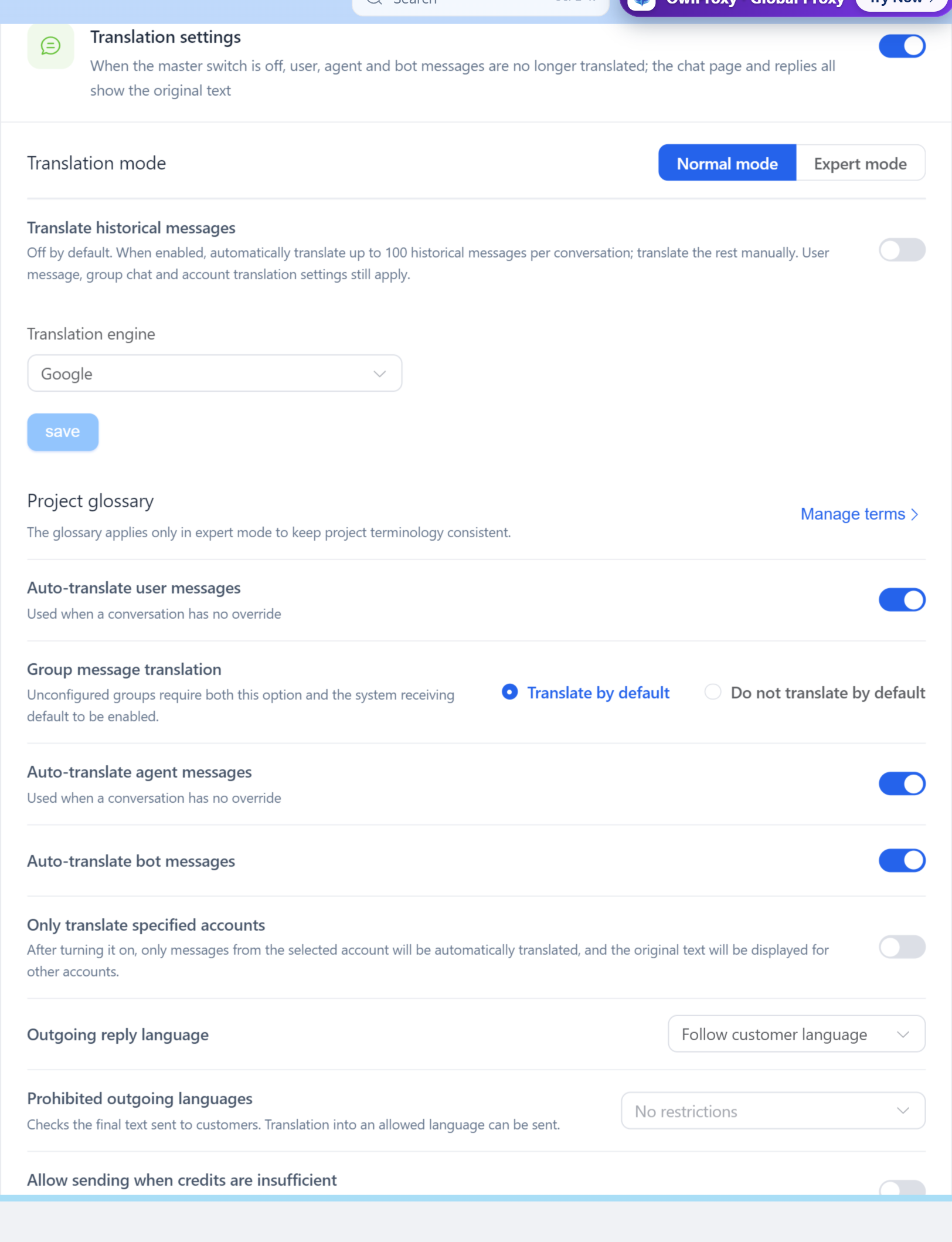
Go to Settings → System settings → Translation settings. The section includes:
Translation master
Keep Translation master on. When it is off, user, agent, and bot messages are no longer translated, and the chat page and replies show original text only.
Translate historical messages
Off by default. When enabled, the system automatically translates up to 100 historical messages per conversation; translate the rest manually. User, agent, group chat, and account translation settings still apply.
Cost note: translating historical messages can consume a large number of AI credits. See AI Credits Consumption Rules.
Translation engine
Select a Translation engine. Options in the product UI include Google, DeepL, Youdao, and AI translation with multiple models. The engine's rate affects the credit cost of each translation — see AI Credits Consumption Rules.
Auto-translate rules
Turn on Auto-translate user messages, Auto-translate agent messages, and Auto-translate bot messages as needed. These apply when a conversation has no override of its own.
Group message translation
Choose Translate by default or Do not translate by default. Groups without their own setting follow these defaults; both this option and the account-level default need to be on for group messages to be translated.
Limit translation to selected accounts
Turn on Only translate specified accounts if you want automatic translation limited to selected accounts; other accounts will show the original text.
Outgoing reply language
Set Outgoing reply language to Follow customer language or choose a fixed language. Then click Save to apply.
How to verify your settings
After saving, reload the page and confirm the switches stayed where you set them. Open a conversation in another language and check whether the translation appears under the original message and which engine's output is shown.