Connecting a Messenger personal account lets you manage Messenger direct messages from SaleWisely. This channel uses a cloud device login flow.
Tags: Messenger, personal account, cloud device, proxy, direct messages
Prerequisites
- A working Messenger account you can log in to.
- A proxy IP is strongly recommended.
Steps
1. Open the Messenger personal integration
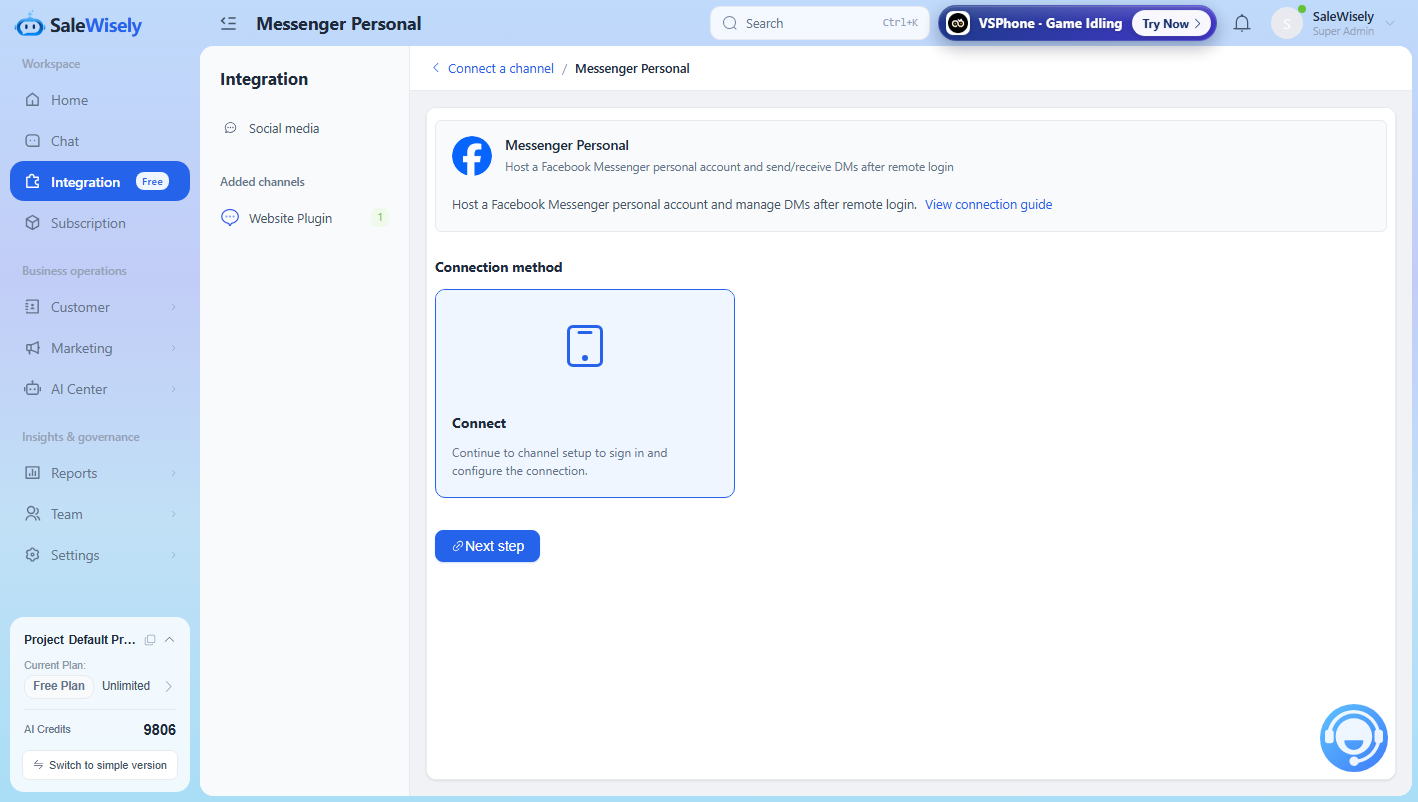
Go to Integration and click Messenger Personal, then click Add device.
2. Bind a proxy IP
To avoid risk flags from logging in at a different location, configure a proxy you normally use, then click Check and deploy.
Warning: Without a proxy IP, you can choose Direct connection, which uses the default Hong Kong IP and may trigger a location risk warning.
3. Log in to Messenger in the cloud browser
- When the environment status changes to Logging in, click Log in.
- Enter your Messenger credentials in the cloud browser.
- After a successful cloud login, click Confirmed logged in.
Tip: To paste into the cloud browser, copy the text first, then press Ctrl+V.
4. Start messaging
When the status shows online, you can send and receive Messenger direct messages in Chat.
How to verify setup is complete
The channel works when the account status shows online and a test Messenger message appears in your SaleWisely inbox.